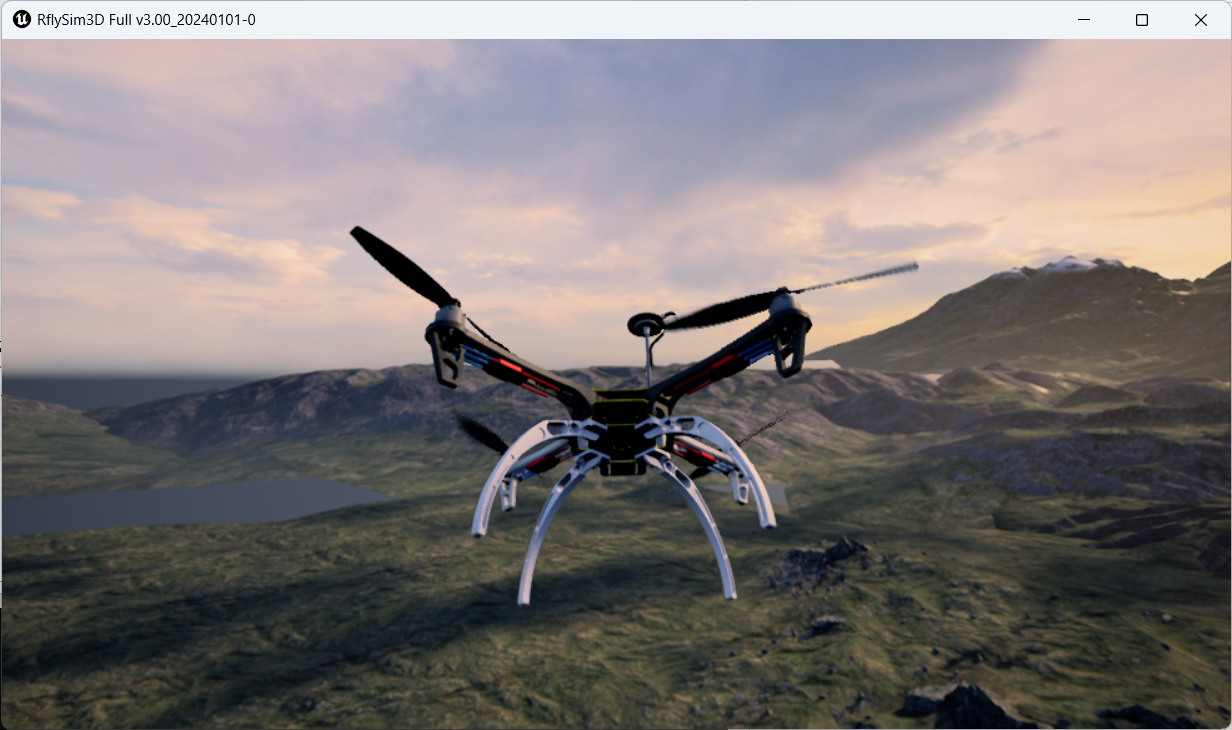
Toolchain Long-Term Support for Flight Controller Introduction 
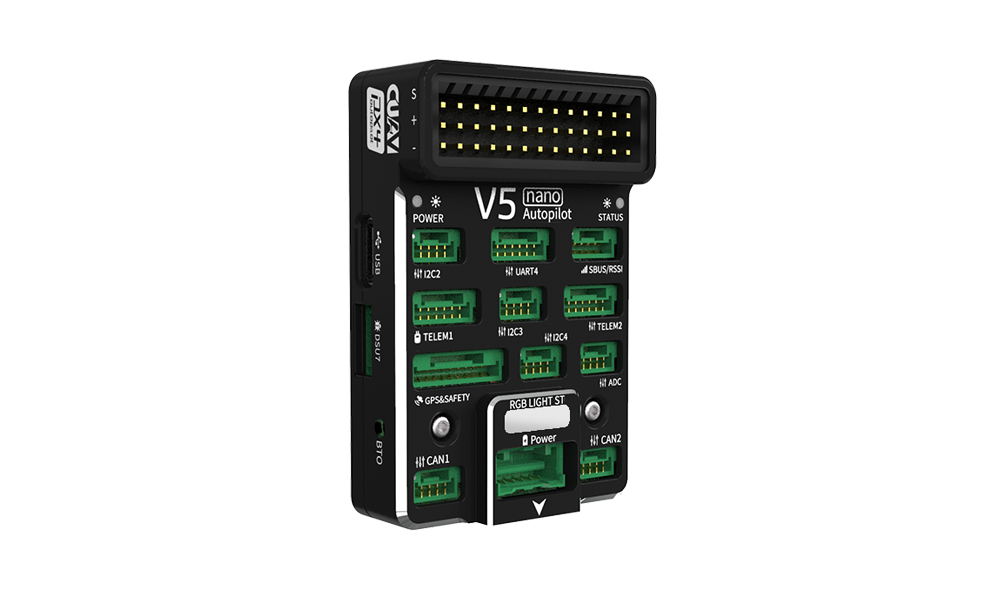
1. CUAV V5 nano
The V5 nano® is an autopilot designed by CUAV® in collaboration with the PX4 team, specifically for enterprises or enthusiasts with stringent space constraints who still desire the powerful capabilities of the V5 series. Its design is based on the Pixhawk FMUv5 standard and is fully compatible with PX4 and ArduPilot firmware. Although the V5 nano is physically smaller than the V5 Autopilot, its performance remains uncompromised: it is equipped with a high-performance STM32F765 processor and features four sets of fully isolated interface protection chips, effectively preventing electrostatic discharge damage and main controller damage due to IO voltage level incompatibility. For more information, please visit: https://www.cuav.net/v5-nano/.
2. RflySim Configuration
Use the software installation and configuration shown in the figure below, and the hardware connection configuration shown in the lower-right figure.
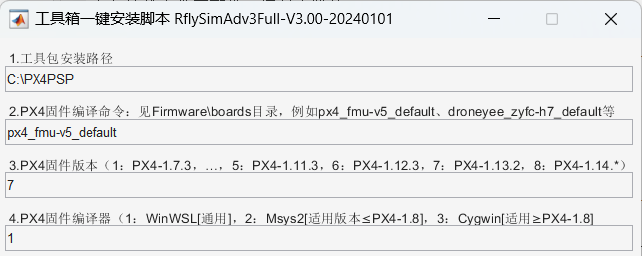
- Use the px4_fmu-v5_default compilation command.
- Use "7": PX4 1.13.2 firmware.
- Use "1": WinWSL compiler.
3. Official Firmware and Restoration
Open QGC Ground Station and navigate to the following interface.
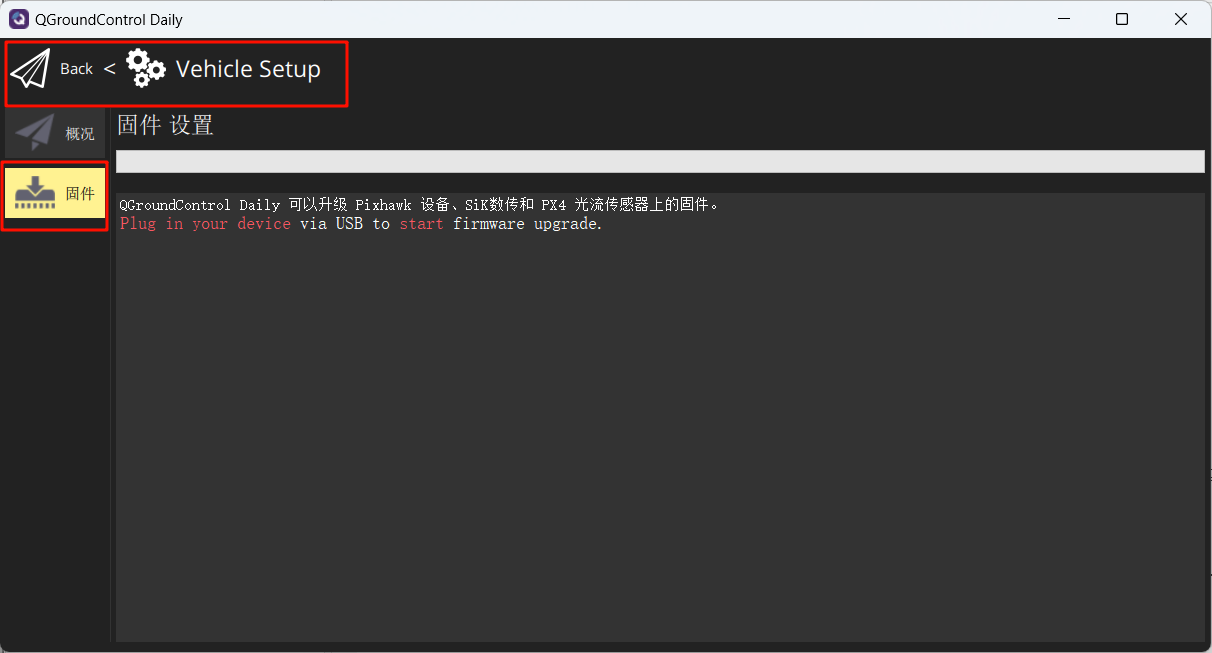
Connect the flight controller to your computer. In the pop-up interface, make the following selection and select the firmware to flash: px4_fmu-v5_default.px4
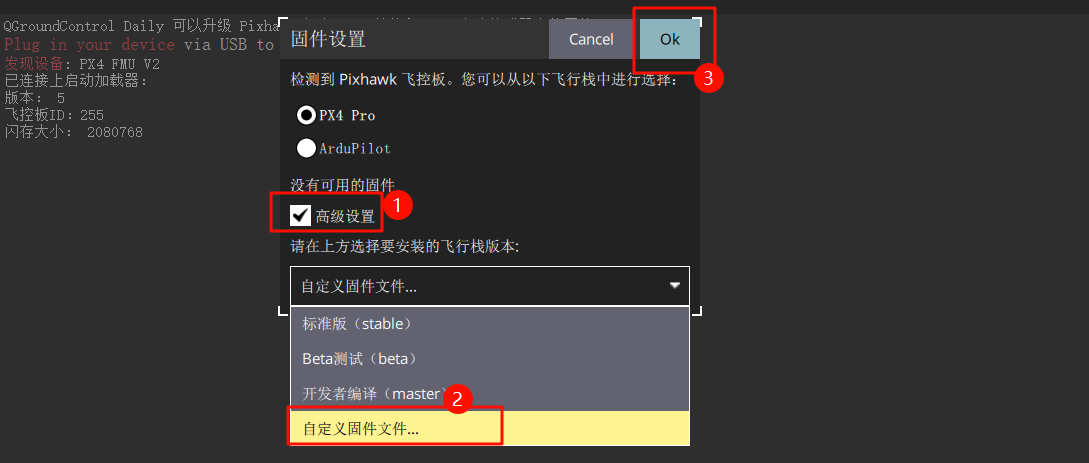
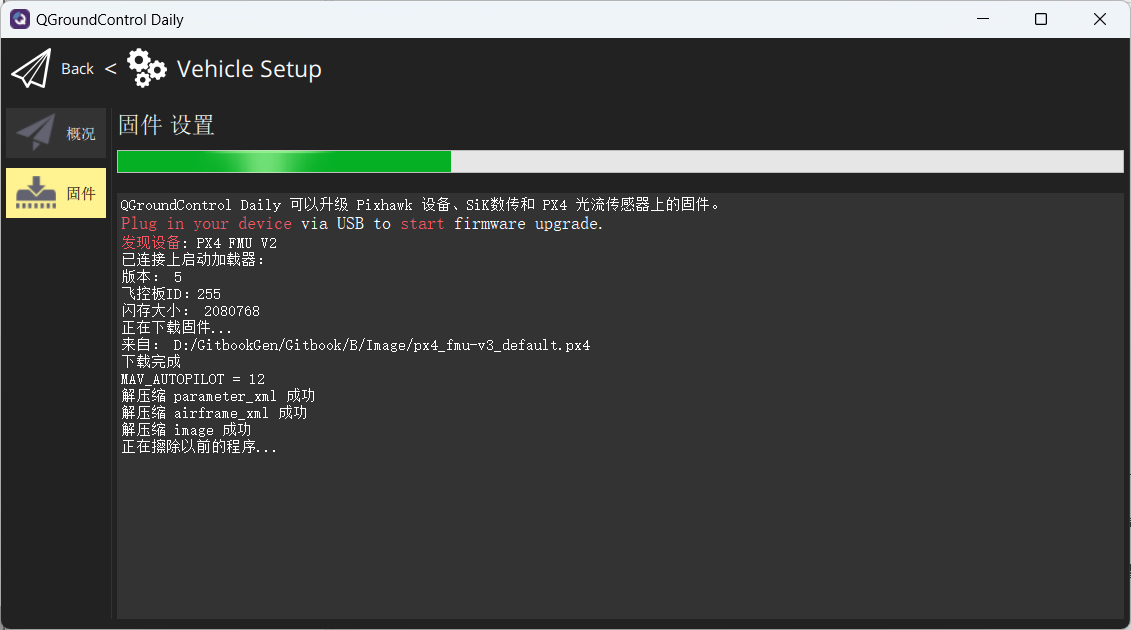
Wait for the firmware flashing process to complete.
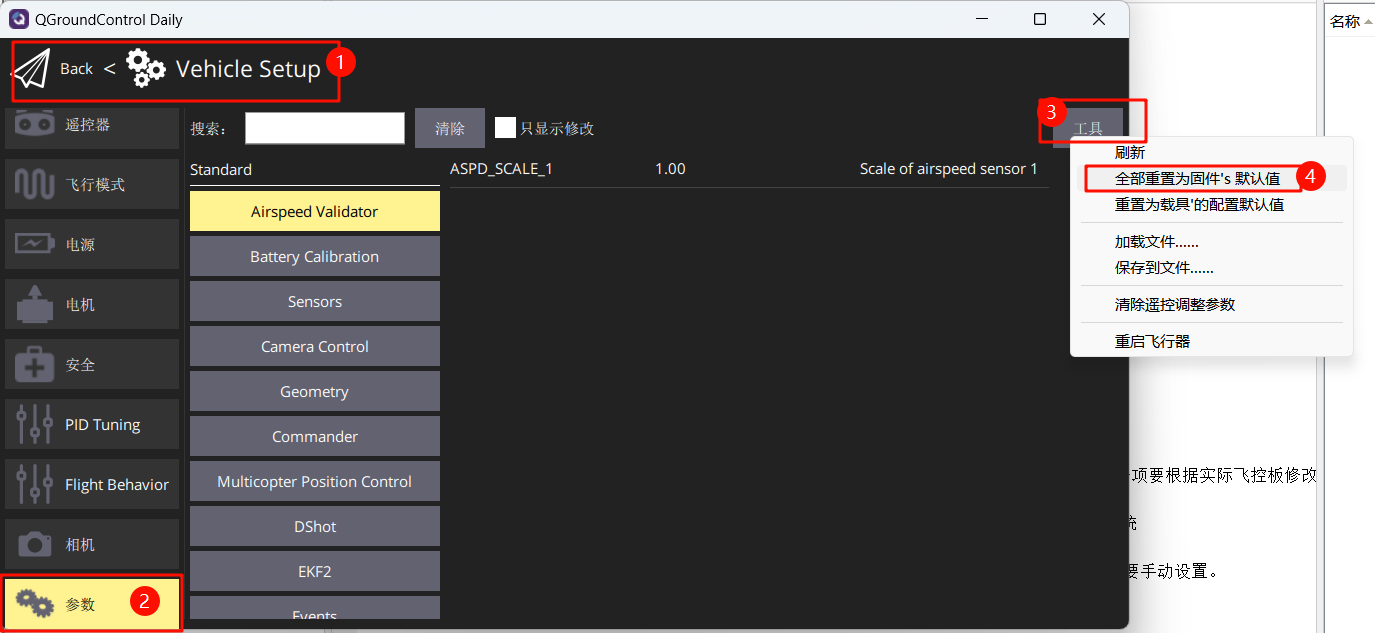
Restore flight controller parameters to the firmware defaults.
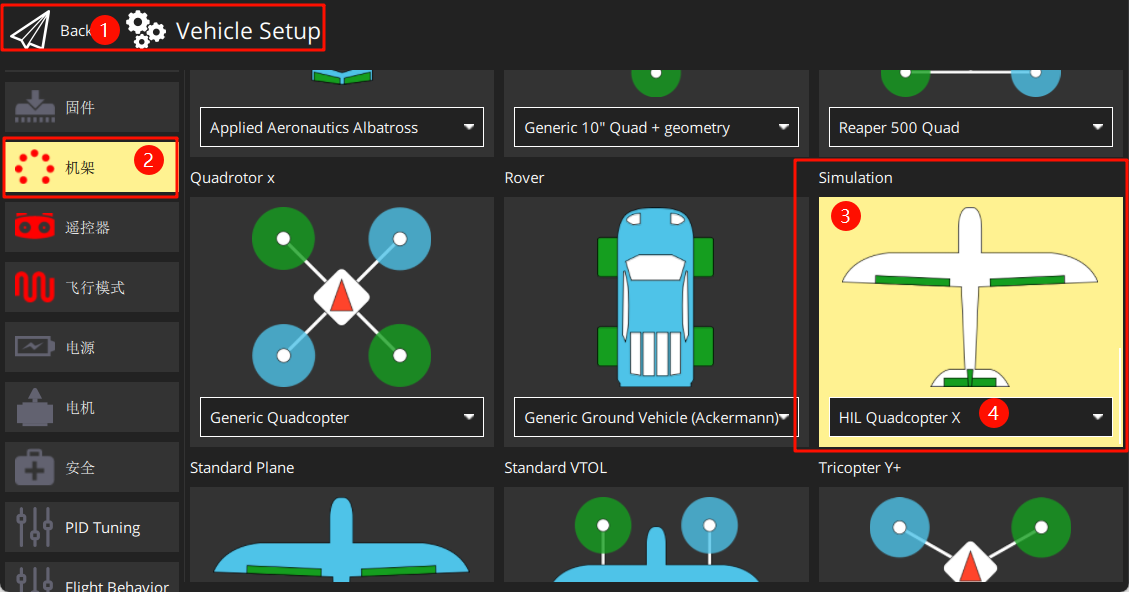
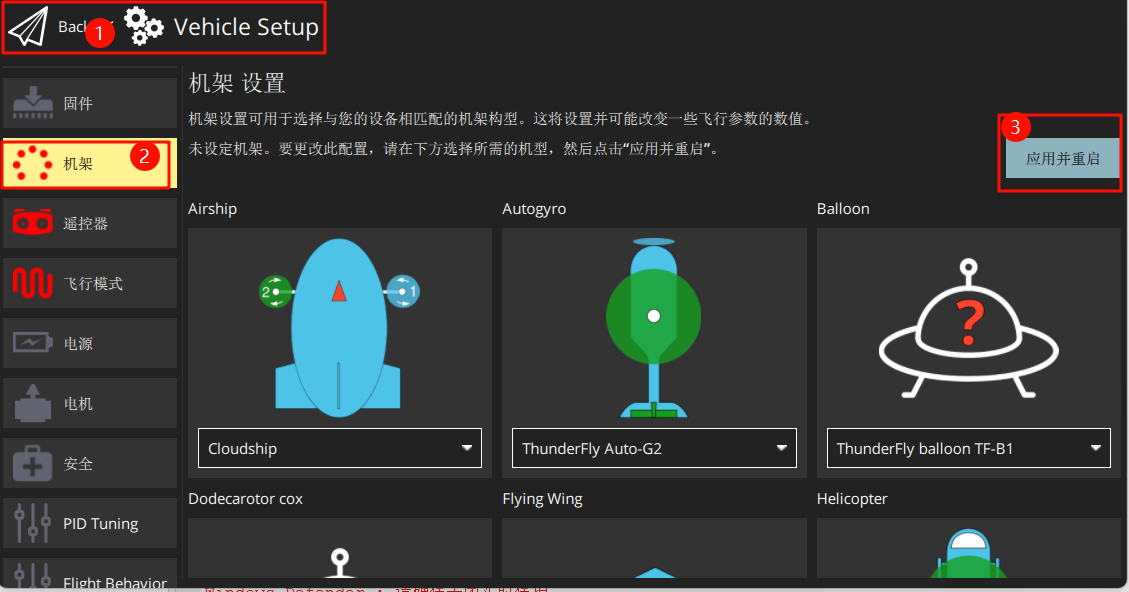
Set the airframe to HIL Quadcopter X, scroll to the top, and click "Apply and Restart". Wait for the restart to complete.
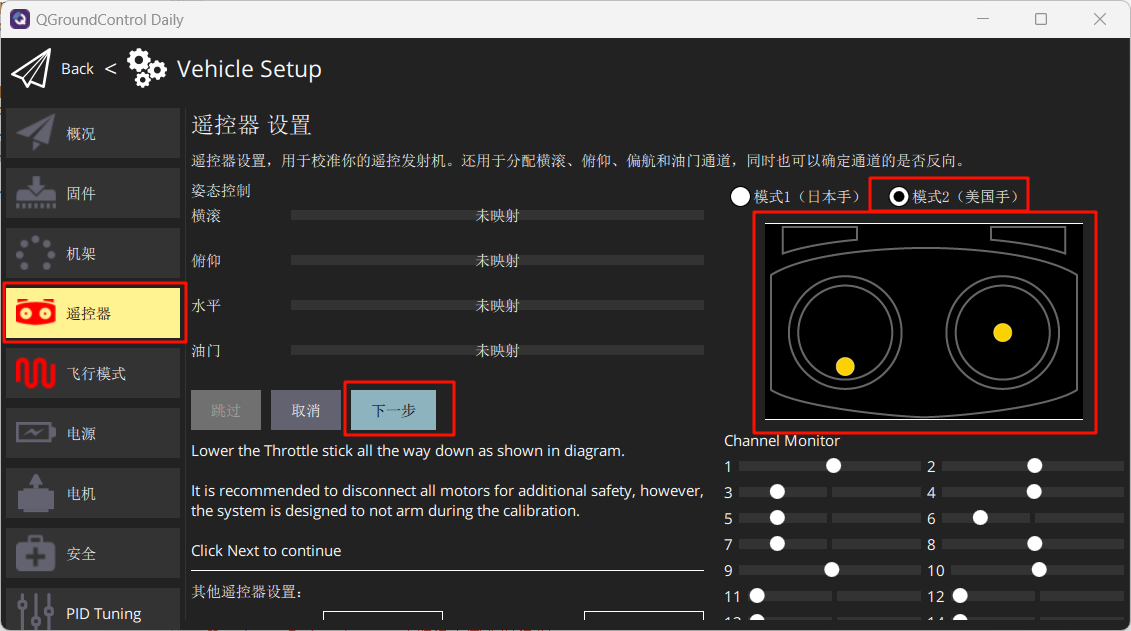
Connect the remote control receiver (note the wiring sequence) and power on the remote control. Calibrate the remote control as shown.
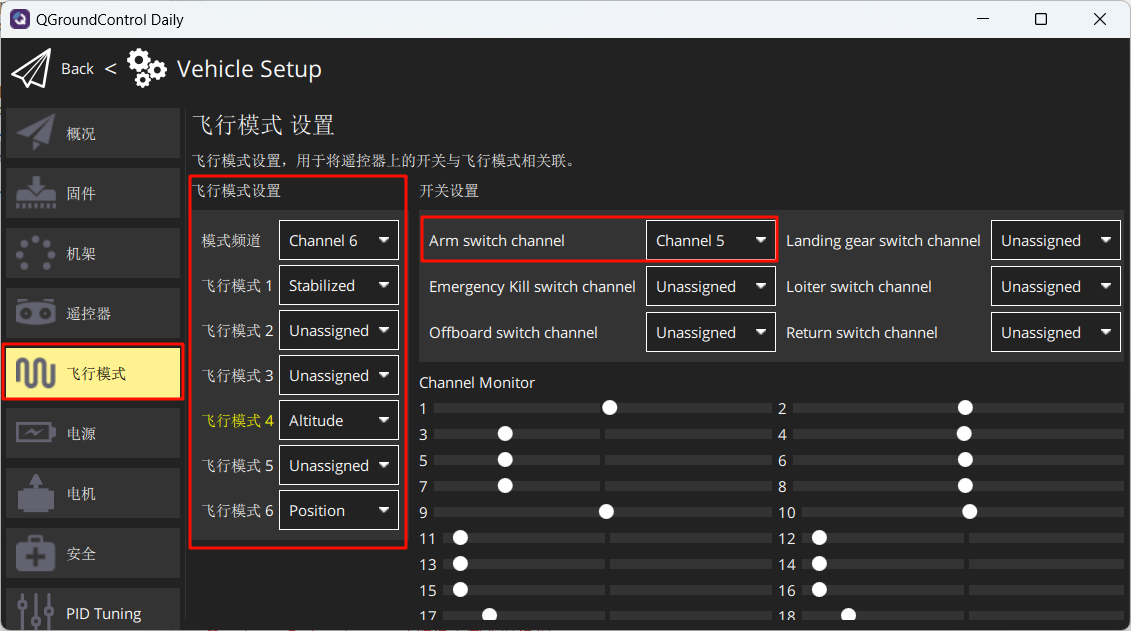
Set flight modes as shown below.
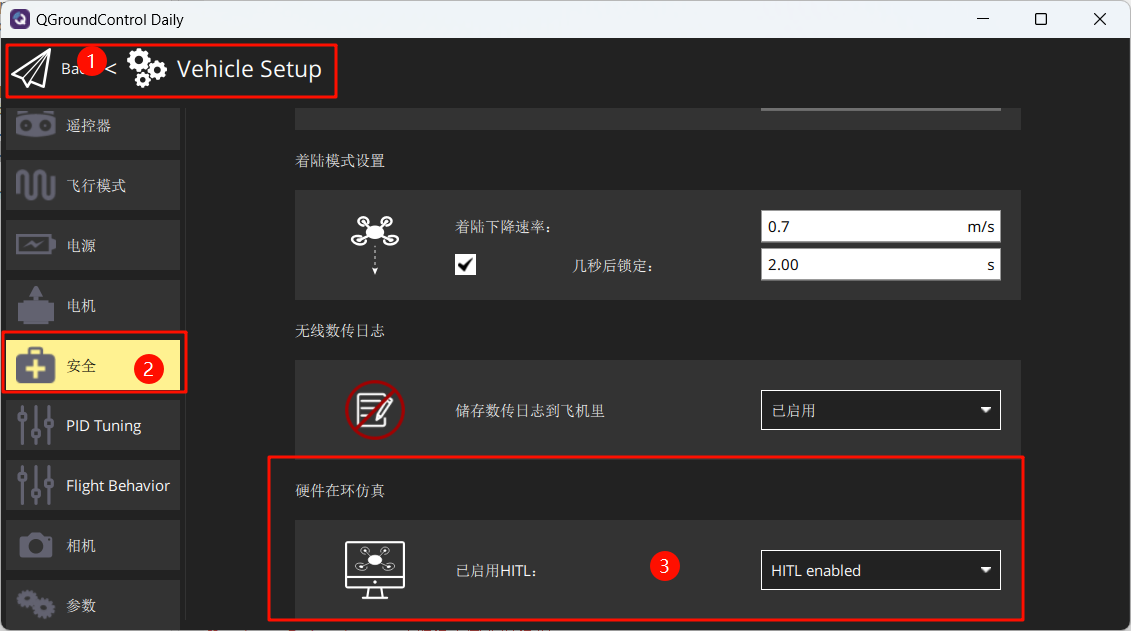
Under the Safety section, enable only Hardware-in-the-Loop (HIL) simulation.
4. Launch Hardware-in-the-Loop (HIL) Simulation
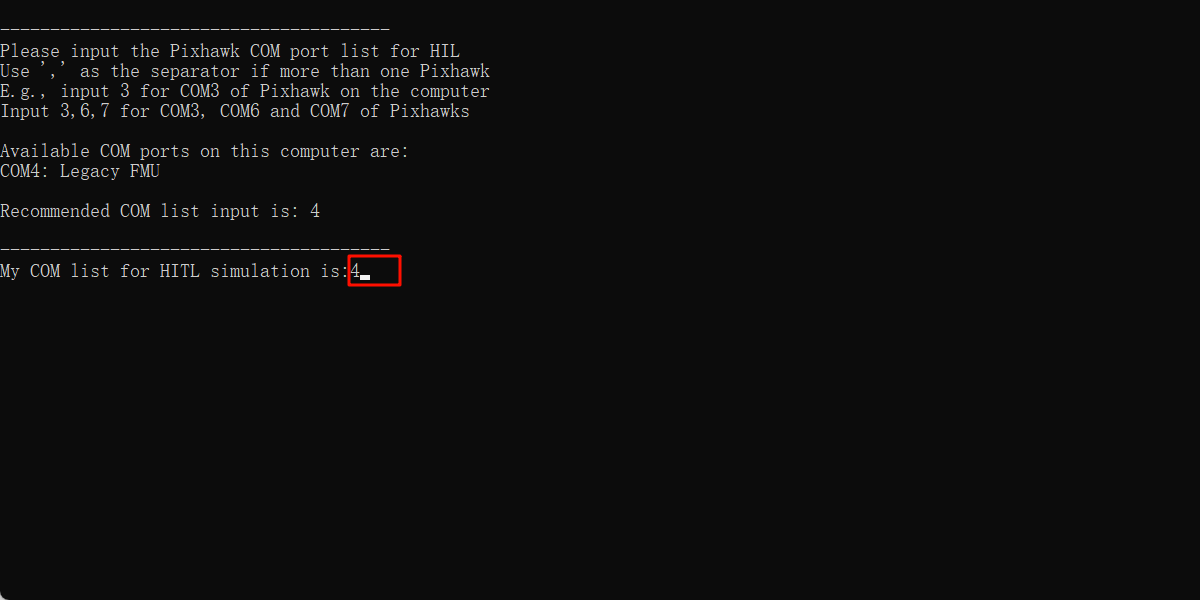
After completing the above settings, close QGC. Run the "[安装目录]\桌面\RflyTools\HITLRun.lnk" script as an administrator. In the pop-up cmd dialog box, enter the flight controller's port number (e.g., 4).
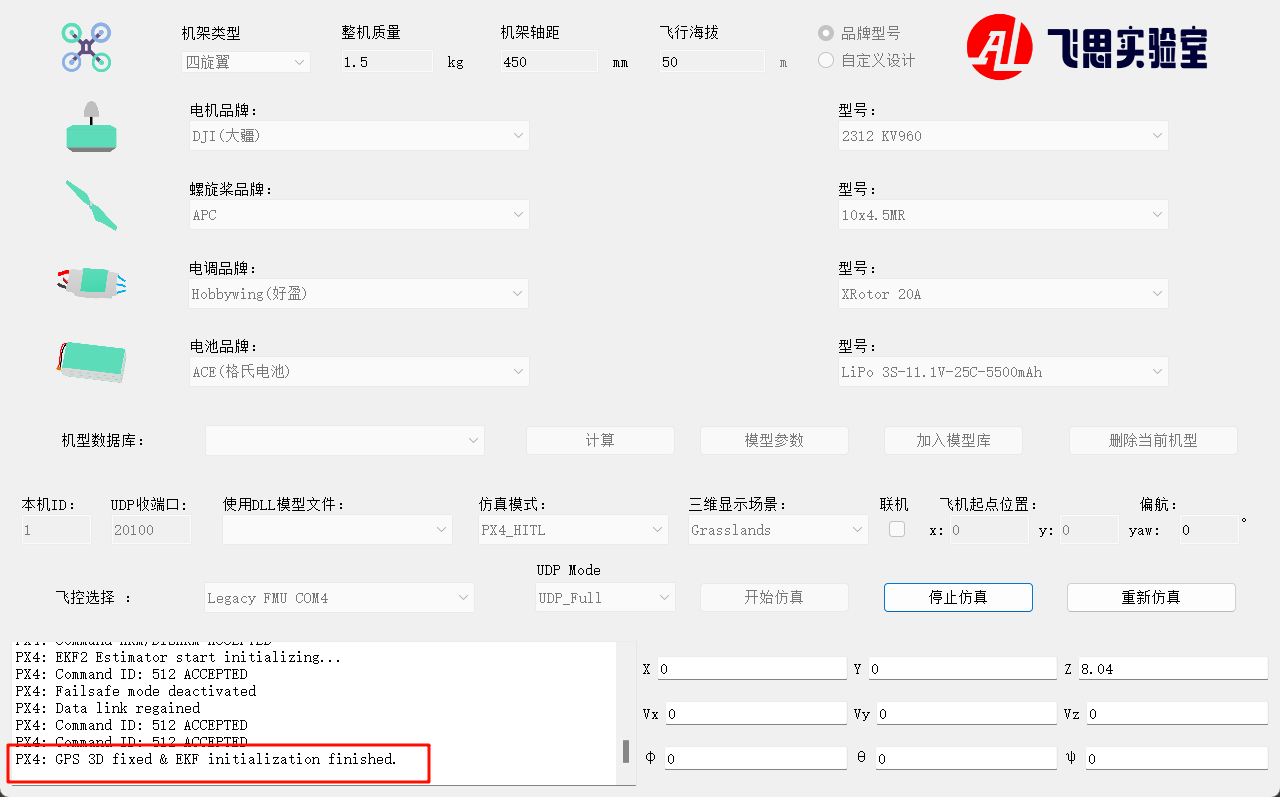
Wait until the bottom-left corner of CopterSim displays: PX4: GPS 3D fixed & EKF initialization finished.
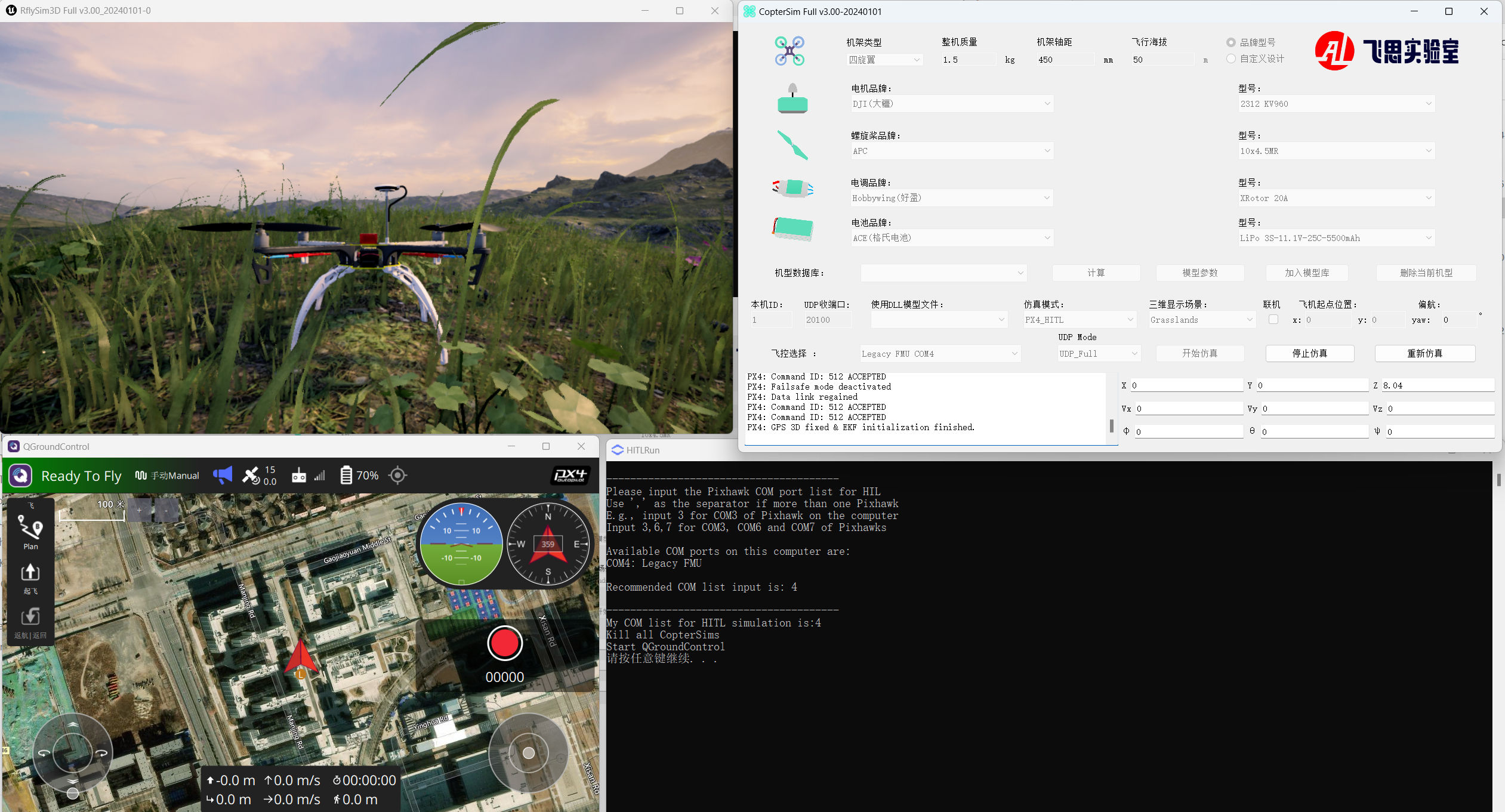
Arm the aircraft using channel CH5 on the remote control, then take off and control the aircraft in flight.