Toolchain Long-Term Support Flight Controller Introduction
1. ZY_Racer
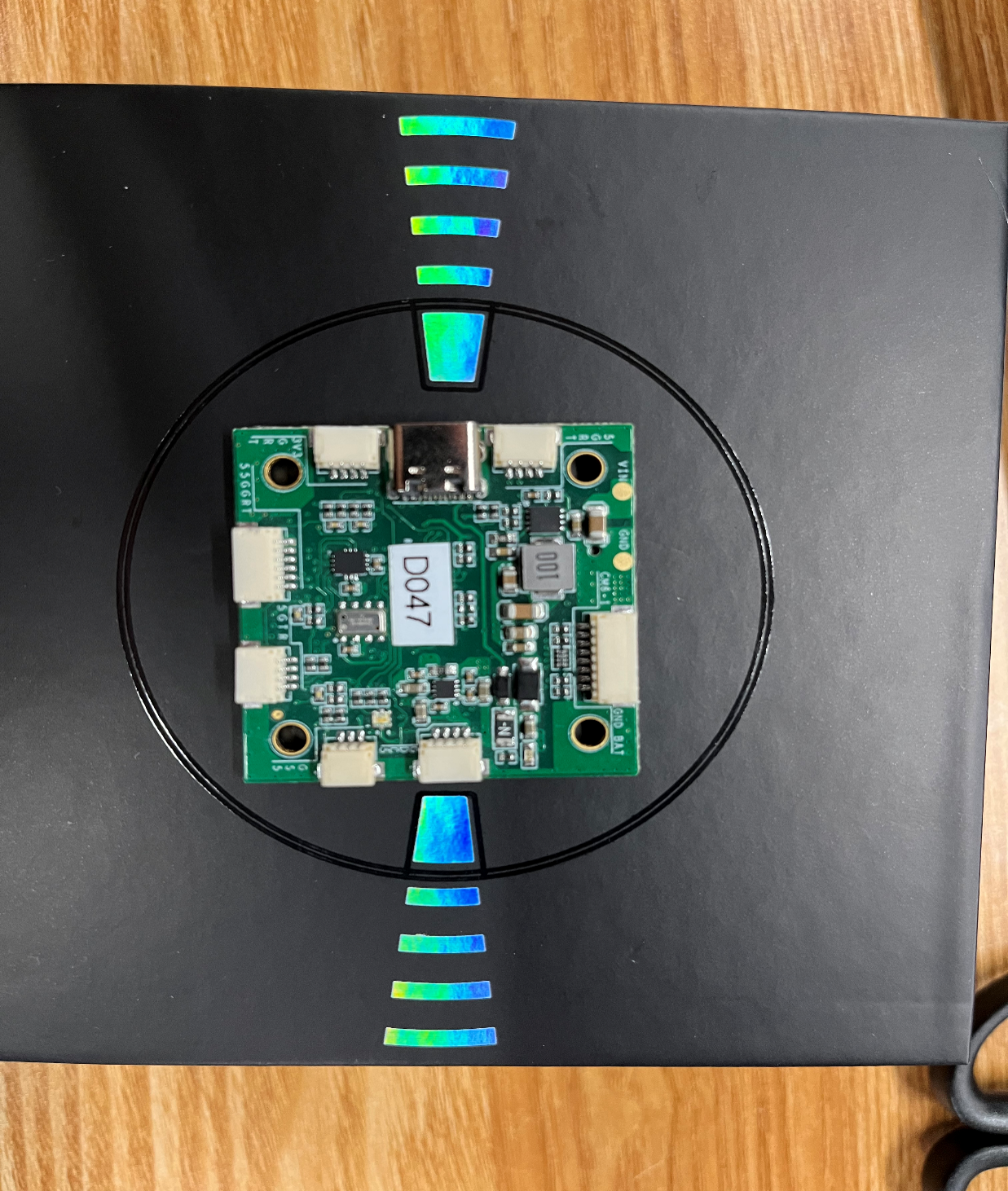
The Racer flight controller is a drone flight controller developed by Beijing Zhuoying Intelligent Technology Co., Ltd., based on the PX4 open-source flight control architecture. It features high reliability, strong performance, and stable operation. It integrates a 3-axis gyroscope, 3-axis accelerometer, barometer, and other sensors, supports SD card flight data logging, and provides open-source code for secondary development. It supports multiple unmanned platforms, including quadcopters, fixed-wing aircraft, vertical takeoff and landing drones, ground vehicles, and unmanned boats. An integrated power module allows direct battery power supply, reducing wiring and greatly improving flight reliability.
2.RflySim Configuration
If using the Zhuoying Racer flight controller hardware (corresponding firmware: droneyee_zyfc-h7_default), it is recommended to use the software installation and configuration shown in the figure below.
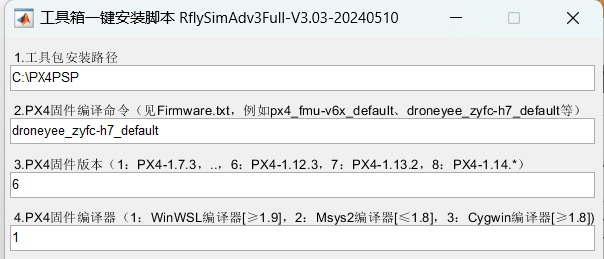
- Use the droneyee_zyfc-h7_default compilation command
- Use “6”: PX4 1.12.3 firmware version
- Use “1”: WinWSL compiler
3. Restore Official Firmware
Open QGroundControl (QGC) and navigate to the following interface.
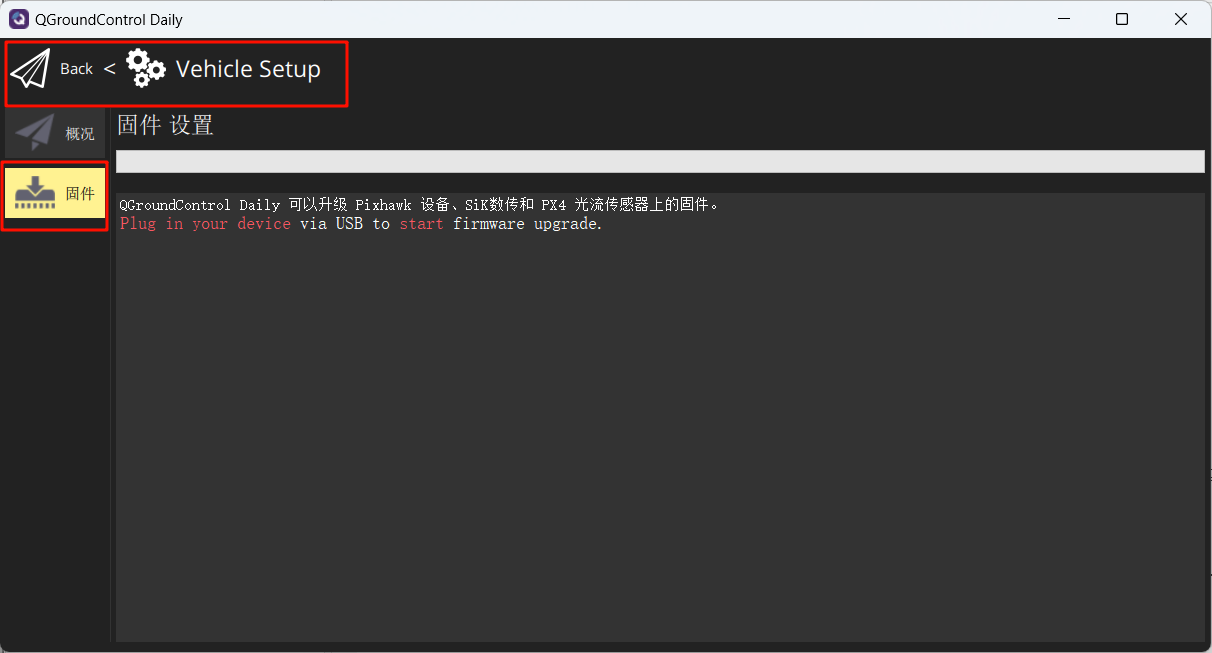
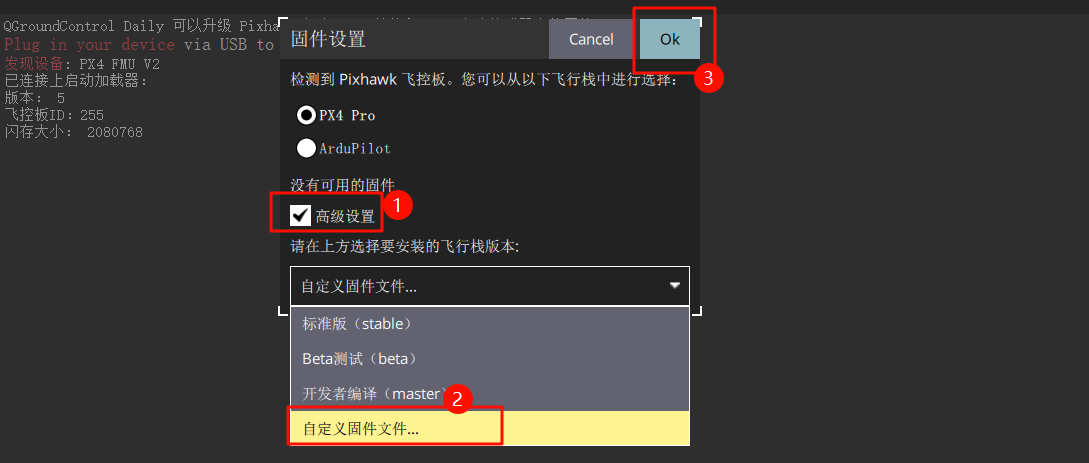
Connect the flight controller to the computer, and in the pop-up interface, select the following option to flash the firmware: droneyee_zyfc-h7_default.px4
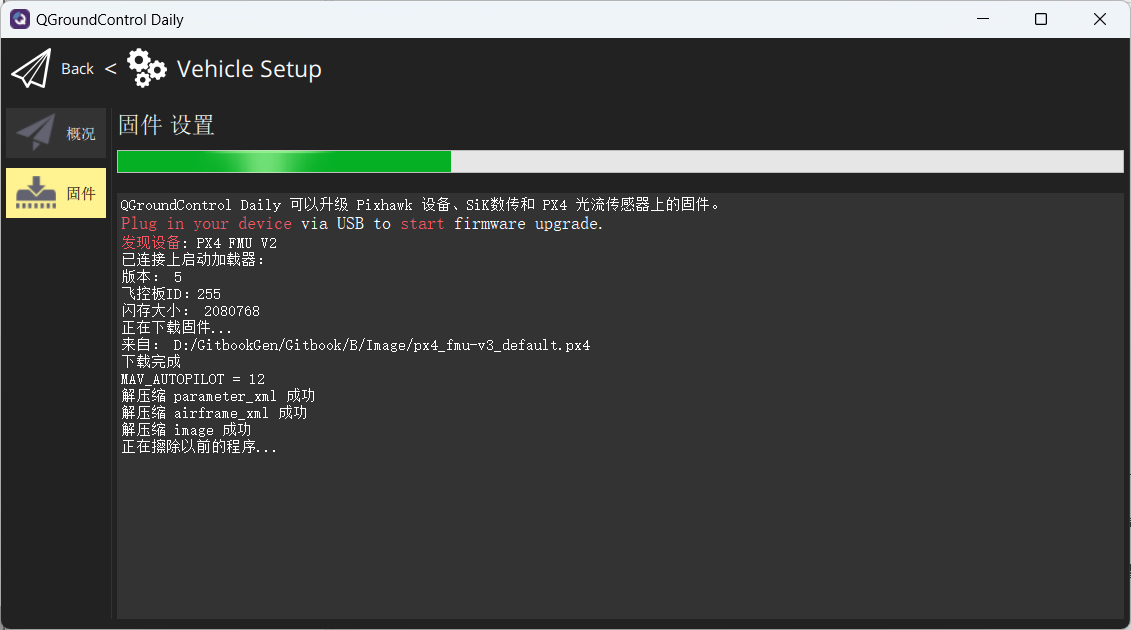
Wait for the firmware flashing to complete.
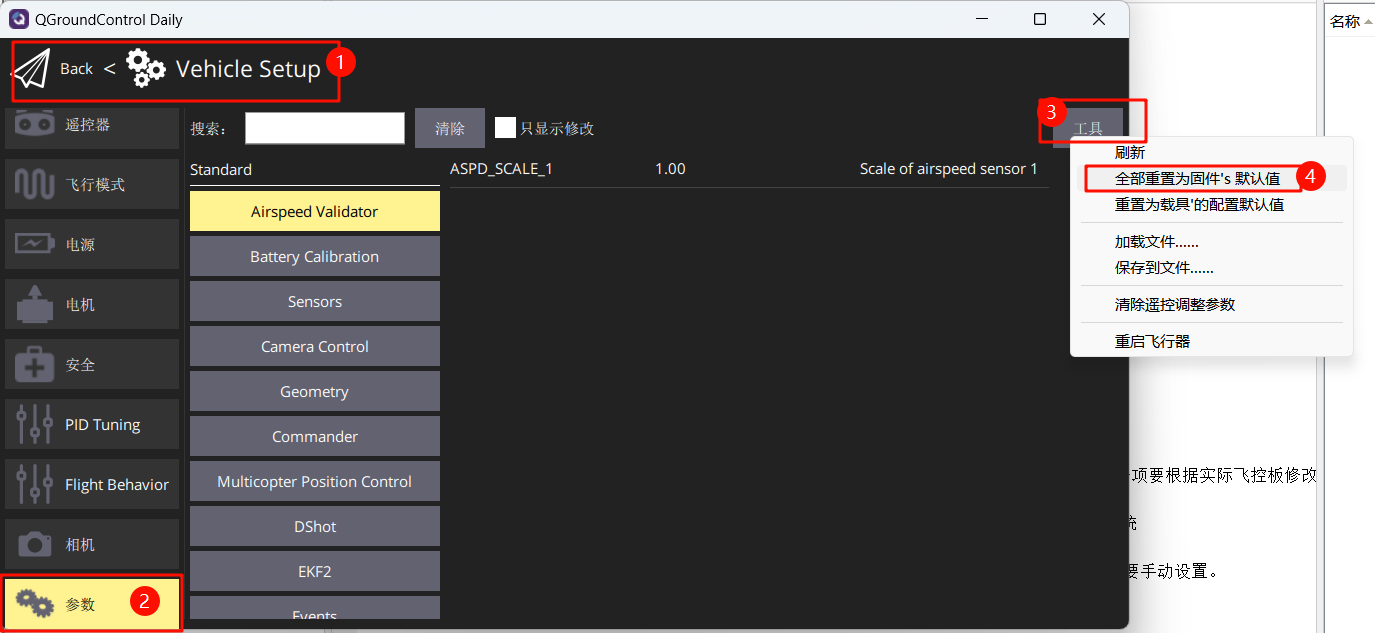
Reset the flight controller parameters to the firmware's default values.
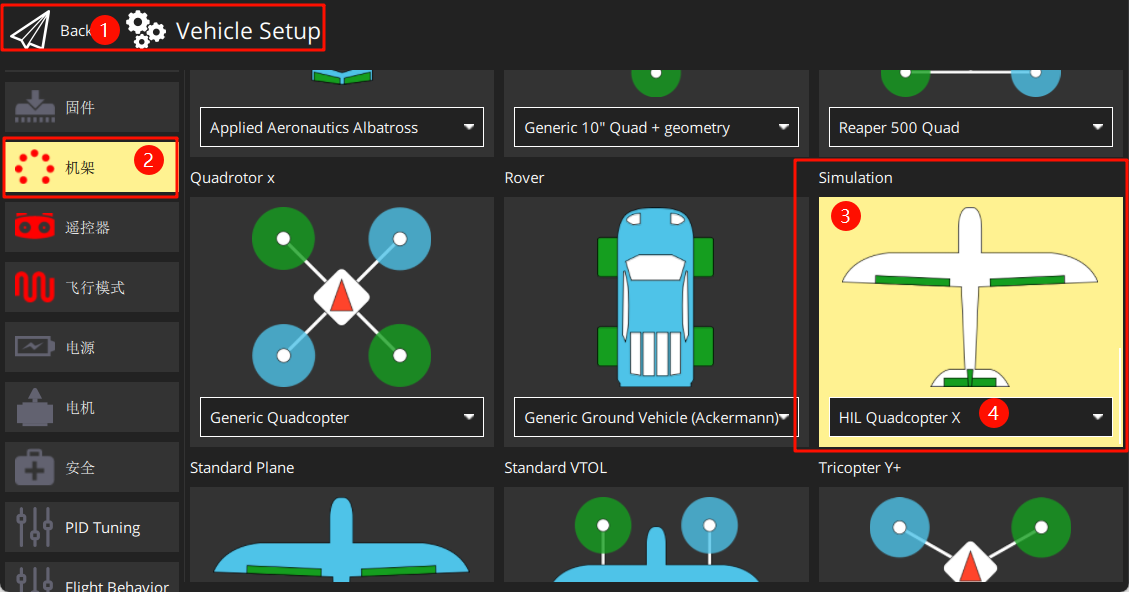
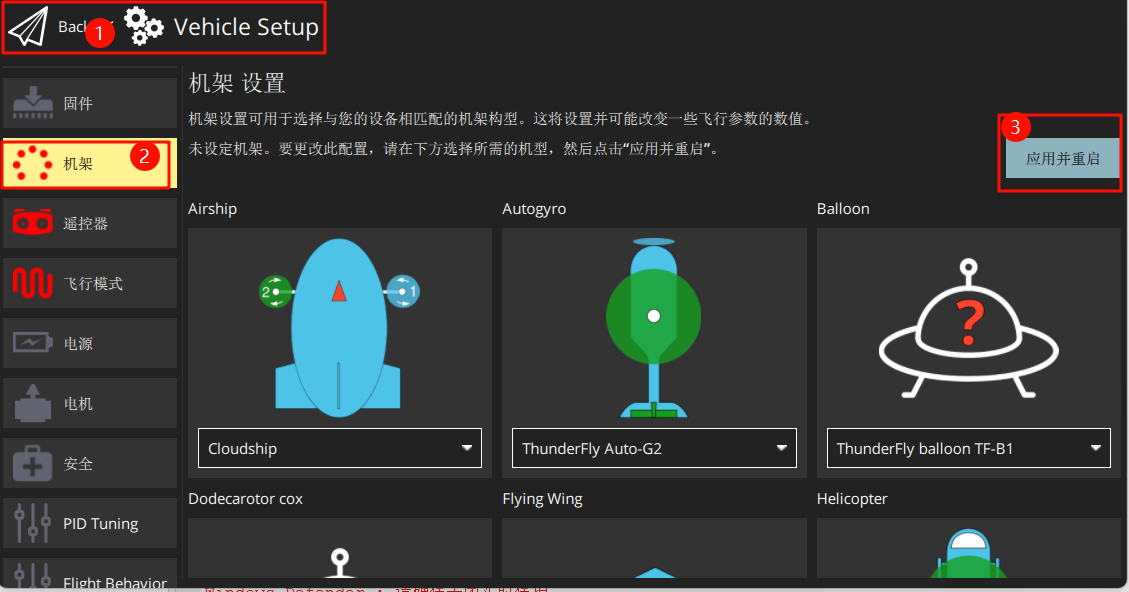
Set the airframe to HIL Quadcopter X, scroll to the top, and click “Apply and Restart”. Wait for the restart to complete.
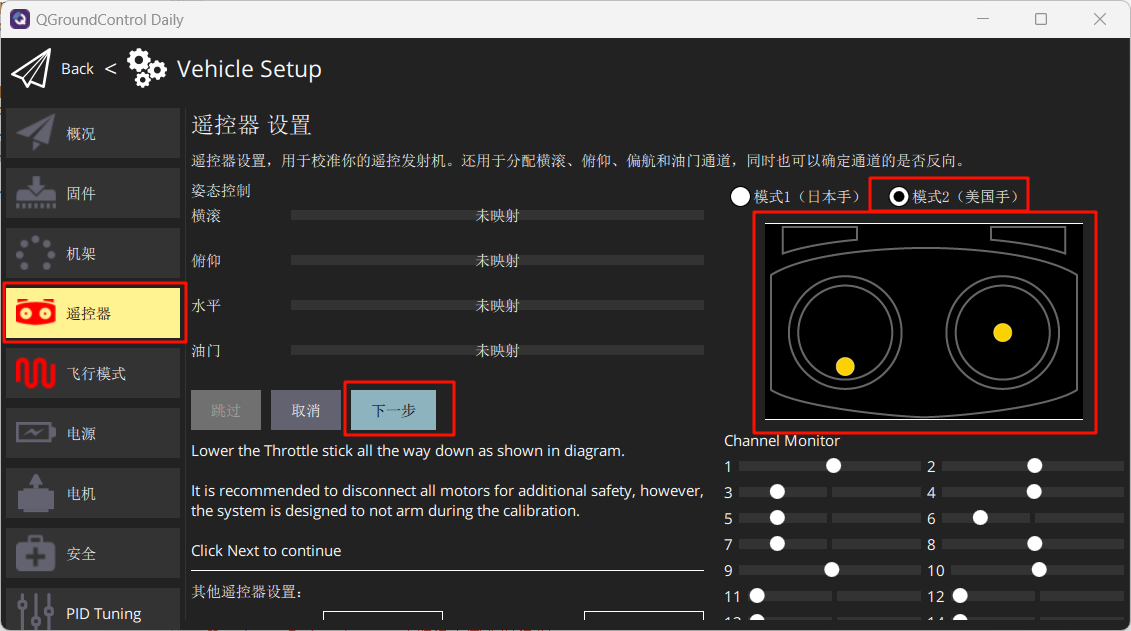
Connect the RC receiver (note the wiring sequence) and power on the remote controller. Calibrate the remote controller as shown in the figure.
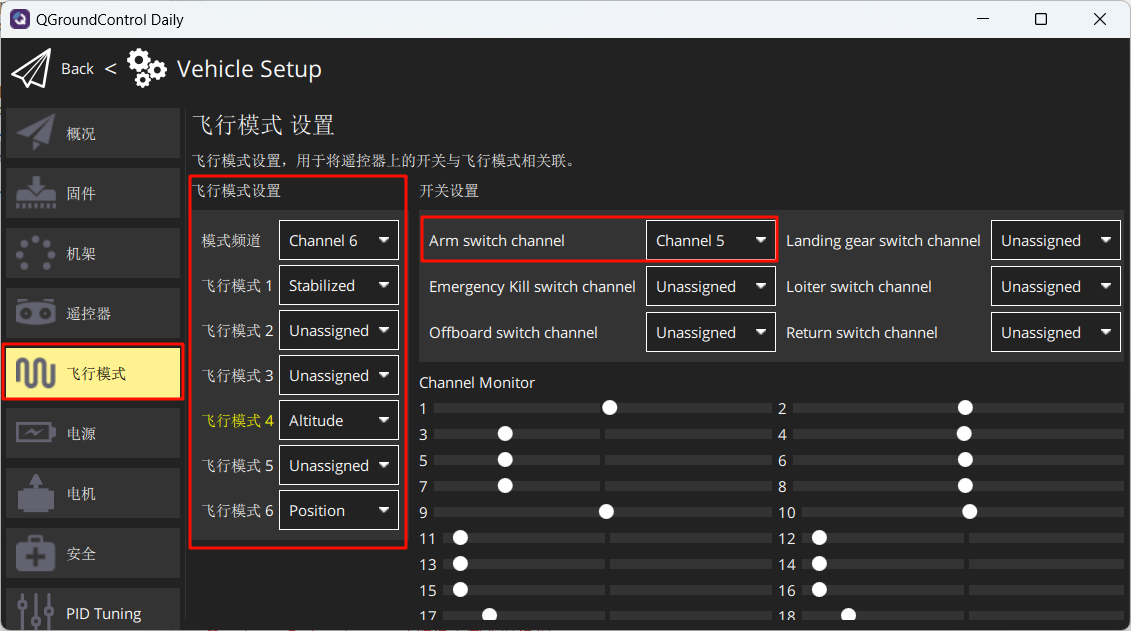
Set the flight modes as shown below.
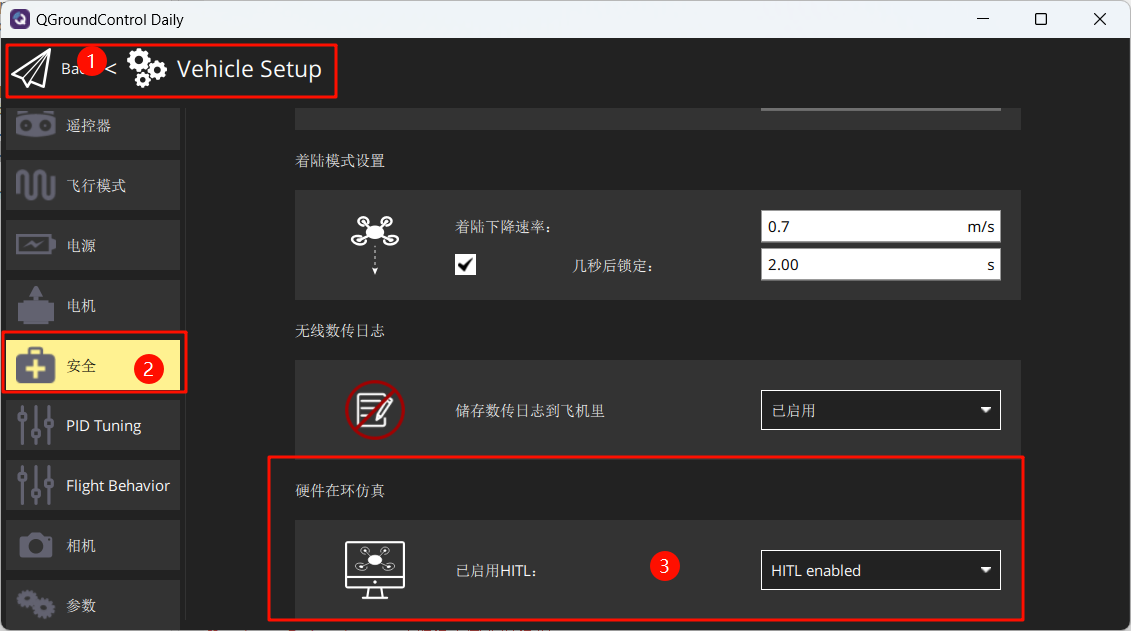
 In the Safety settings, enable only Hardware-in-the-Loop (HIL) simulation.
4. Start Hardware-in-the-Loop (HIL) Simulation
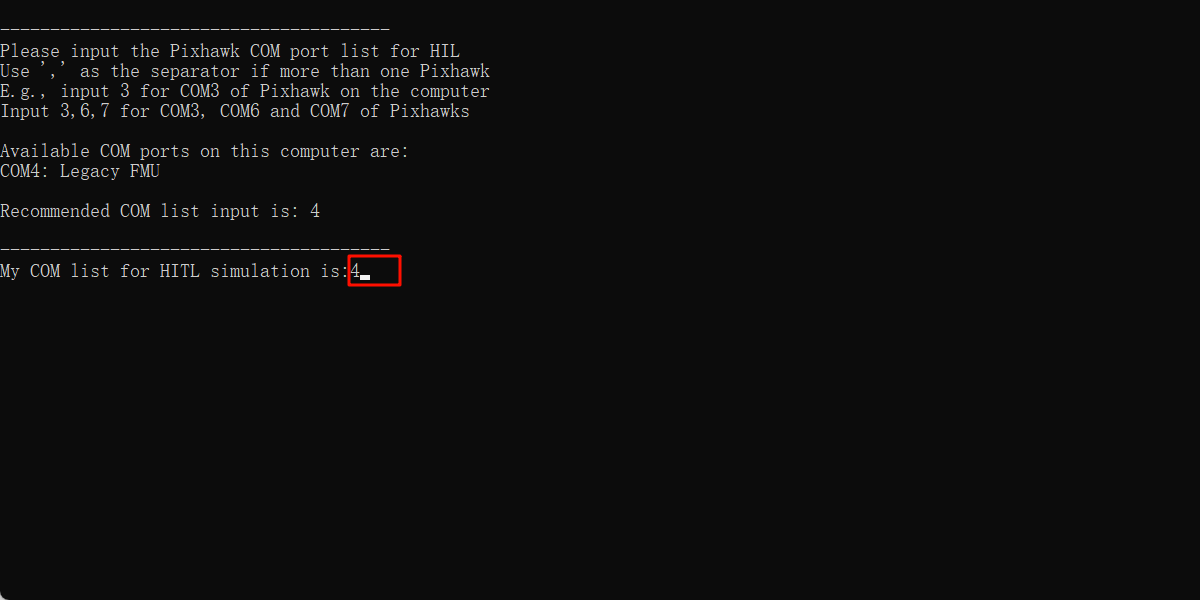
After completing the above settings, close QGC. Run the "[Installation Directory]\Desktop\RflyTools\HITLRun.lnk" script as Administrator. In the
pop-up cmd dialog box, enter the flight controller's port number (e.g., 4).
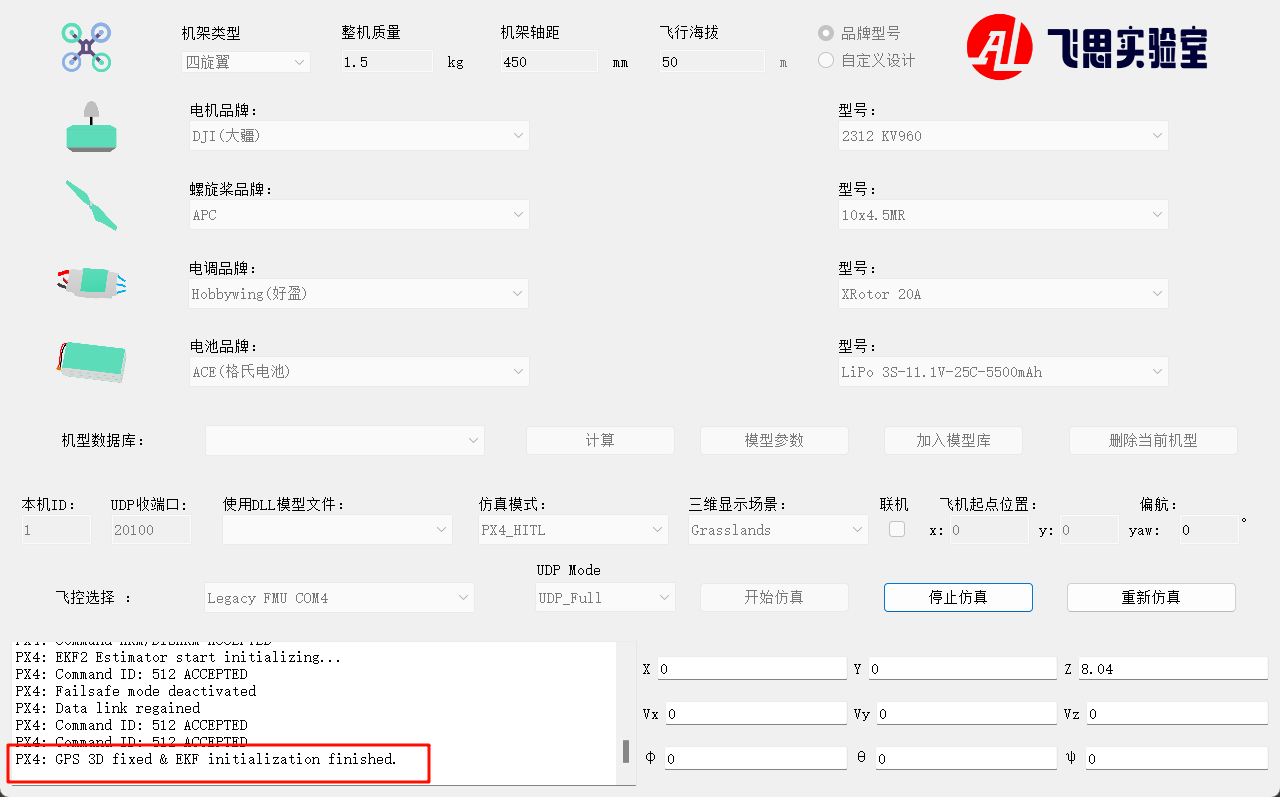
Wait until the bottom-left corner of CopterSim displays: PX4: GPS 3D fixed & EKF initialization finished.
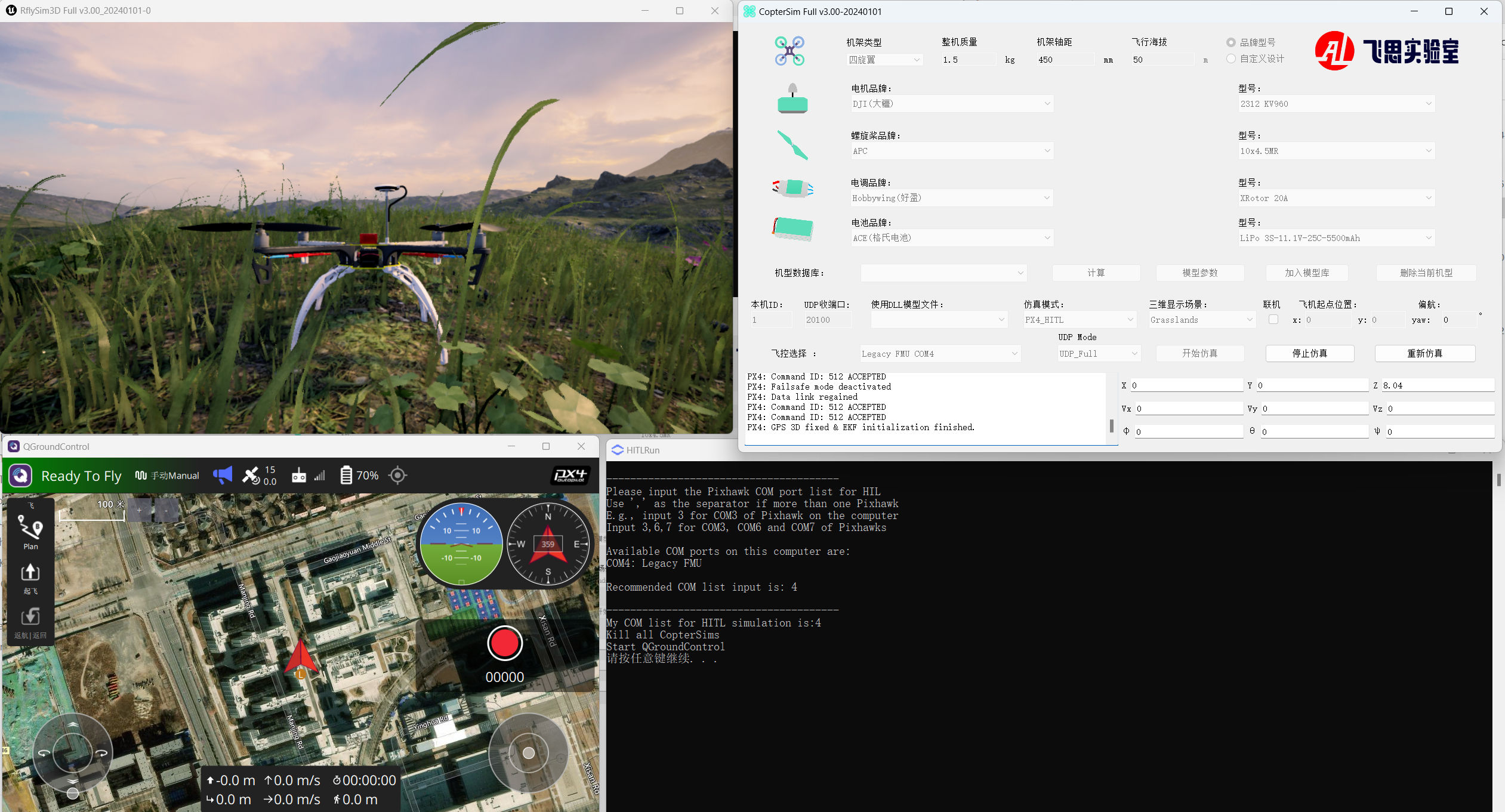
Arm the aircraft via the CH5 channel on the remote controller, then take off and control the aircraft flight.