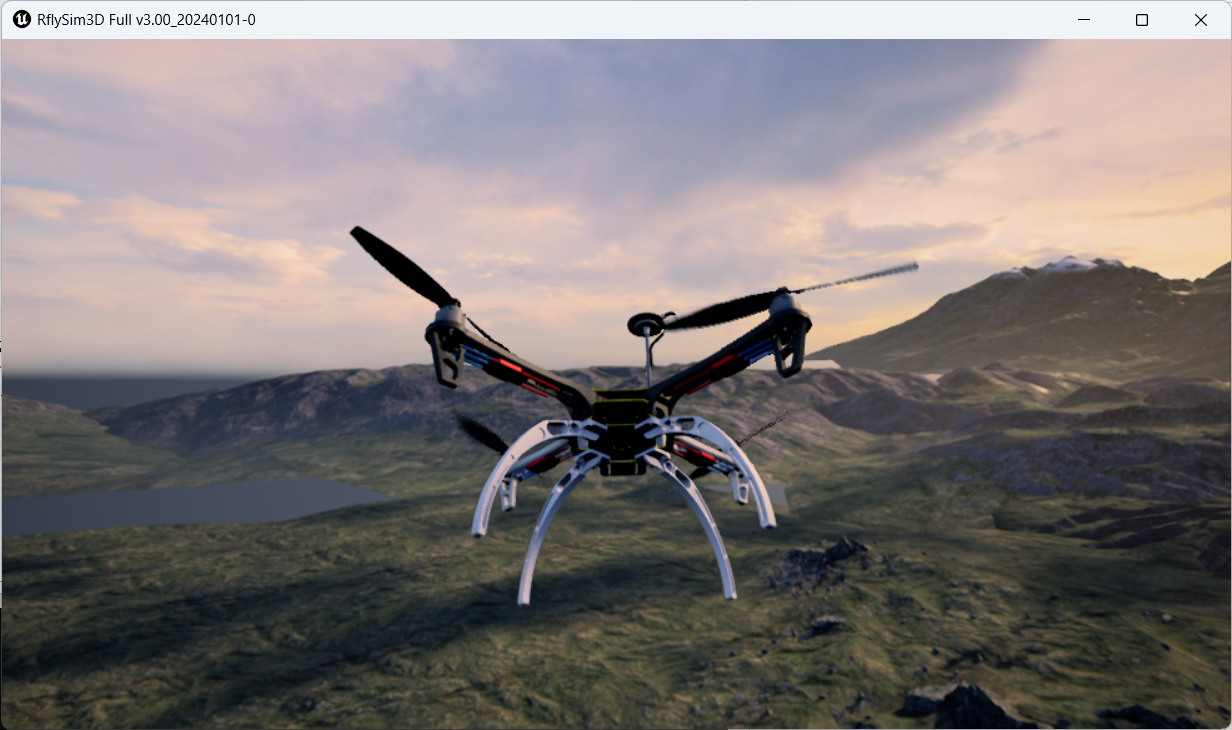
Toolchain Long-Term Support for Flight Controller Introduction 
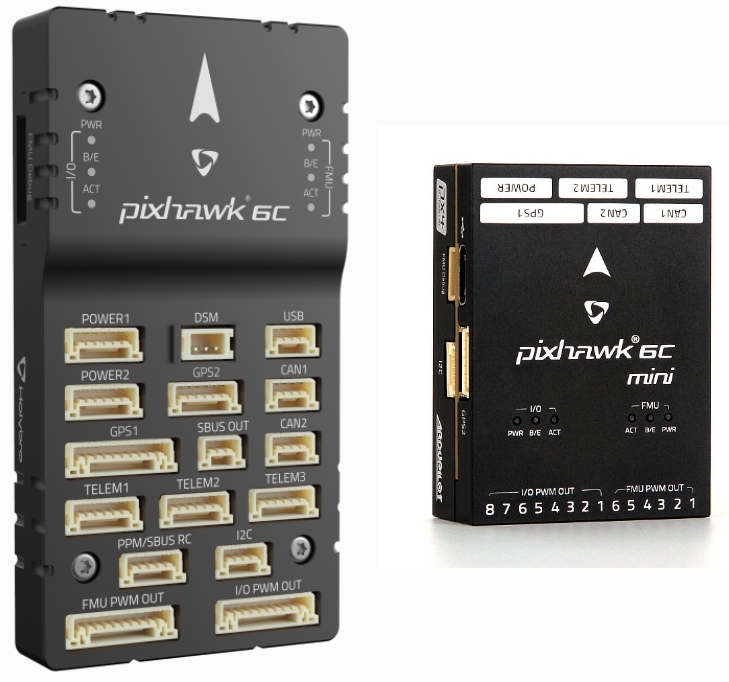
1. Pixhawk 6C & 6C mini
The Pixhawk 6C is the latest upgrade in Holybro's successful Pixhawk® (flight) controller series, featuring STM32H7 CPUs, IMU vibration isolation, redundant IMUs, and IMU heating functionality. It comes in two form factors. The 6C Mini has a reduced size with built-in PWM motor/servo headers, but slightly fewer ports. Its features include:
- High-performance STM32H743 processor, offering stronger computational capability and larger memory
- A new high-cost-performance design with a compact form factor
- A newly designed integrated vibration isolation system that filters high-frequency vibrations and reduces noise, ensuring accurate readings
- IMU temperature control via onboard heating resistors, keeping the IMU at its optimal operating temperature
2. RflySim Configuration
If using the Pixhawk 6X flight controller hardware, the recommended software installation and configuration is shown in the figure below; the hardware connection configuration is identical to that of the Pixhawk 2.4.8.
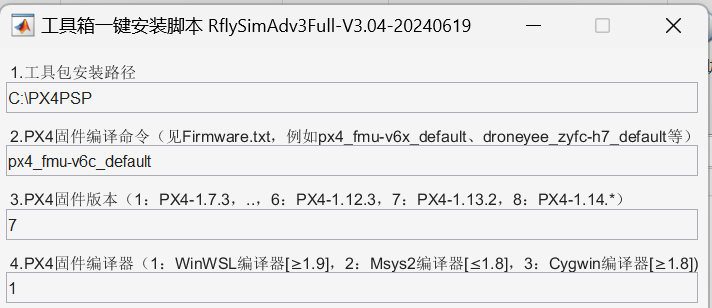
- Use the px4_fmu-v6c_default compilation command.
- Use "7": PX4 1.13.2 firmware.
- Use "1": WinWSL compiler.
3. Official Firmware and Restoration
Open the QGC ground station and navigate to the following interface.
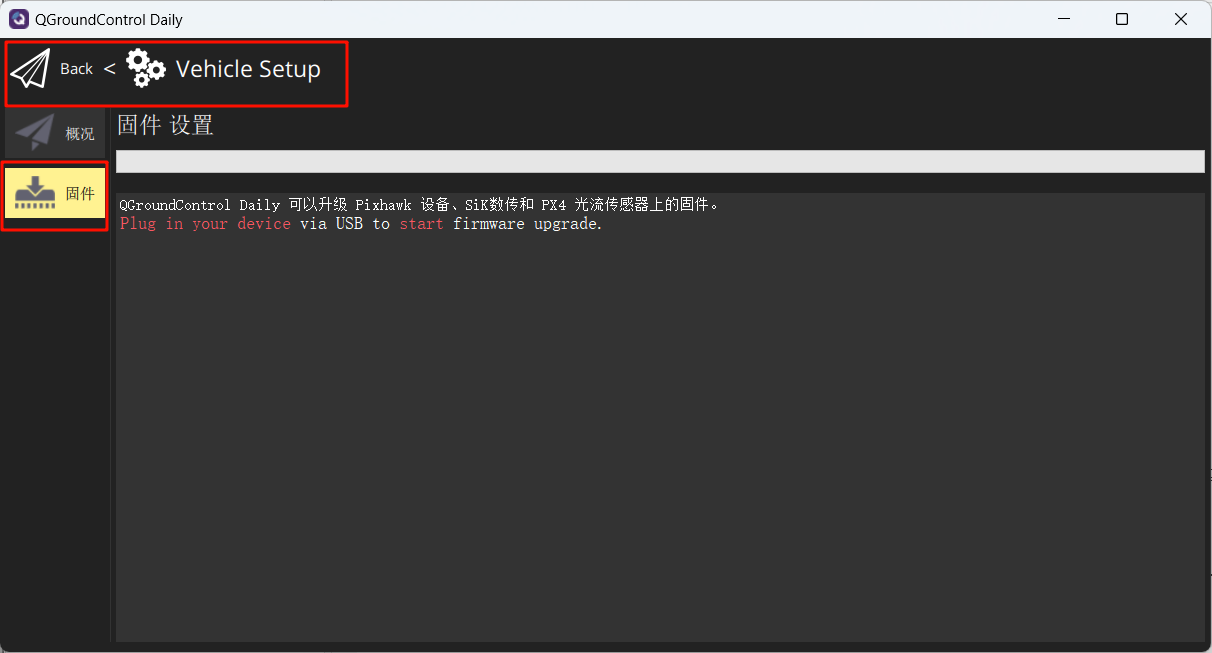
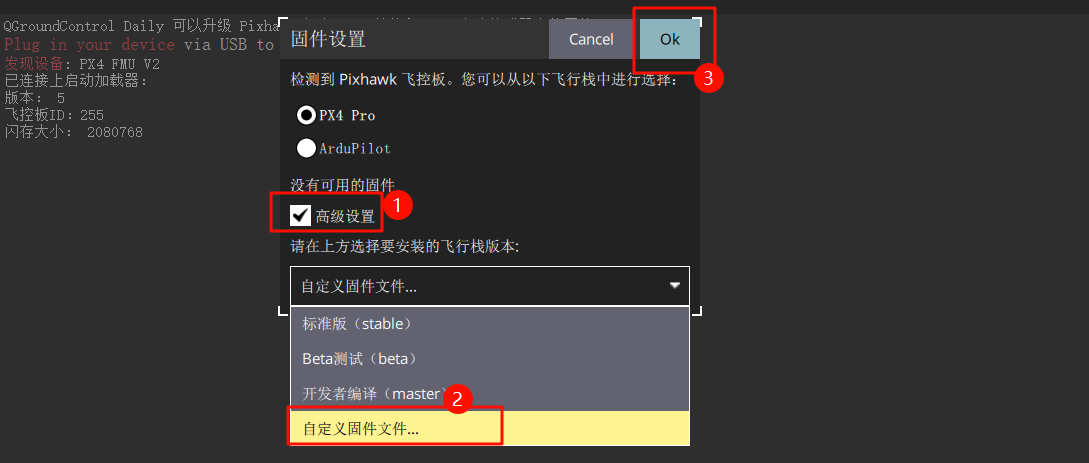
Connect the flight controller to your computer. In the pop-up interface, make the following selections and choose to flash the firmware: px4_fmu-v6c_default.px4
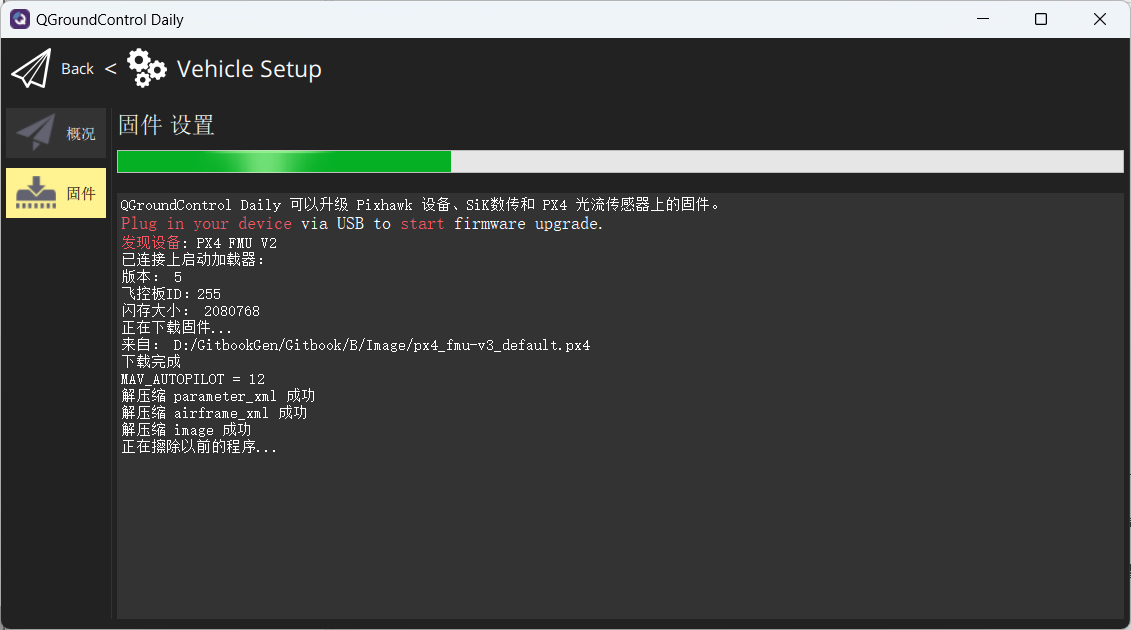
Wait for the firmware flashing process to complete.
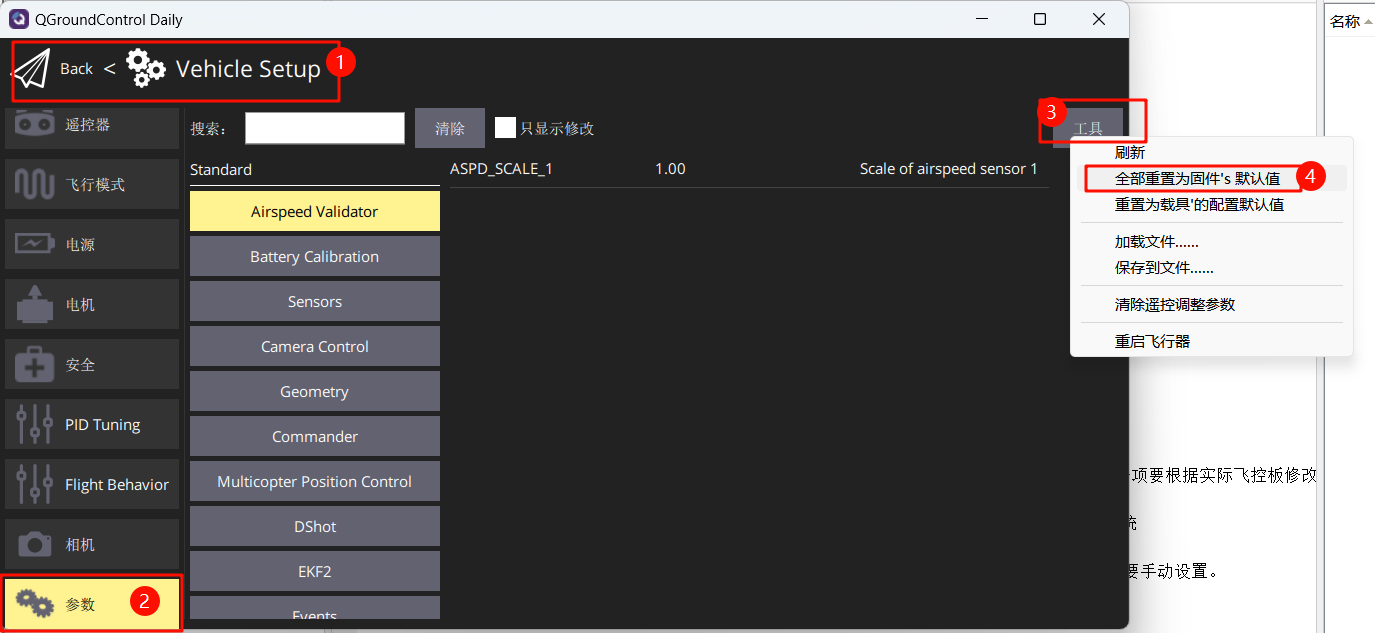
Restore the flight controller parameters to their firmware default values.
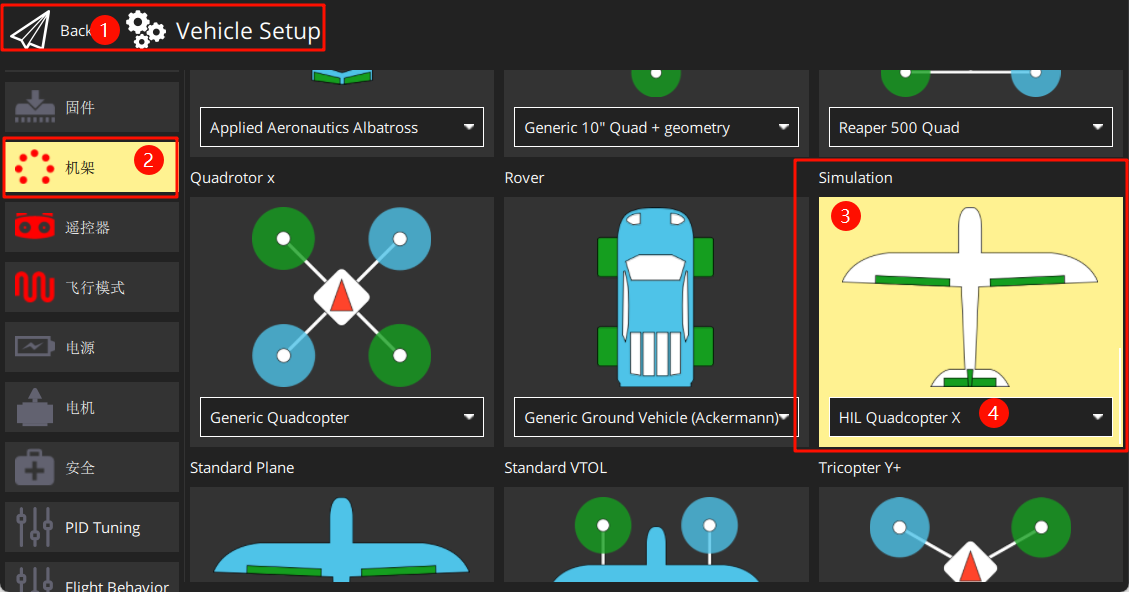
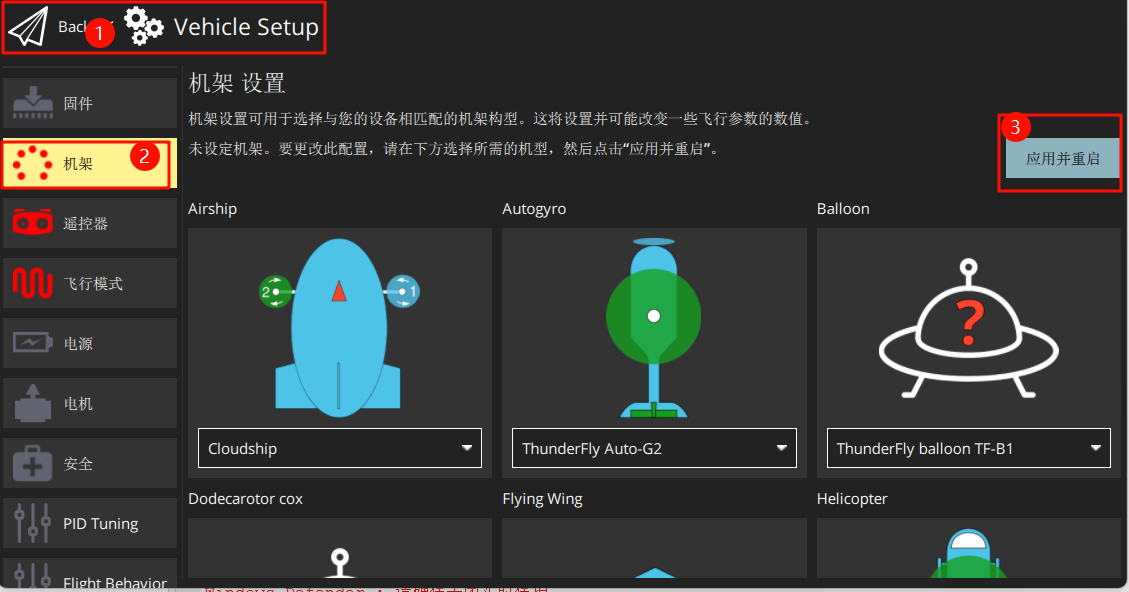
Set the airframe to HIL Quadcopter X, scroll to the very top, and click "Apply and Restart". Wait for the restart to complete.
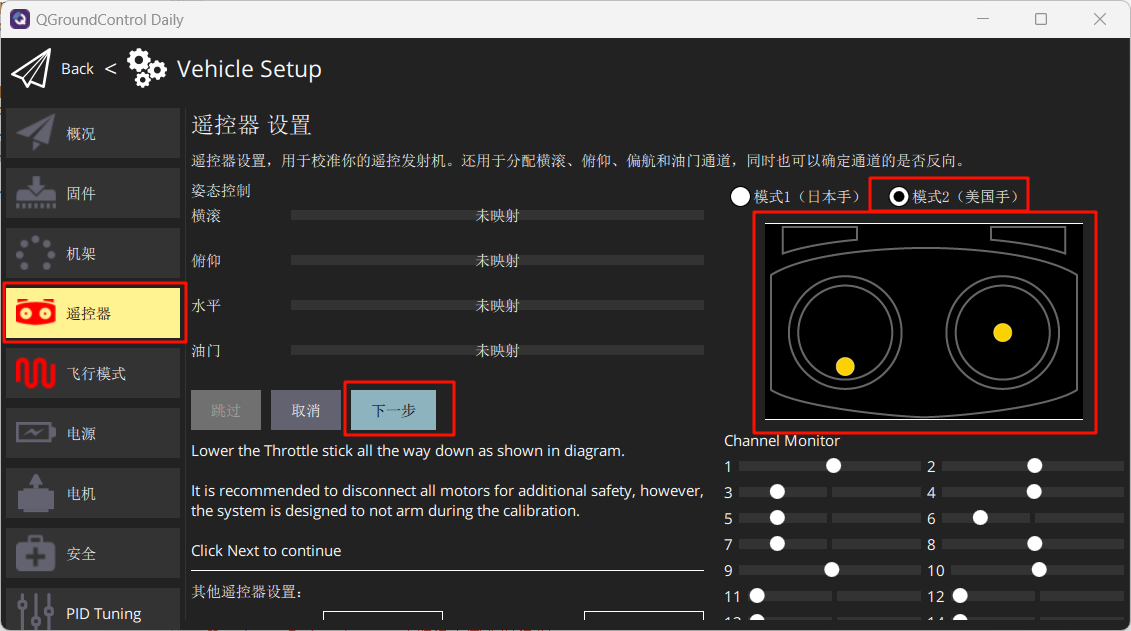
Connect the RC receiver (note the wiring sequence) and power on the remote controller. Calibrate the remote controller as shown in the figure.
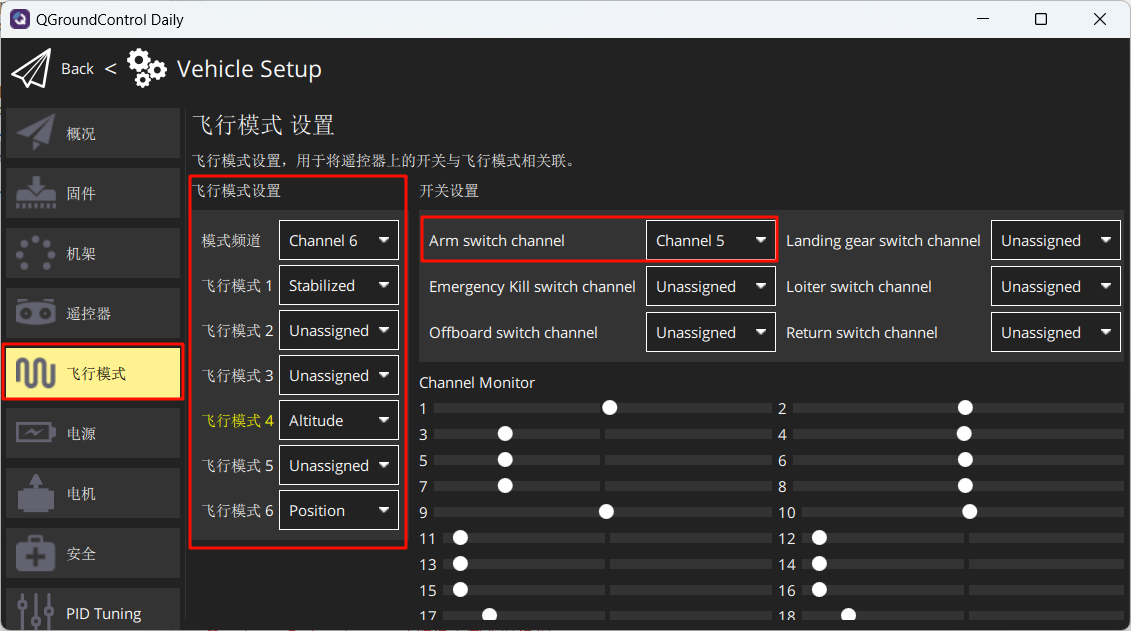
Set the flight modes as shown in the figure below.
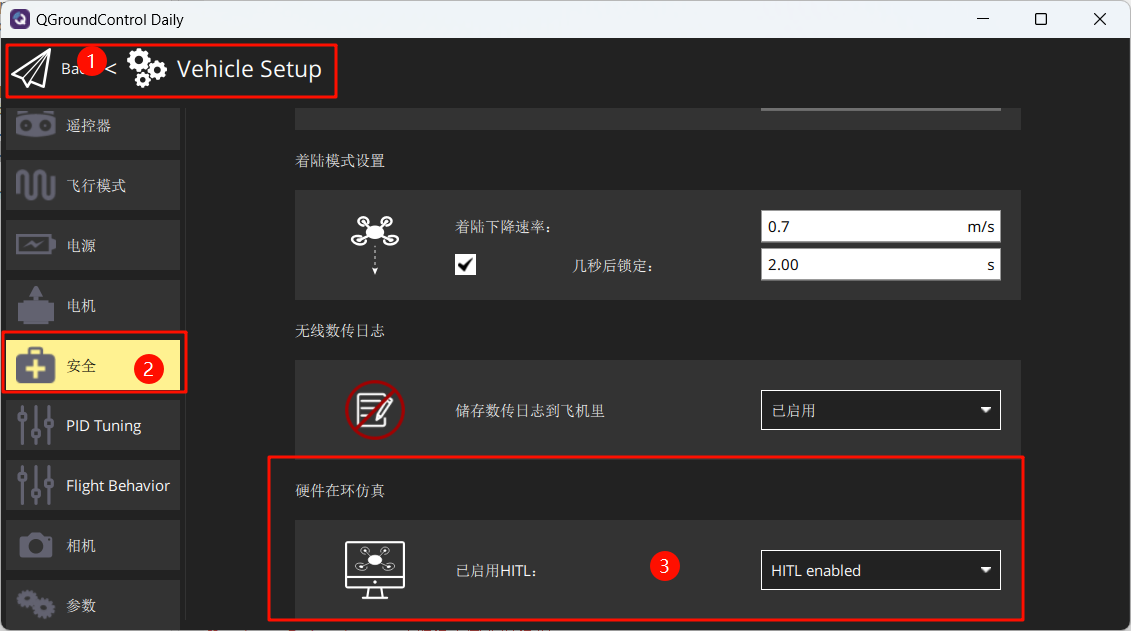
Under the Safety section, enable only Hardware-in-the-Loop (HIL) simulation.
4. Launch Hardware-in-the-Loop (HIL) Simulation
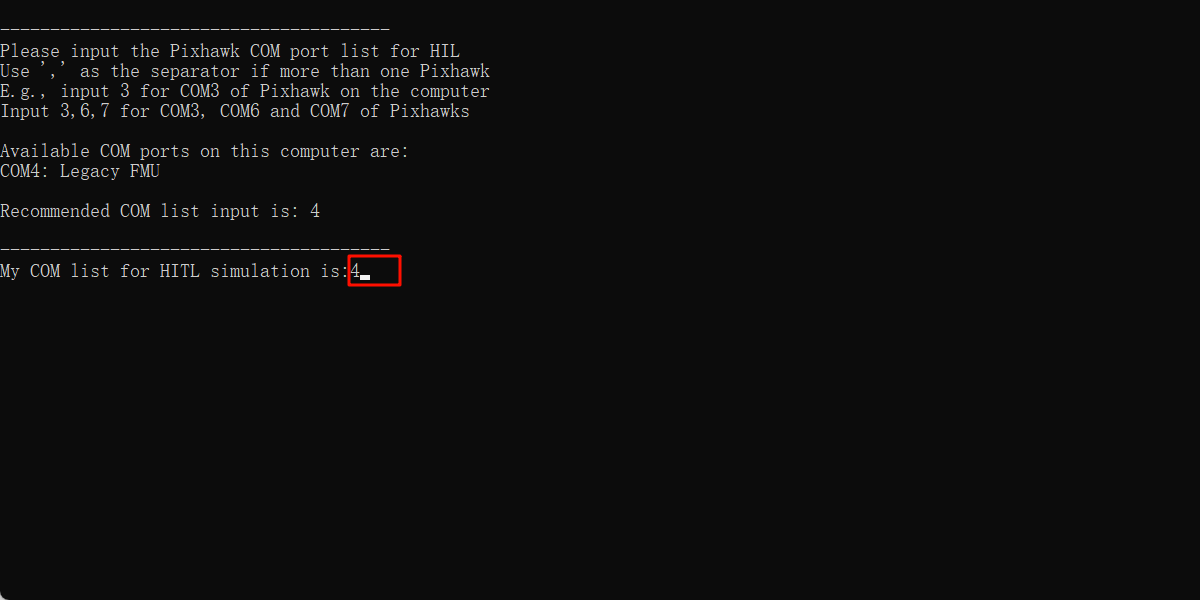
After completing the above setup, close QGC. Run the "[Installation Directory]\桌面\RflyTools\HITLRun.lnk" script as Administrator. In the pop-up cmd dialog, enter the flight controller's port number (e.g., 4).
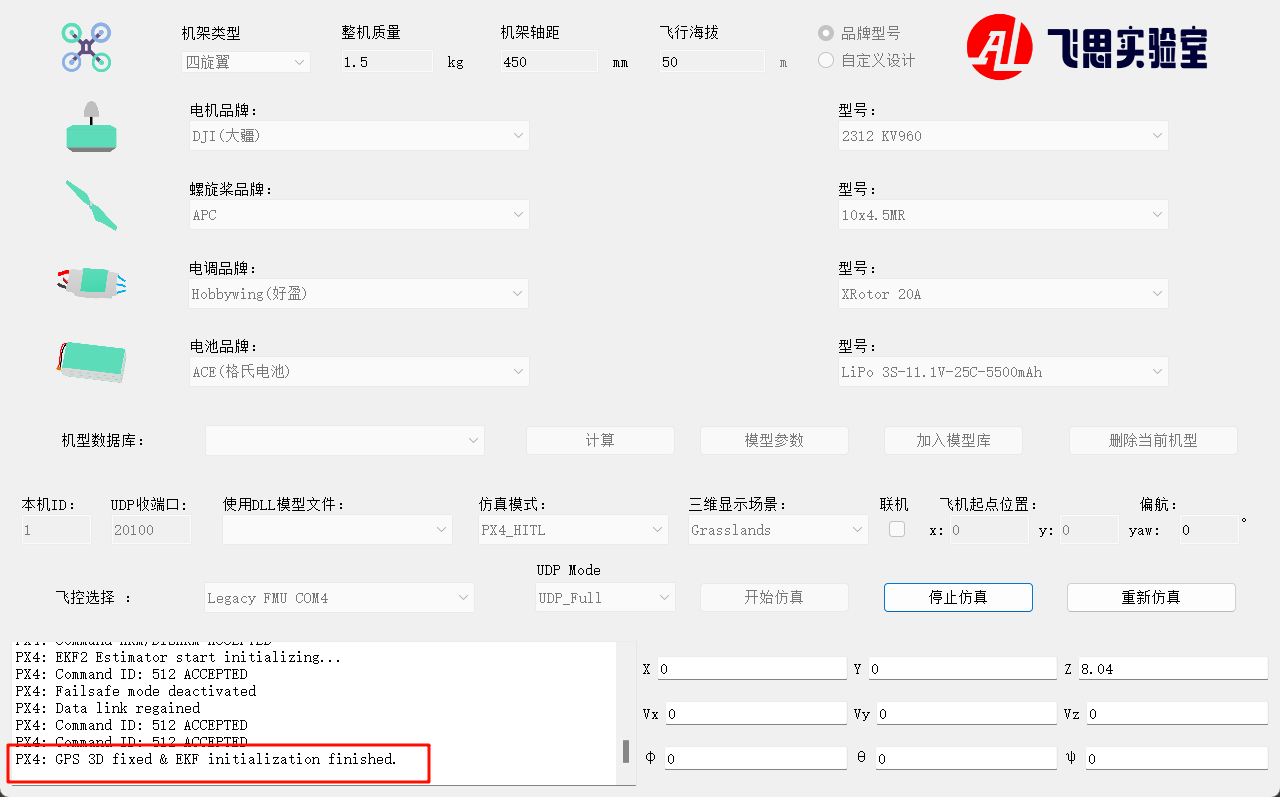
Wait until the bottom-left corner of CopterSim displays: PX4: GPS 3D fixed & EKF initialization finished.
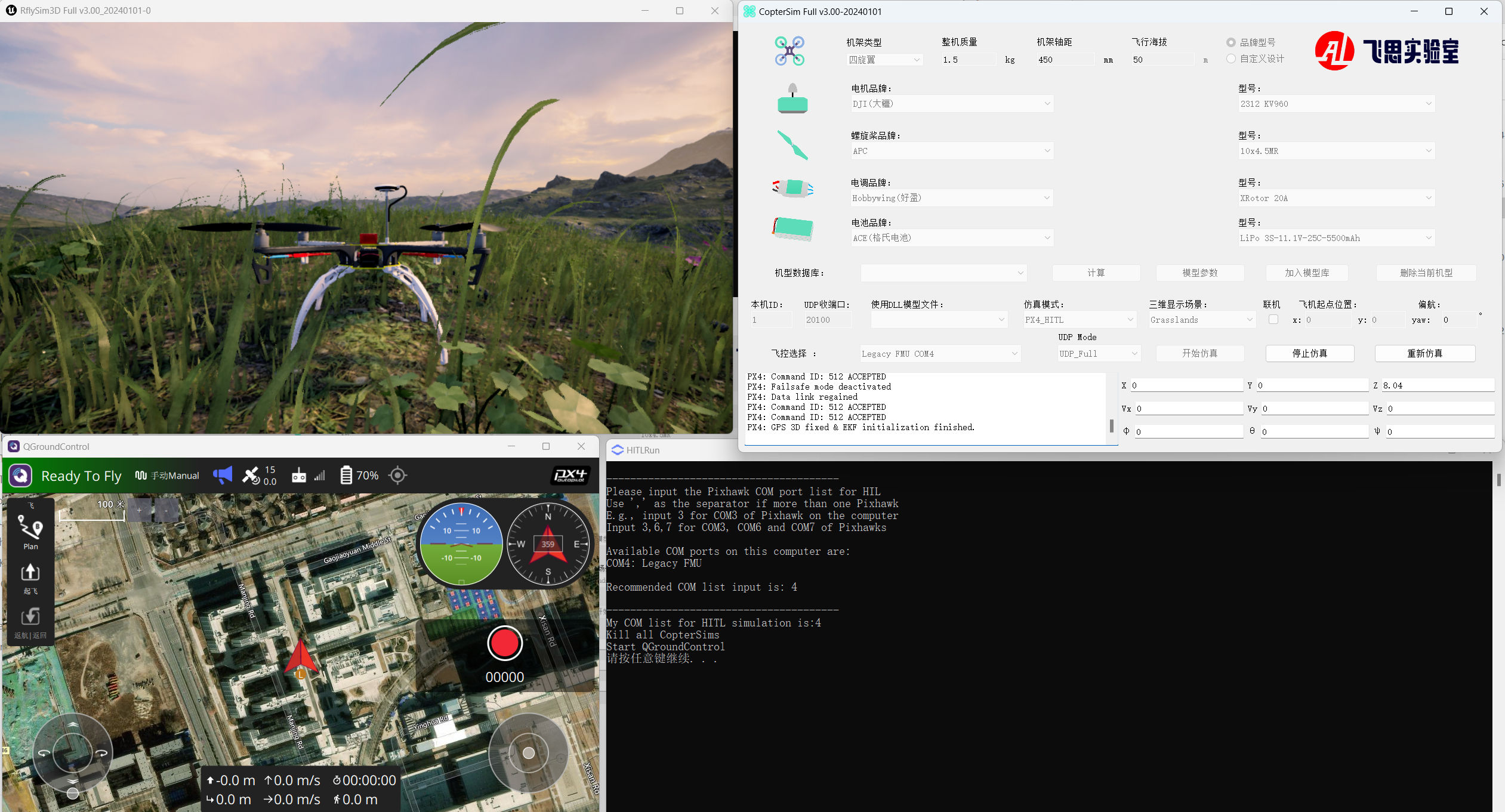
Disarm the aircraft via channel CH5 on the remote controller, and then take off and control the aircraft flight.