RflySim3D Shortcuts and Console Command Index
Keyboard Shortcut Index
| Shortcut Name | Brief Description |
|---|---|
| [F1] | Pop up the keyboard shortcut help menu |
| [F2] | Export RflySim built-in level and model indices |
| [ESC] | Clear all aircraft |
| [S] | Show/Hide aircraft IDs |
| [H] | Hide/Show all on-screen text |
| [D] | Show/Hide current aircraft data |
| [M] | Switch map |
| [B] | Switch view focus among different aircraft |
| [C] | Switch current aircraft 3D style |
| [P] | Enable physics collision engine |
| [V] | Switch following aircraft view |
| [N] | Switch to god view |
| [T] | Record aircraft trajectory |
| L | Show/Hide mini-map (by default appears in the bottom-right corner; double-clicking on the mini-map reveals more customizable options) |
| [Mouse] | Interaction similar to a game map editor |
| [O] | Create an object at the mouse-clicked location |
Console Command Index
RflySim Custom Global Commands
| Command Name | Brief Description |
|---|---|
| [RflyShowTextTime] | Display text |
| [RflyLoad3DFile] | Execute TXT script |
| [RflySetIDLabel] | Set display at CopterID label |
| [RflySetMsgLabel] | Set display below CopterID label |
| [RflyChangeMapbyID] | Switch map by ID |
| [RflyChangeMapbyName] | Switch map by name |
| [RflyCesiumOriPos] | Modify map origin |
| [RflyCameraPosAngAdd] | Offset camera |
| [RflyCameraPosAng] | Reset camera |
| [RflyCameraFovDegrees] | Set field of view |
| [RflyChange3DModel] | Modify Copter style |
| [RflyChangeVehicleSize] | Adjust Copter size |
| [RflyMoveVehiclePosAng] | Offset Copter |
| [RflySetVehiclePosAng] | Reset Copter |
| [RflySetActuatorPWMs] | Trigger blueprint interface; this feature is available only for Personal Advanced Edition and above |
| [RflySetActuatorPWMsExt] | Trigger extended blueprint interface; this feature is available only for Personal Advanced Edition and above |
| [RflySetCopterLine] | Define the color of the drone trajectory displayed when pressing the [T] key |
| [RflyDelVehicles] | Clear Copter |
| [RflyScanTerrainH] | Scan terrain |
| [RflyReqVehicleData] | Activate data telemetry |
| [RflySetPosScale] | Global scaling |
| [RflyReqObjData] | Specify data telemetry |
| [RflyClearCapture] | Clear image cache |
| [RflyDisableVeMove] | Reject specified Copter data |
| [RflyChangeViewKeyCmd] | Simulate keyboard shortcuts |
| [RflyEnImgSync] | Switch image transmission mode |
| [RflyGetBuildingInfo] | Retrieve all object information in the scene |
| [RflyGenerateMiniMap] | Generate Tiles |
Common Built-in UE Commands
| Command Name | Brief Description |
|---|---|
| [t.Maxfps] | Limit frame rate |
| [slomo ] | Modify running speed |
| [HighResShot] | Custom-size screenshot |
| [stat fps] | Display update rate |
| [stat unit] | Display various consumption metrics |
| [stat rhi] | Display GPU consumption details |
| [stat game] | Display Tick feedback time for each process |
| [stat gpu] | Display frame GPU statistics |
| [stat Engine] | Display frame rate, time, triangle count, etc. |
| [stat scenerendering] | Display DrawCall count |
| [r.setRes] | Set display resolution |
| [r.Streaming.PoolSize] | Set texture streaming pool size |
| [r.ForceLOD] | LOD triangle count |
| [r.ScreenPercentage] | Rendering resolution percentage |
| [r.ShadowQuality] | Shadow quality |
| [r.PostProcessAAQuality] | Anti-aliasing quality |
| [r.SetNearClipPlane] | View frustum near clipping plane |
| [r.MipMapLODBias] | Texture LOD bias |
| [sg.TextureQuality] | Texture quality |
| [sg.PostProcessQuality] | Post-processing quality |
| [foliage.MaxTrianglesToRender] | Maximum triangle count for vegetation model rendering |
Shortcut Key Details
Shortcut Key B
B (Toggle focus among Copters):
Switch the view focus among different aircraft;
B+Number (Focus on the -th Copter):
Switch focus to the *-th aircraft.
Shortcut Key C
C (Toggle current Copter's 3D style):
Toggle the 3D style of the current aircraft (i.e., the most recently created one);
C+Number (Switch to the -th 3D style):
Switch to the *-th 3D style;
CTRL + C (Toggle all Copters' 3D styles):
Toggle the 3D styles of all aircraft.
Shortcut Key D
D (Toggle Copter data visibility):
Show/hide data for the current aircraft.
Shortcut Key ESC
ESC (Clear all Copters):
Clear all aircraft (first close all CopterSim instances).
Shortcut Key F1
F1 (Help):
Display a help menu listing supported shortcut keys and tips for RflySim3D.
Shortcut Key F2
F2 (3D resource index):
Export the index table of existing scenes and models in RflySim3D to the directory 【Installation Directory】/RflySimAPIs/RflySim3D, saving them as MapData.csv and ModelData.csv, respectively. These files include scene and model names, serial numbers, etc.
Shortcut Key H
H (Toggle all on-screen text):
Hide/show all on-screen text.
Shortcut Key I
I+Number (Toggle LAN blocking status; this feature is available only in the full version and above):
- I-1 mode (pressing I+-1, or simply I by default): Toggle the current LAN blocking status. If the LAN is currently unblocked, both commands will block it; if blocked, they will unblock it.
- I0 mode: Enable LAN blocking. After executing this command, all RflySim3D instances on the local network will stop receiving or sending data.
- I1 mode: Disable LAN blocking. After executing this command, RflySim3D instances on the local network resume normal communication.
Shortcut Key M
M (Switch map):
Switch map (if CopterSim is active, it will revert to CopterSim's default map);
M+Number (Switch to the -th map):
Switch to the *-th map.
Shortcut Key MOUSE
Left-click and drag (adjust view angle):
Adjust the viewing angle;
Right-click and drag (adjust vertical view position):
Adjust the vertical (YZ) position of the view;
Mouse wheel (adjust horizontal view position):
Adjust the horizontal (X) position of the view;
CTRL + mouse wheel (scale all Copters):
Scale the size of all aircraft (useful for observing multiple aircraft);
ALT + mouse wheel (scale current view aircraft):
Scale the size of the aircraft currently in view;
Mouse double-click (display hit point information):
Display information about the hit point, including its position, size, and object type. Note: Immediately pressing N after double-clicking quickly switches the view to the double-click location, facilitating object creation.
Shortcut Key N
N (Toggle god view):
Switch to the aircraft's god view;
N+Number (Switch to the -th god view):
Switch to the *-th god view.
- 0: Follow aircraft view (view angle does not change with aircraft attitude);
- 1: Fixed ground view always facing the current aircraft;
- 2: Fixed ground view facing north;
- 3: Fixed ground view facing south; etc.
Shortcut Key O
O+Number (Generate object with ClassID = ""):
Generate an object (e.g., obstacle) with style ID "*" at the location of the mouse double-click.
Shortcut Key P
P (Activate collision engine):
Enable the physics collision engine (collisions will occur with scene objects and the ground);
P+Number (Switch communication mode):
After enabling P mode, RflySim3D will rapidly transmit obstacle information to each CopterSim via the 30100-series ports. Values 0, 1, 2, and 3 correspond to the following communication modes:
- P0 mode (pressing P+0, or simply P by default): RflySim3D sends high-frequency environmental distance data for each aircraft to all CopterSim instances running on the local computer (no LAN transmission).
- P1 mode: LAN transmission mode.
- P2 mode: Minimal LAN transmission mode (only sends data upon collision).
- P3 mode (Full version only): This mode is built upon P2 mode, adding an event listener for all Copter objects. It switches the detection frequency of the current Copter's P mode based on the relative positions between Copters.
In P1 mode, RflySim3D high-frequency transmits distance data around each aircraft to all CopterSim instances within the local area network (via specified IP and port to enhance efficiency).
In P2 mode, RflySim3D only low-frequency transmits obstacle data to CopterSim instances within the local area network (via specified IP and port) when a collision is occurring (and for 1 second after), thus optimizing communication by reducing data frequency and the number of target IPs.
Shortcut Key S
S (Toggle CopterID visibility):
Show/hide aircraft IDs.
Shortcut Key T
T (Toggle Copter trajectory recording):
Enable or disable the aircraft trajectory recording function.
T+Number (Change trajectory thickness to ):
Enable/change trajectory thickness to *.
Shortcut Key V
V (Switch following view):
Switch the view on the aircraft: 0: Follow view, 1: Front camera, 2: Right camera, etc.
V+Number (Switch to the -th following view):
Switch to the *-th view.
Console Command Details
HighResShot
HighResShot (Custom-size screenshot)
Obtain a higher resolution screenshot by specifying the screenshot dimensions.
| Parameter | Explanation |
|---|---|
| HighResShot | Screenshot resolution value: specifies the width and height of the screenshot, typically in pixels. |
Usage Example
HighResShot 1920x1080
This captures a screenshot with a width of 1920 pixels and a height of 1080 pixels, saving it in the specified resolution.
| Parameter | Explanation |
|---|---|
| HighResShot | Screenshot resolution value: specifies the width and height of the screenshot, typically in pixels. |
Usage Example
HighResShot 1920x1080
In the above example, a screenshot with a width of 1920 pixels and a height of 1080 pixels is captured. The screenshot will be saved at the specified resolution.
RflyCameraFovDegrees
RflyCameraFovDegrees(float degrees) (Set Field of View)
Sets the camera's FOV (Field of View) angle.
| Parameter | Explanation |
|---|---|
| degrees | FOV angle in degrees |
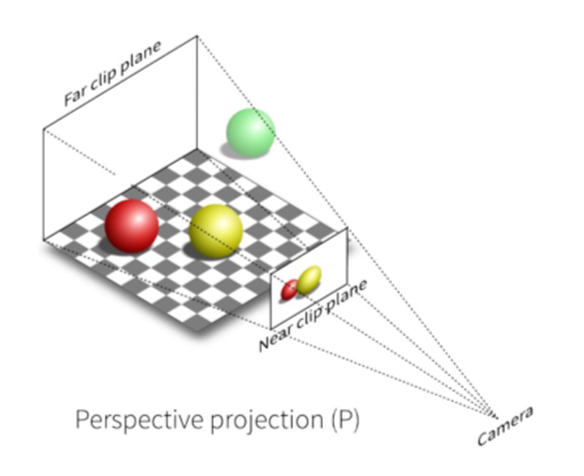
This function modifies the camera's horizontal field of view angle, which is the angle formed between the midpoint of the leftmost edge and the midpoint of the rightmost edge of the image plane relative to the camera position. By default, this angle is set to 90°.
Usage Example
RflyCameraFovDegrees 120
Changes the FOV angle to 120°.
RflyCameraPosAng
RflyCameraPosAng(float x, float y, float z, float roll, float pitch, float yaw) (Reset Camera)
Directly sets the camera's position and orientation.
| Parameter | Explanation |
|---|---|
| x | X-axis position of the camera in world coordinates |
| y | Y-axis position of the camera in world coordinates |
| z | Z-axis position of the camera in world coordinates |
| roll | Camera rotation angle around the X-axis (roll) |
| pitch | Camera rotation angle around the Y-axis (pitch) |
| yaw | Camera rotation angle around the Z-axis (yaw) |
Usage Example
RflyCameraPosAng 0 0 1000 0 0 0
Positions the camera at 1000 units above the origin of the world coordinate system, with the default forward-facing orientation.
RflyCameraPosAngAdd
RflyCameraPosAngAdd(float x, float y, float z, float roll, float pitch, float yaw) (Offset Camera)
Applies an offset to the current camera position and orientation (adjusts based on the current camera position and angle).
| Parameter | Explanation |
|---|---|
| x | Offset along the X-axis |
| y | Offset along the Y-axis |
| z | Offset along the Z-axis |
| roll | Offset rotation angle around the X-axis (roll) |
| pitch | Offset rotation angle around the Y-axis (pitch) |
| yaw | Offset rotation angle around the Z-axis (yaw) |
Usage Example
RflyCameraPosAngAdd 0 0 -10 0 -30 0
Moves the camera upward by 10 meters and tilts it downward by 30 degrees.
RflyCesiumOriPos
RflyCesiumOriPos(double lat, double lon, double Alt, double SolarTime) (Modify Map Origin)
Modifies the origin position of the Cesium map (requires the Cesium global large-scale scene), allowing specification of the map origin's latitude, longitude, and altitude coordinates.
| Parameter | Explanation |
|---|---|
| lat | Latitude of the map origin |
| lon | Longitude of the map origin |
| Alt | Altitude (elevation) of the map origin |
| SolarTime | Solar time at the map origin |
Usage Example
RflyCesiumOriPos 39.9042 116.4074 50 12
This sets the map origin to the latitude and longitude coordinates of Beijing.
Note
Before using this function, you need to enter a map that uses the Cesium plugin, and it is best to be connected to the internet to load online map imagery.
The latitude and longitude ranges are [-180, 180] and [-90, 90]. Ensure the provided latitude and longitude values are within the valid range.
RflyChange3DModel
RflyChange3DModel(int CopterID, int veTypes=0) (Change Copter 3D Model)
Modifies the 3D model style of a drone.
| Parameter | Explanation |
|---|---|
| CopterID | The ID of the drone, used to specify which drone to modify |
| veTypes | The style number of the 3D model. This parameter is optional, with a default value of 0. Different numbers can be specified to correspond to different model styles. |
Usage Example
For example, if the drone's ID is 1000 and you want to change its style to style #1, you can use the command.
RflyChange3DModel 1000 1
RflyChangeMapbyID
RflyChangeMapbyID(int id) (Switch Map by ID)
Switches the RflySim3D scene map based on the map's ID.
| Parameter | Explanation |
|---|---|
| id | Map ID |
Usage Example
RflyChangeMapbyID 5
Quickly switch to map #5.
RflyChangeMapbyName
RflyChangeMapbyName(String txt) (Switch Map by Name)
Switches the RflySim3D scene map based on the map name.
| Parameter | Explanation |
|---|---|
| name | Map name |
Usage Example
RflyChangeMapbyName 3Ddisplay
Switch to the map named "3DDisplay".
RflyChangeVehicleSize
RflyChangeVehicleSize(int CopterID, float size=0) (Adjust Drone Size)
Modifies the scaling size of a drone.
| Parameter | Explanation |
|---|---|
| CopterID | The ID of the drone, used to specify which drone to modify |
| size | The scaling factor. This parameter is optional, with a default value of 0, indicating no scaling. Specify a positive factor greater than 1 to scale the drone up, or a factor less than 1 to scale it down. |
Usage Example
Suppose you want to increase the size of the drone with ID 1000 to 10 times its original size.
RflyChangeVehicleSize(1000, 10)
RflyChangeViewKeyCmd
RflyChangeViewKeyCmd(String key, int num) (Simulate Keyboard Shortcut)
Simulates the effect of pressing a keyboard shortcut followed by entering a number.
| Parameter | Explanation |
|---|---|
| key | Keyboard shortcut key |
| num | Number |
Usage Example
For example, pressing the shortcut key M followed by a number switches to the map with the corresponding ID. You can enter the command to switch to map #5.
RflyChangeViewKeyCmd M 5
RflyClearCapture
RflyClearCapture(int seqID) (Clear Image Buffer)
This function clears the memory of the image captured by the image sensor with the specified seqID. If seqID < 0, it clears the image memory data of all cameras.
| Parameter | Explanation |
|---|---|
| seqID | Camera index |
Usage Example
RflyClearCapture -1
RflyDelVehicles
RflyDelVehicles(FString CopterIDList) (Delete Drones)
This function can delete drones currently present in the scene based on their IDs. RflySim3D does not proactively delete drones from the scene, even if it no longer receives their data. (This is why drones do not disappear from the scene after closing CopterSim). RflySim3D must be explicitly requested to remove these drones.
| Parameter | Explanation |
|---|---|
| CopterIDList | A FString-type parameter used to specify the list of drone IDs to be deleted. Multiple IDs must be separated by commas. |
Usage Example
Suppose two drones exist in the scene with IDs 1000 and 1001. If you want to delete both drones, you can use the following command:
RflyDelVehicles("1000,1001")
Note
Before deleting drones, ensure that data transmission for these drones to RflySim3D has been stopped to avoid situations that may cause the drones to be recreated.
RflyDisableVeMove
RflyDisableVeMove(FString CopterIDList, int disable) (Reject Data for Specified Drones)
Using this function allows RflySim3D to reject data reception for certain drones based on their IDs, effectively prohibiting the creation, movement, and attitude changes of Copters with these IDs.
| Parameter | Explanation |
|---|---|
| CopterIDList | Aircraft ID list, separated by commas. Used to specify the aircraft IDs for which information reception is to be disabled. |
| disable | Disable flag, controls whether to disable information for the specified aircraft IDs. When the value is 1, it is disabled; when the value is 0, it is re-enabled. |
Usage Example
Open the software-in-the-loop simulation SITLRun in \Desktop\RflyTools, use QGC to make the drone move, then use the command:
RflyDisableVeMove 1 1
You will notice that the drone in QGC continues to move, and the simulated coordinates in CopterSim still change, but the drone in RflySim3D stops.
RflyEnImgSync
RflyEnImgSync(int isEnable) (Switch Image Transmission Mode)
Enables synchronous or asynchronous image transmission mode.
| Parameter | Explanation |
|---|---|
| isEnable | A value of 0 disables asynchronous mode; a value of 1 enables synchronous mode. |
Usage Example
RflyEnImgSync 1
RflyGetBuildingInfo
RflyGetBuildingInfo(int type, int debug) (Retrieve All Object Information in the Scene)
Retrieves information for all objects in the scene.
| Parameter | Explanation |
|---|---|
| type | Object type. 1: Actor; 2: StaticMesh |
| debug | Debug display. Whether to draw bounding boxes (draw boundingbox), 1 to draw, 0 not to draw. |
Usage Example
RflyGetBuildingInfo 1 1
Retrieves information for all Actor-type objects in the scene and draws their bounding boxes.
RflyGetBuildingInfo 2 0
Retrieves information for all StaticMesh-type objects in the scene without drawing bounding boxes.
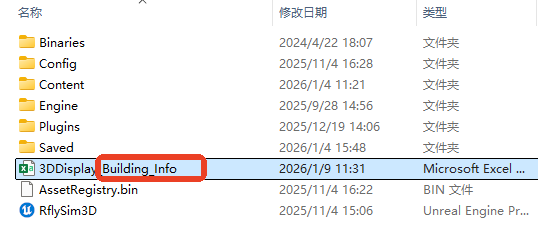
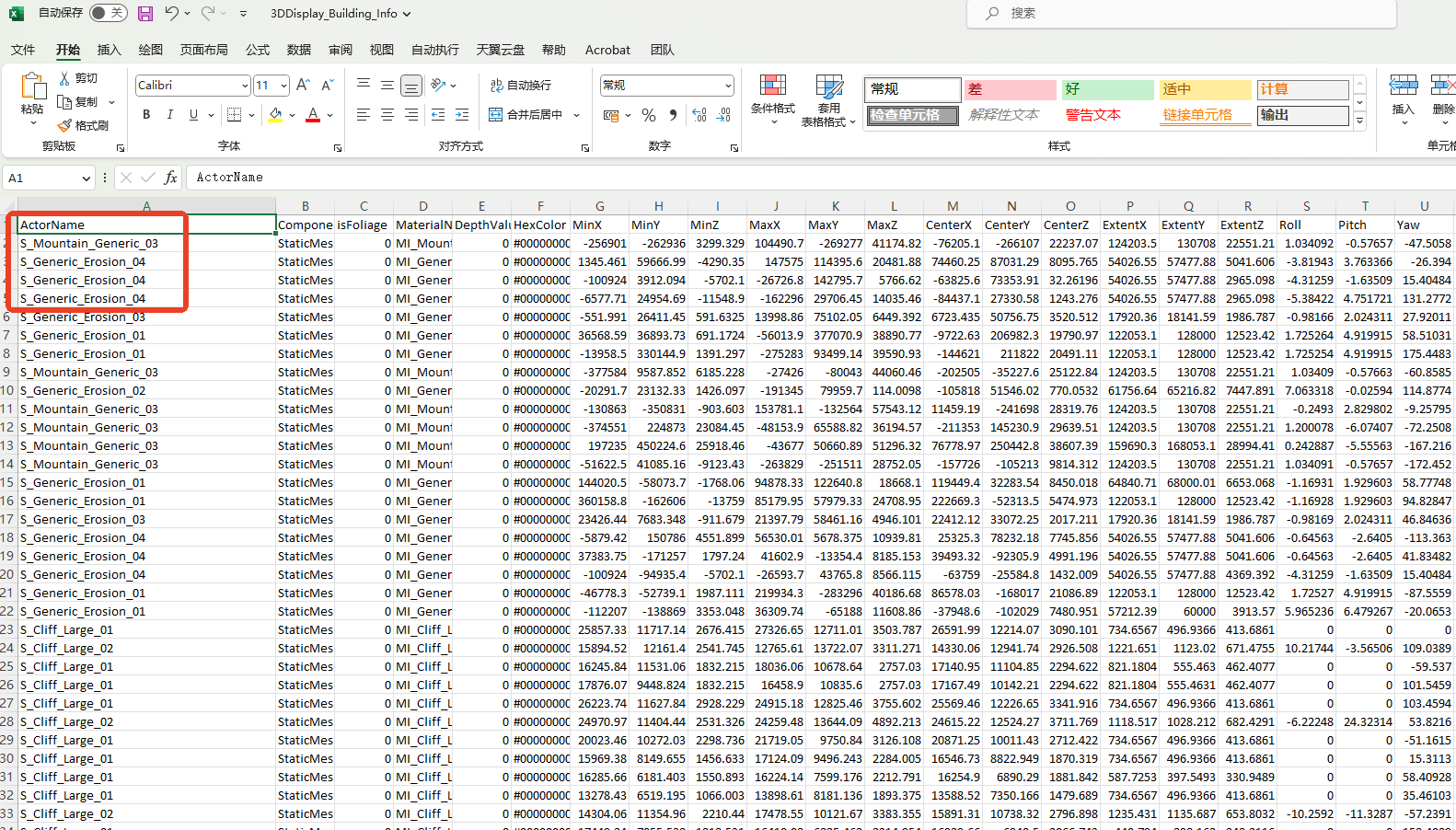
Switch to the imported map, press ~ to open the console, and input RflyGetBuildingInfo 2 1. Then, locate the [level_name]_Building_Info table in the PX4PSP\RflySimUE5\RflySim3D directory, which records all actor names.
RflyGenerateMiniMap
RflyGenerateMiniMap(int32 Mode, float PixelWorldSizeCm, int32 TilePixelSize) (Generate Tiles)
Generates a complete image or tiles for the current map, depending on the selected mode. PixelWorldSizeCm is the world distance represented by one pixel, in centimeters.
| Parameter | Explanation |
|---|---|
| Mode | Generation mode: 1, 2, or 3. |
| PixelWorldSizeCm | World distance represented by one pixel, in centimeters. For example, 10 means 10 cm per pixel. |
| TilePixelSize | Tile width and height in pixels, of type int32. For example, 512 produces 512 x 512 pixel tiles. |
Mode Details
- Mode
1: Generates and saves one complete image usingPixelWorldSizeCm. The maximum image size is16384 x 16384pixels. - Mode
2: Generates the Mode1image, then splits and saves it as tiles ofTilePixelSizepixels. - Mode
3: Produces the clearest tiled output. A tile's coverage is determined byPixelWorldSizeCm * TilePixelSize; RflySim3D uses this value to calculate how many tiles are needed to cover the current map.
Operation Example
RflyGenerateMiniMap 3 8 256
This command generates high-resolution tiles for the grassland map in Mode 3: each pixel represents 8 cm and every tile measures 256 x 256 pixels.
RflyLoad3DFile
RflyLoad3DFile(FString FileName) (Execute TXT Script)
Loads and executes a TXT script file from the specified path.
| Parameter | Explanation |
|---|---|
| FileName | Path to the file to be loaded |
Operation Example
For instance, create a Test.txt file on the D drive, input console commands line by line, then launch RflySim3D and enter the console command:
RflyLoad3DFile "C:\foo.txt"
RflyMoveVehiclePosAng
RflyMoveVehiclePosAng(int CopterID, int isFitGround, float x, float y, float z, float roll, float pitch, float yaw) (Offset Copter)
Applies a positional and angular offset to a specified drone. isFitGround determines whether the drone’s altitude adapts to the terrain.
| Parameter | Explanation |
|---|---|
| CopterID | Drone ID used to specify which drone to apply the offset to |
| isFitGround | Whether to adjust the drone’s z-coordinate according to terrain height. Set to 1 to adapt to terrain; 0 to keep the z-coordinate unchanged |
| x | Offset component along the x-axis. Moves the drone a specified distance along the x-axis in 3D space |
| y | Offset component along the y-axis. Moves the drone a specified distance along the y-axis in 3D space |
| z | Offset component along the z-axis. Moves the drone a specified distance along the z-axis in 3D space |
| roll | Euler angle component. Rotates the drone around its local x-axis by the specified angle |
| pitch | Euler angle component. Rotates the drone around its local y-axis by the specified angle |
| yaw | Euler angle component. Rotates the drone around its local z-axis by the specified angle |
Operation Example
RflyMoveVehiclePosAng 1000 1 -10 -10 -10 0 -20 0
Moves the drone by (-10, -10, -10) meters and sets its pitch angle to -20°. If isFitGround is set to 1, the drone’s z-coordinate will be adjusted based on the terrain height.
RflyReqObjData
RflyReqObjData(int opFlag, FString objName, FString colorStr) (Request Specific Object Data)
Requests data for a specific object in the RflySim3D scene. This function is similar to the RflyReqVehicleData function in that it also retrieves data for objects in the 3D scene; however, it retrieves data for only one specified object at a time.
| Parameter | Explanation |
|---|---|
| opFlag | Operation flag, used to specify the type of data to be returned |
| objName | Object name or camera ID, used to specify the target object or camera from which to retrieve data. For camera data, specify the camera ID; for object data, specify the object name |
| colorStr | Color string, optional parameter, used to specify the color of the data |
| opFlag | Description |
|---|---|
| 0 | Returns camera (Camera) data for the specified ID. |
| 1 | Returns copter (Copter) data for the specified ID. |
| 2 | Returns object (Object) data for the specified name. |
| 20 | Clears all cameras. |
| 21 | Clears all copters. |
| 22 | Clears all objects. |
| 23 | Clears all copters and objects. |
| 24 | Clears all cameras, objects, and copters. |
| 10 | Deletes one camera. |
| 11 | Deletes one copter. |
| 12 | Deletes one object. |
When opFlag is 0, the function returns camera data for the specified ID (objName=seqID) used for image capture. The camera data structure is as follows:
struct CameraData {
int checksum = 0; // Checksum, constant 1234567891
int SeqID; // Camera sequence number
int TypeID; // Camera type
int DataHeight; // Image pixel height
int DataWidth; // Image pixel width
float CameraFOV; // Camera field of view
float PosUE[3]; // Camera center position
float angEuler[3]; // Camera Euler angles
double timestmp; // Timestamp
};
When opFlag is 1, the function returns copter data for the specified ID (objName=CopterID). The copter data structure is as follows:
struct CoptReqData {
int checksum = 0; // Checksum, constant 1234567891
int CopterID; // Copter ID
float PosUE[3]; // Copter center position (specified during manual 3D modeling; attitude coordinate axis, not necessarily at geometric center)
float angEuler[3]; // Copter Euler angles
float boxOrigin[3]; // Object geometric center coordinates
float BoxExtent[3]; // Half of the object’s bounding box dimensions (width, height, depth)
double timestmp; // Timestamp
};
When opFlag is 2, the function returns object data for the specified ID (objName= seqID/ ObjName[32]). The object data structure is as follows:
struct ObjReqData {
int checksum = 0; // Checksum, constant 1234567891
int seqID = 0;
float PosUE[3]; // Object center position (specified during manual 3D modeling; attitude coordinate axis, not necessarily at geometric center)
float angEuler[3]; // Object Euler angles
float boxOrigin[3]; // Object geometric center coordinates
float BoxExtent[3]; // Half of the object’s bounding box dimensions (width, height, depth)
double timestmp; // Timestamp
char ObjName[32] = { 0 }; // Object name
};
Operation Examples
When opFlag==0, the function can create a camera for image capture based on the request, and the camera data can be retrieved using this function:
RflyReqObjData 0 0 FFFFFF
When opFlag==1, open RflySim3D, double-click the ground while pressing the letter 'O' followed by the number '3' to create a copter with ID (default 1000), then input the command:
RflyReqObjData 1 1000 FFFFFF
When opFlag==2, in RflySim3D, not all objects belong to the Copter class (e.g., terrain, obstacles, buildings, etc.). This interface can be used to retrieve information about non-Copter objects. Open RflySim3D and double-click the ground. Upon clicking, some information is output on the screen; the first word indicates the name of the hit object, meaning “the terrain name is Landscape_1”.
Then use the command:
RflyReqObjData 2 Landscape_1 FFFFFF
to query information about the object named “Landscape_1”.
RflyReqVehicleData
RflyReqVehicleData(FString isEnable) (Activate Data Feedback)
Activates the data feedback mode. In this mode, whenever RflySim3D receives updated copter data, it retransmits the relevant data.
| Parameter | Explanation |
|---|---|
| isEnable | 0 indicates deactivation of data feedback mode; 1 indicates activation of data feedback mode |
By default, RflySim3D only receives copter information from external sources, and the received UDP data follows a structure similar to the following struct:
struct SOut2SimulatorSimple {
int checkSum;
int copterID;
int vehicleType;
float MotorRPMSMean;
float PosE[3];
float AngEuler[3];
}
| Member Variable | Explanation |
|---|---|
| checkSum | Integer variable representing the data packet checksum. |
| copterID | Integer variable representing the aircraft ID number. |
| vehicleType | Integer variable representing the aircraft type. |
| MotorRPMSMean | Float variable representing the average motor RPM. |
| PosE | Array of 3 float variables representing the aircraft’s position; the three elements correspond to the X, Y, and Z coordinates, respectively. |
| AngEuler | Array of 3 float variables representing the aircraft’s Euler angles; the three elements correspond to Roll, Pitch, and Yaw, respectively. |
RflySim3D does not send the position and attitude information of the drone in the 3D scene by default. However, if needed, you can call the command "RflyReqVehicleData 1". When RflySim3D receives this command, it will enter "data feedback mode" and start sending the requested Copter data via UDP. In this mode, once RflySim3D receives updated Copter data, it will retransmit the relevant data. The specific data structure sent is reqVeCrashData, which includes the following fields:
| Member Variable | Explanation |
|---|---|
| checkSum | Data packet checksum (fixed value 1234567897) |
| copterID | Current aircraft ID number |
| vehicleType | Current aircraft style |
| CrashType | Collision object type: -2 for ground, -1 for static scene objects, 0 for no collision, 1 and above for the ID of the collided aircraft |
| runnedTime | Current aircraft timestamp |
| VelE | Current aircraft velocity |
| PosE | Current aircraft position |
| CrashPos | Collision point coordinates |
| targetPos | Center coordinates of the collided object |
| AngEuler | Current aircraft Euler angles |
| MotorRPMS | Current aircraft motor RPM |
| ray | Aircraft front, back, left, right, up, and down scan lines |
| CrashedName | Name of the collided object |
Operation Example
RflyReqVehicleData 1
RflyScanTerrainH
RflyScanTerrainH(float xLeftBottom(m), float yLeftBottom(m), float xRightTop(m), float yRightTop(m), float scanHeight(m), float scanInterval(m)) (Scan Terrain)
This function can scan the 3D terrain and generate a PNG heightmap and a TXT file. The CopterSim program requires this to know which terrains exist in UE and their elevations. However, this function needs to know the size and height of the terrain, as well as the scanning precision.
| Parameter | Explanation |
|---|---|
| xLeftBottom, yLeftBottom | Coordinates of the terrain’s bottom-left corner, in meters. This specifies the starting position for terrain scanning. |
| xRightTop, yRightTop | Coordinates of the terrain’s top-right corner, in meters. This specifies the ending position for terrain scanning. |
| scanHeight | Maximum terrain height limit, in meters. This parameter is used to specify the height range of the terrain for generating the heightmap and text file. |
| scanInterval | Scanning sampling interval, in meters. This parameter determines the precision of terrain sampling during scanning, i.e., the distance between sampling points. |
Operation Example
RflyScanTerrainH(-1000, -1000, 1000, 1000, 200, 1)
This command specifies the terrain’s bottom-left corner coordinates as (-1000, -1000) meters and top-right corner coordinates as (1000, 1000) meters. The terrain height is limited to a maximum of 200 meters. The scanning interval is set to sample every 1 meter. After executing this command, RflySim3D will scan the specified terrain area and generate a heightmap PNG image file and a text file (TXT format). You can find these two files with the same name under the path “\PX4PSP\RflySim3D”.
RflySetActuatorPWMs
RflySetActuatorPWMs(int CopterID, float pwm1, float pwm2, float pwm3, float pwm4, float pwm5, float pwm6, float pwm7, float pwm8) (Trigger Blueprint Interface; Available Only in Personal Premium Edition and Above)
Passes 8 values and triggers the blueprint interface function of the target drone.
| Parameter | Explanation |
|---|---|
| CopterID | The ID of the drone, used to specify which drone’s motor data is to be set. |
| pwm1, pwm2, pwm3, pwm4, pwm5, pwm6, pwm7, pwm8 | 8 motor data values. These values control the rotation speed or other behaviors of the drone’s rotors or other actuators. Their specific meanings depend on the settings of the relevant blueprint model. |
Operation Example
Assume you have created a drone with ID 1000 in RflySim3D and want to start rotating its propellers, with the first four motor data values controlling the rotation speed at 10 units per second.
`RflySetActu
| Parameter | Explanation |
|---|---|
| HighResShot | Screenshot resolution value: specifies the width and height of the screenshot, typically in pixels. |
Usage Example
HighResShot 1920x1080
In the above example, a screenshot with a width of 1920 pixels and a height of 1080 pixels is captured. The screenshot will be saved at the specified resolution.
RflyCameraFovDegrees
RflyCameraFovDegrees(float degrees) (Set Field of View)
Sets the camera's FOV (Field of View) angle.
| Parameter | Explanation |
|---|---|
| degrees | FOV angle in degrees |
This function modifies the camera's horizontal field of view angle, which is the angle formed between the midpoint of the leftmost edge and the midpoint of the rightmost edge of the image plane relative to the camera position. By default, this angle is set to 90°.
Usage Example
RflyCameraFovDegrees 120
Changes the FOV angle to 120°.
RflyCameraPosAng
RflyCameraPosAng(float x, float y, float z, float roll, float pitch, float yaw) (Reset Camera)
Directly sets the camera's position and orientation.
| Parameter | Explanation |
|---|---|
| x | X-axis position of the camera in world coordinates |
| y | Y-axis position of the camera in world coordinates |
| z | Z-axis position of the camera in world coordinates |
| roll | Camera rotation angle around the X-axis (roll) |
| pitch | Camera rotation angle around the Y-axis (pitch) |
| yaw | Camera rotation angle around the Z-axis (yaw) |
Usage Example
RflyCameraPosAng 0 0 1000 0 0 0
Positions the camera at 1000 units above the origin of the world coordinate system, with the default forward-facing orientation.
RflyCameraPosAngAdd
RflyCameraPosAngAdd(float x, float y, float z, float roll, float pitch, float yaw) (Offset Camera)
Applies an offset to the current camera position and orientation (adjusts based on the current camera position and angle).
| Parameter | Explanation |
|---|---|
| x | Offset along the X-axis |
| y | Offset along the Y-axis |
| z | Offset along the Z-axis |
| roll | Offset rotation angle around the X-axis (roll) |
| pitch | Offset rotation angle around the Y-axis (pitch) |
| yaw | Offset rotation angle around the Z-axis (yaw) |
Usage Example
RflyCameraPosAngAdd 0 0 -10 0 -30 0
Moves the camera upward by 10 meters and tilts it downward by 30 degrees.
RflyCesiumOriPos
RflyCesiumOriPos(double lat, double lon, double Alt, double SolarTime) (Modify Map Origin)
Modifies the origin position of the Cesium map (requires the Cesium global large-scale scene), allowing specification of the map origin's latitude, longitude, and altitude coordinates.
| Parameter | Explanation |
|---|---|
| lat | Latitude of the map origin |
| lon | Longitude of the map origin |
| Alt | Altitude (elevation) of the map origin |
| SolarTime | Solar time at the map origin |
Usage Example
RflyCesiumOriPos 39.9042 116.4074 50 12
This sets the map origin to the latitude and longitude coordinates of Beijing.
Note
Before using this function, you need to enter a map that uses the Cesium plugin, and it is best to be connected to the internet to load online map imagery.
The latitude and longitude ranges are [-180, 180] and [-90, 90]. Ensure the provided latitude and longitude values are within the valid range.
RflyChange3DModel
RflyChange3DModel(int CopterID, int veTypes=0) (Change Copter 3D Model)
Modifies the 3D model style of a drone.
| Parameter | Explanation |
|---|---|
| CopterID | The ID of the drone, used to specify which drone to modify |
| veTypes | The style number of the 3D model. This parameter is optional, with a default value of 0. Different numbers can be specified to correspond to different model styles. |
Usage Example
For example, if the drone's ID is 1000 and you want to change its style to style #1, you can use the command.
RflyChange3DModel 1000 1
RflyChangeMapbyID
RflyChangeMapbyID(int id) (Switch Map by ID)
Switches the RflySim3D scene map based on the map's ID.
| Parameter | Explanation |
|---|---|
| id | Map ID |
Usage Example
RflyChangeMapbyID 5
Quickly switch to map #5.
RflyChangeMapbyName
RflyChangeMapbyName(String txt) (Switch Map by Name)
Switches the RflySim3D scene map based on the map name.
| Parameter | Explanation |
|---|---|
| name | Map name |
Usage Example
RflyChangeMapbyName 3Ddisplay
Switch to the map named "3DDisplay".
RflyChangeVehicleSize
RflyChangeVehicleSize(int CopterID, float size=0) (Adjust Drone Size)
Modifies the scaling size of a drone.
| Parameter | Explanation |
|---|---|
| CopterID | The ID of the drone, used to specify which drone to modify |
| size | The scaling factor. This parameter is optional, with a default value of 0, indicating no scaling. Specify a positive factor greater than 1 to scale the drone up, or a factor less than 1 to scale it down. |
Usage Example
Suppose you want to increase the size of the drone with ID 1000 to 10 times its original size.
RflyChangeVehicleSize(1000, 10)
RflyChangeViewKeyCmd
RflyChangeViewKeyCmd(String key, int num) (Simulate Keyboard Shortcut)
Simulates the effect of pressing a keyboard shortcut followed by entering a number.
| Parameter | Explanation |
|---|---|
| key | Keyboard shortcut key |
| num | Number |
Usage Example
For example, pressing the shortcut key M followed by a number switches to the map with the corresponding ID. You can enter the command to switch to map #5.
RflyChangeViewKeyCmd M 5
RflyClearCapture
RflyClearCapture(int seqID) (Clear Image Buffer)
This function clears the memory of the image captured by the image sensor with the specified seqID. If seqID < 0, it clears the image memory data of all cameras.
| Parameter | Explanation |
|---|---|
| seqID | Camera index |
Usage Example
RflyClearCapture -1
RflyDelVehicles
RflyDelVehicles(FString CopterIDList) (Delete Drones)
This function can delete drones currently present in the scene based on their IDs. RflySim3D does not proactively delete drones from the scene, even if it no longer receives their data. (This is why drones do not disappear from the scene after closing CopterSim). RflySim3D must be explicitly requested to remove these drones.
| Parameter | Explanation |
|---|---|
| CopterIDList | A FString-type parameter used to specify the list of drone IDs to be deleted. Multiple IDs must be separated by commas. |
Usage Example
Suppose two drones exist in the scene with IDs 1000 and 1001. If you want to delete both drones, you can use the following command:
RflyDelVehicles("1000,1001")
Note
Before deleting drones, ensure that data transmission for these drones to RflySim3D has been stopped to avoid situations that may cause the drones to be recreated.
RflyDisableVeMove
RflyDisableVeMove(FString CopterIDList, int disable) (Reject Data for Specified Drones)
Using this function allows RflySim3D to reject data reception for certain drones based on their IDs, effectively prohibiting the creation, movement, and attitude changes of Copters with these IDs.
| Parameter | Explanation |
|---|---|
| CopterIDList | Aircraft ID list, separated by commas. Used to specify the aircraft IDs for which information reception is to be disabled. |
| disable | Disable flag, controls whether to disable information for the specified aircraft IDs. When the value is 1, it is disabled; when the value is 0, it is re-enabled. |
Usage Example
Open the software-in-the-loop simulation SITLRun in \Desktop\RflyTools, use QGC to make the drone move, then use the command:
RflyDisableVeMove 1 1
You will notice that the drone in QGC continues to move, and the simulated coordinates in CopterSim still change, but the drone in RflySim3D stops.
RflyEnImgSync
RflyEnImgSync(int isEnable) (Switch Image Transmission Mode)
Enables synchronous or asynchronous image transmission mode.
| Parameter | Explanation |
|---|---|
| isEnable | A value of 0 disables asynchronous mode; a value of 1 enables synchronous mode. |
Usage Example
RflyEnImgSync 1
RflyGetBuildingInfo
RflyGetBuildingInfo(int type, int debug) (Retrieve All Object Information in the Scene)
Retrieves information for all objects in the scene.
| Parameter | Explanation |
|---|---|
| type | Object type. 1: Actor; 2: StaticMesh |
| debug | Debug display. Whether to draw bounding boxes (draw boundingbox), 1 to draw, 0 not to draw. |
Usage Example
RflyGetBuildingInfo 1 1
Retrieves information for all Actor-type objects in the scene and draws their bounding boxes.
RflyGetBuildingInfo 2 0
Retrieves information for all StaticMesh-type objects in the scene without drawing bounding boxes.
Switch to the imported map, press ~ to open the console, and input RflyGetBuildingInfo 2 1. Then, locate the [level_name]_Building_Info table in the PX4PSP\RflySimUE5\RflySim3D directory, which records all actor names.
RflyGenerateMiniMap
RflyGenerateMiniMap(int32 Mode, float PixelWorldSizeCm, int32 TilePixelSize) (Generate Tiles)
Generates a complete image or tiles for the current map, depending on the selected mode. PixelWorldSizeCm is the world distance represented by one pixel, in centimeters.
| Parameter | Explanation |
|---|---|
| Mode | Generation mode: 1, 2, or 3. |
| PixelWorldSizeCm | World distance represented by one pixel, in centimeters. For example, 10 means 10 cm per pixel. |
| TilePixelSize | Tile width and height in pixels, of type int32. For example, 512 produces 512 x 512 pixel tiles. |
Mode Details
- Mode
1: Generates and saves one complete image usingPixelWorldSizeCm. The maximum image size is16384 x 16384pixels. - Mode
2: Generates the Mode1image, then splits and saves it as tiles ofTilePixelSizepixels. - Mode
3: Produces the clearest tiled output. A tile's coverage is determined byPixelWorldSizeCm * TilePixelSize; RflySim3D uses this value to calculate how many tiles are needed to cover the current map.
Operation Example
RflyGenerateMiniMap 3 8 256
This command generates high-resolution tiles for the grassland map in Mode 3: each pixel represents 8 cm and every tile measures 256 x 256 pixels.
RflyLoad3DFile
RflyLoad3DFile(FString FileName) (Execute TXT Script)
Loads and executes a TXT script file from the specified path.
| Parameter | Explanation |
|---|---|
| FileName | Path to the file to be loaded |
Operation Example
For instance, create a Test.txt file on the D drive, input console commands line by line, then launch RflySim3D and enter the console command:
RflyLoad3DFile "C:\foo.txt"
RflyMoveVehiclePosAng
RflyMoveVehiclePosAng(int CopterID, int isFitGround, float x, float y, float z, float roll, float pitch, float yaw) (Offset Copter)
Applies a positional and angular offset to a specified drone. isFitGround determines whether the drone’s altitude adapts to the terrain.
| Parameter | Explanation |
|---|---|
| CopterID | Drone ID used to specify which drone to apply the offset to |
| isFitGround | Whether to adjust the drone’s z-coordinate according to terrain height. Set to 1 to adapt to terrain; 0 to keep the z-coordinate unchanged |
| x | Offset component along the x-axis. Moves the drone a specified distance along the x-axis in 3D space |
| y | Offset component along the y-axis. Moves the drone a specified distance along the y-axis in 3D space |
| z | Offset component along the z-axis. Moves the drone a specified distance along the z-axis in 3D space |
| roll | Euler angle component. Rotates the drone around its local x-axis by the specified angle |
| pitch | Euler angle component. Rotates the drone around its local y-axis by the specified angle |
| yaw | Euler angle component. Rotates the drone around its local z-axis by the specified angle |
Operation Example
RflyMoveVehiclePosAng 1000 1 -10 -10 -10 0 -20 0
Moves the drone by (-10, -10, -10) meters and sets its pitch angle to -20°. If isFitGround is set to 1, the drone’s z-coordinate will be adjusted based on the terrain height.
RflyReqObjData
RflyReqObjData(int opFlag, FString objName, FString colorStr) (Request Specific Object Data)
Requests data for a specific object in the RflySim3D scene. This function is similar to the RflyReqVehicleData function in that it also retrieves data for objects in the 3D scene; however, it retrieves data for only one specified object at a time.
| Parameter | Explanation |
|---|---|
| opFlag | Operation flag, used to specify the type of data to be returned |
| objName | Object name or camera ID, used to specify the target object or camera from which to retrieve data. For camera data, specify the camera ID; for object data, specify the object name |
| colorStr | Color string, optional parameter, used to specify the color of the data |
| opFlag | Description |
|---|---|
| 0 | Returns camera (Camera) data for the specified ID. |
| 1 | Returns copter (Copter) data for the specified ID. |
| 2 | Returns object (Object) data for the specified name. |
| 20 | Clears all cameras. |
| 21 | Clears all copters. |
| 22 | Clears all objects. |
| 23 | Clears all copters and objects. |
| 24 | Clears all cameras, objects, and copters. |
| 10 | Deletes one camera. |
| 11 | Deletes one copter. |
| 12 | Deletes one object. |
When opFlag is 0, the function returns camera data for the specified ID (objName=seqID) used for image capture. The camera data structure is as follows:
struct CameraData {
int checksum = 0; // Checksum, constant 1234567891
int SeqID; // Camera sequence number
int TypeID; // Camera type
int DataHeight; // Image pixel height
int DataWidth; // Image pixel width
float CameraFOV; // Camera field of view
float PosUE[3]; // Camera center position
float angEuler[3]; // Camera Euler angles
double timestmp; // Timestamp
};
When opFlag is 1, the function returns copter data for the specified ID (objName=CopterID). The copter data structure is as follows:
struct CoptReqData {
int checksum = 0; // Checksum, constant 1234567891
int CopterID; // Copter ID
float PosUE[3]; // Copter center position (specified during manual 3D modeling; attitude coordinate axis, not necessarily at geometric center)
float angEuler[3]; // Copter Euler angles
float boxOrigin[3]; // Object geometric center coordinates
float BoxExtent[3]; // Half of the object’s bounding box dimensions (width, height, depth)
double timestmp; // Timestamp
};
When opFlag is 2, the function returns object data for the specified ID (objName= seqID/ ObjName[32]). The object data structure is as follows:
struct ObjReqData {
int checksum = 0; // Checksum, constant 1234567891
int seqID = 0;
float PosUE[3]; // Object center position (specified during manual 3D modeling; attitude coordinate axis, not necessarily at geometric center)
float angEuler[3]; // Object Euler angles
float boxOrigin[3]; // Object geometric center coordinates
float BoxExtent[3]; // Half of the object’s bounding box dimensions (width, height, depth)
double timestmp; // Timestamp
char ObjName[32] = { 0 }; // Object name
};
Operation Examples
When opFlag==0, the function can create a camera for image capture based on the request, and the camera data can be retrieved using this function:
RflyReqObjData 0 0 FFFFFF
When opFlag==1, open RflySim3D, double-click the ground while pressing the letter 'O' followed by the number '3' to create a copter with ID (default 1000), then input the command:
RflyReqObjData 1 1000 FFFFFF
When opFlag==2, in RflySim3D, not all objects belong to the Copter class (e.g., terrain, obstacles, buildings, etc.). This interface can be used to retrieve information about non-Copter objects. Open RflySim3D and double-click the ground. Upon clicking, some information is output on the screen; the first word indicates the name of the hit object, meaning “the terrain name is Landscape_1”.
Then use the command:
RflyReqObjData 2 Landscape_1 FFFFFF
to query information about the object named “Landscape_1”.
RflyReqVehicleData
RflyReqVehicleData(FString isEnable) (Activate Data Feedback)
Activates the data feedback mode. In this mode, whenever RflySim3D receives updated copter data, it retransmits the relevant data.
| Parameter | Explanation |
|---|---|
| isEnable | 0 indicates deactivation of data feedback mode; 1 indicates activation of data feedback mode |
By default, RflySim3D only receives copter information from external sources, and the received UDP data follows a structure similar to the following struct:
struct SOut2SimulatorSimple {
int checkSum;
int copterID;
int vehicleType;
float MotorRPMSMean;
float PosE[3];
float AngEuler[3];
}
| Member Variable | Explanation |
|---|---|
| checkSum | Integer variable representing the data packet checksum. |
| copterID | Integer variable representing the aircraft ID number. |
| vehicleType | Integer variable representing the aircraft type. |
| MotorRPMSMean | Float variable representing the average motor RPM. |
| PosE | Array of 3 float variables representing the aircraft’s position; the three elements correspond to the X, Y, and Z coordinates, respectively. |
| AngEuler | Array of 3 float variables representing the aircraft’s Euler angles; the three elements correspond to Roll, Pitch, and Yaw, respectively. |
RflySim3D does not send the position and attitude information of the drone in the 3D scene by default. However, if needed, you can call the command "RflyReqVehicleData 1". When RflySim3D receives this command, it will enter "data feedback mode" and start sending the requested Copter data via UDP. In this mode, once RflySim3D receives updated Copter data, it will retransmit the relevant data. The specific data structure sent is reqVeCrashData, which includes the following fields:
| Member Variable | Explanation |
|---|---|
| checkSum | Data packet checksum (fixed value 1234567897) |
| copterID | Current aircraft ID number |
| vehicleType | Current aircraft style |
| CrashType | Collision object type: -2 for ground, -1 for static scene objects, 0 for no collision, 1 and above for the ID of the collided aircraft |
| runnedTime | Current aircraft timestamp |
| VelE | Current aircraft velocity |
| PosE | Current aircraft position |
| CrashPos | Collision point coordinates |
| targetPos | Center coordinates of the collided object |
| AngEuler | Current aircraft Euler angles |
| MotorRPMS | Current aircraft motor RPM |
| ray | Aircraft front, back, left, right, up, and down scan lines |
| CrashedName | Name of the collided object |
Operation Example
RflyReqVehicleData 1
RflyScanTerrainH
RflyScanTerrainH(float xLeftBottom(m), float yLeftBottom(m), float xRightTop(m), float yRightTop(m), float scanHeight(m), float scanInterval(m)) (Scan Terrain)
This function can scan the 3D terrain and generate a PNG heightmap and a TXT file. The CopterSim program requires this to know which terrains exist in UE and their elevations. However, this function needs to know the size and height of the terrain, as well as the scanning precision.
| Parameter | Explanation |
|---|---|
| xLeftBottom, yLeftBottom | Coordinates of the terrain’s bottom-left corner, in meters. This specifies the starting position for terrain scanning. |
| xRightTop, yRightTop | Coordinates of the terrain’s top-right corner, in meters. This specifies the ending position for terrain scanning. |
| scanHeight | Maximum terrain height limit, in meters. This parameter is used to specify the height range of the terrain for generating the heightmap and text file. |
| scanInterval | Scanning sampling interval, in meters. This parameter determines the precision of terrain sampling during scanning, i.e., the distance between sampling points. |
Operation Example
RflyScanTerrainH(-1000, -1000, 1000, 1000, 200, 1)
This command specifies the terrain’s bottom-left corner coordinates as (-1000, -1000) meters and top-right corner coordinates as (1000, 1000) meters. The terrain height is limited to a maximum of 200 meters. The scanning interval is set to sample every 1 meter. After executing this command, RflySim3D will scan the specified terrain area and generate a heightmap PNG image file and a text file (TXT format). You can find these two files with the same name under the path “\PX4PSP\RflySim3D”.
RflySetActuatorPWMs
RflySetActuatorPWMs(int CopterID, float pwm1, float pwm2, float pwm3, float pwm4, float pwm5, float pwm6, float pwm7, float pwm8) (Trigger Blueprint Interface; Available Only in Personal Premium Edition and Above)
Passes 8 values and triggers the blueprint interface function of the target drone.
| Parameter | Explanation |
|---|---|
| CopterID | The ID of the drone, used to specify which drone’s motor data is to be set. |
| pwm1, pwm2, pwm3, pwm4, pwm5, pwm6, pwm7, pwm8 | 8 motor data values. These values control the rotation speed or other behaviors of the drone’s rotors or other actuators. Their specific meanings depend on the settings of the relevant blueprint model. |
Operation Example
Assume you have created a drone with ID 1000 in RflySim3D and want to start rotating its propellers, with the first four motor data values controlling the rotation speed at 10 units per second.
RflySetActuatorPWMs(1000, 10, 10, 10, 10, 0, 0, 0, 0)
RflySetActuatorPWMsExt
RflySetActuatorPWMsExt(int CopterID, float pwm9, float pwm10, float pwm11, float pwm12, float pwm13, float pwm14, float pwm15, float pwm16, float pwm17, float pwm18, float pwm19, float pwm20, float pwm21, float pwm22, float pwm23, float pwm24) (Trigger Extended Blueprint Interface; Available Only in Personal Premium Edition and Above)
Used to pass 16 values and trigger the blueprint interface function of the target drone.
| Parameter | Explanation |
|---|---|
| CopterID | The ID of the drone, used to specify the target drone for calling the blueprint interface function. |
| pwm9 - pwm24 | 16 parameters, passed as data to the target drone’s blueprint interface function. Their specific meanings and effects depend on the blueprint design of the target drone. |
Operation Example
RflySetActuatorPWMsExt(1000, 10, 10, 10, 10, 0, 0, 0, 0, 0, 0, 0, 0, 0, 0, 0, 0)
Note
This function requires the full version of RflySim to use, and the target drone must be an object of a custom blueprint class. These 16 dimensions of data are directly passed to the "ActuatorInputsExt" function in the target drone’s blueprint class, and RflySim3D does not process these data by default.By calling the "RflySetActuatorPWMsExt" function, you can pass various control data to the target drone’s blueprint, thereby achieving various control effects. This function provides more parameters for flexible control and interaction.
RflySetCopterLine
RflySetCopterLine(int CopterID, FString colorStr) (Define Trajectory Color)
Passes 8 values and triggers the interface function of the target drone’s blueprint.
| Parameter | Explanation |
|---|---|
| CopterID | The ID of the drone, used to specify the vehicle whose trajectory color is to be set. |
| colorStr | Sets the trajectory color of the target aircraft by specifying a hexadecimal color code. The hexadecimal color code is represented in the form #RRGGBB. Where: RR represents the red component, ranging from 00 to FF. GG represents the green component, ranging from 00 to FF. BB represents the blue component, ranging from 00 to FF. Each color component has 256 possible values, and the total number of color combinations can be calculated as: 256×256×256=16,777,216 |
Operation Example
Assume you have created a drone with ID 1 in RflySim3D and wish to set its trajectory color to red. You can enter the following command:
RflySetCopterLine(1, "FF0000"); afterwards, you can press the T key in RflySim3D to display the trajectory.
Primary Colors
Red: RflySetCopterLine(CopterID, "FF0000")
Green: RflySetCopterLine(CopterID, "00FF00")
Blue: RflySetCopterLine(CopterID, "0000FF")
Yellow: RflySetCopterLine(CopterID, "FFFF00")
Cyan: RflySetCopterLine(CopterID, "00FFFF")
Purple: RflySetCopterLine(CopterID, "FF00FF")
White: RflySetCopterLine(CopterID, "FFFFFF")
Black: RflySetCopterLine(CopterID, "000000")
Gradient Colors Between Primary Colors
To set intermediate gradient colors between these primary colors, you can adjust the RGB hexadecimal values. Below are the transition color codes between each pair of colors:
- Red (FF0000) and Yellow (FFFF00)
For these two colors, only the green component needs to be adjusted, increasing from 00 to FF.
| Color Name | Hex Code | Example Code |
|---|---|---|
| Red | FF0000 | RflySetCopterLine(CopterID, "FF0000") |
| Orange | FF7F00 | RflySetCopterLine(CopterID, "FF7F00") |
| Yellow | FFFF00 | RflySetCopterLine(CopterID, "FFFF00") |
- Yellow (FFFF00) and Green (00FF00)
For these two colors, the red component needs to be decreased, from FF to 00.
| Color Name | Hex Code | Example Code |
|---|---|---|
| Yellow | FFFF00 | RflySetCopterLine(CopterID, "FFFF00") |
| Yellow-Green | 7FFF00 | RflySetCopterLine(CopterID, "7FFF00") |
| Green | 00FF00 | RflySetCopterLine(CopterID, "00FF00") |
- Green (00FF00) and Cyan (00FFFF)
For these two colors, the blue component needs to be increased, from 00 to FF.
| Color Name | Hex Code | Example Code |
|---|---|---|
| Green | 00FF00 | RflySetCopterLine(CopterID, "00FF00") |
| Blue-Green | 00FF7F | RflySetCopterLine(CopterID, "00FF7F") |
| Cyan | 00FFFF | RflySetCopterLine(CopterID, "00FFFF") |
- Cyan (00FFFF) and Blue (0000FF)
For these two colors, the green component needs to be decreased, from FF to 00.
| Color Name | Hex Code | Example Code |
|---|---|---|
| Cyan | 00FFFF | RflySetCopterLine(CopterID, "00FFFF") |
| Light Blue | 007FFF | RflySetCopterLine(CopterID, "007FFF") |
| Blue | 0000FF | RflySetCopterLine(CopterID, "0000FF") |
- Blue (0000FF) and Purple (FF00FF)
For these two colors, the red component needs to be increased, from 00 to FF.
| Color Name | Hex Code | Example Code |
|---|---|---|
| Blue | 0000FF | RflySetCopterLine(CopterID, "0000FF") |
| Purple-Blue | 7F00FF | RflySetCopterLine(CopterID, "7F00FF") |
| Purple | FF00FF | RflySetCopterLine(CopterID, "FF00FF") |
- Purple (FF00FF) and Red (FF0000)
For these two colors, the blue component needs to be decreased, from FF to 00.
| Color Name | Hex Code | Example Code |
|---|---|---|
| Purple | FF00FF | RflySetCopterLine(CopterID, "FF00FF") |
| Pink | FF007F | RflySetCopterLine(CopterID, "FF007F") |
| Red | FF0000 | RflySetCopterLine(CopterID, "FF0000") |
| Color Name | Hex Code | Example Code |
|---|---|---|
| Blue | 0000FF | RflySetCopterLine(CopterID, "0000FF") |
| Purple-Blue | 7F00FF | RflySetCopterLine(CopterID, "7F00FF") |
| Purple | FF00FF | RflySetCopterLine(CopterID, "FF00FF") |
- Purple (FF00FF) and Red (FF0000)
For these two colors, the blue component needs to be decreased, from FF to 00.
| Color Name | Hex Code | Example Code |
|---|---|---|
| Purple | FF00FF | RflySetCopterLine(CopterID, "FF00FF") |
| Pink | FF007F | RflySetCopterLine(CopterID, "FF007F") |
| Red | FF0000 | RflySetCopterLine(CopterID, "FF0000") |
RflySetIDLabel
RflySetIDLabel(int CopterID, FString Text, FString colorStr, float size) (Set Display at CopterID Label)
Sets the display content at the overhead ID position of a Copter (this will replace the default CopterID displayed when pressing the [S] key).
| Parameter | Explanation |
|---|---|
| CopterID | The ID of the Copter whose ID position content is to be set |
| Text | The text content to display at the ID position |
| colorStr | The text color. Can be specified using a string representing a hex color value, e.g., "FF0000" for red, "00FF00" for green |
| size | The size or scale of the text |
Operation Example
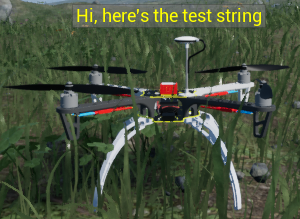
RflySetIDLabel 1000 "Hi, here's the test string" FFFF00 20
Modifies the content, color, and font size of the label on the Copter with ID 1000. This color is a hexadecimal RGB code: FFFF00 indicates red and green components at 255, and blue at 0, which when combined produce yellow. The effect is as follows:
RflySetMsgLabel
RflySetMsgLabel(int CopterID, FString Text, FString colorStr, float size, float time, int flag) (Set Message Display below CopterID Label)
Sets the content displayed for the Message label beneath a Copter’s ID label.
| Parameter | Explanation |
|---|---|
| CopterID | The ID of the Copter whose message display content is to be set |
| Text | The text content to display in the message area |
| colorStr | The text color. Can be specified using a string representing a hex color value, e.g., "FF0000" for red, "00FF00" for green |
| size | The size of the text |
| time | The display duration of the text in seconds. After the specified time, the message disappears |
| flag | The message line index to operate on. There are 5 message labels in total. When flag ≠ 0, a new message line is added |
Operation Example
RflySetMsgLabel 1000 "Hi, here's the test string" FFFF00 20 5 -1
Displays a yellow text string below the ID label. By using the RflySetMsgLabel function, you can configure the message display content for a Copter. By specifying different parameters, you can create multi-line messages, each displayed for a specified duration before disappearing. By setting different flag values (ranging from -5 to -1 or 1 to 5), you can update or add messages on different lines. Including the original ID label, up to 6 lines can be displayed.
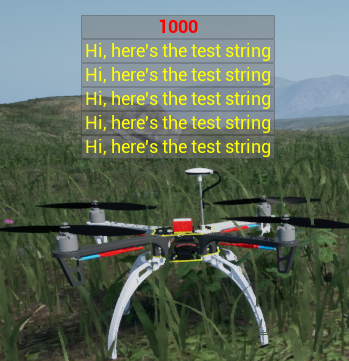
Setting flag to 0 directly modifies the ID label, achieving the same effect as [RflySetIDLabel].
RflySetMsgLabel 1000 "Hi, here's the test string" FFFF00 20 5 0
RflySetPosScale
RflySetPosScale(float scale) (Global Scaling)
Applies global scaling to position coordinates.
| Parameter | Explanation |
|---|---|
| scale | Position scaling factor |
This function affects the position information of Copters received by RflySim3D via UDP, with the default scale == 1.
The structure received by RflySim3D is as follows:
struct SOut2SimulatorSimple {
int checkSum;
int copterID;
int vehicleType;
float MotorRPMSMean;
float PosE[3]; // An array of 3 float variables representing the aircraft’s position; the three elements correspond to the X, Y, and Z coordinates, respectively.
float AngEuler[3];
}
After receiving position information, RflySim3D performs an additional processing step: "PosE[i] = PosE[i] * scale", applying a global scaling transformation.
Operation Example
RflySetPosScale 100
This function is primarily used to unify units. In RflySim3D, spatial units are in centimeters (cm). If the incoming data uses meters (m) as the unit, this command can be used so that no additional unit conversion logic is required.
RflySetVehiclePosAng
RflySetVehiclePosAng(int CopterID, int isFitGround, float x, float y, float z, float roll, float pitch, float yaw) (Reset Copter)
Sets the position and orientation (attitude) of a drone.
| Parameter | Explanation |
|---|---|
| CopterID | The drone’s ID, used to specify which drone’s position and orientation are to be set. |
| isFitGround | Whether to adjust the drone’s altitude to match terrain height. If set to 1, the drone’s Z coordinate will be adjusted according to terrain height; if set to 0, the Z coordinate remains unchanged. |
| x | X-axis component of the position. |
| y | Y-axis component of the position. |
| z | Z-axis component of the position. |
| roll | Euler angle component of rotation: rotation angle around the drone’s X-axis. |
| pitch | Euler angle component of rotation: rotation angle around the drone’s Y-axis. |
| yaw | Euler angle component of rotation: rotation angle around the drone’s Z-axis. |
Operation Example
Suppose you want to directly set the drone with ID 1000 to position (-10, -10, -10) meters and set its pitch angle to -20°. You can use the following command:
RflySetVehiclePosAng(1000, 1, -10, -10, -10, 0, -20, 0)
RflyShowTextTime
RflyShowTextTime(String txt, float time) (Display Text)
Displays the text txt in UE for time seconds.
| Parameter | Explanation |
|---|---|
| txt | The text to be displayed. |
| time | Display duration, in seconds. |
Operation Example
RflyShowTextTime hello,world 5
If the text to display contains spaces:
RflyShowTextTime "hello world" 5
You can directly send the text to display via the Python interface sendRflyShowTextTime.
If sending via the Python interface sendUE4Cmd, the command string should be formatted as: 'RflyShowTextTime "txt" time'
foliage.MaxTrianglesToRender
foliage.MaxTrianglesToRender (Foliage Model Triangle Count)
The triangle count limit for rendering foliage-type models (Foliage Triangles to Render) refers to the maximum number of triangles allowed when rendering foliage models in the simulation scene.
| Parameter | Explanation |
|---|---|
| Triangle Count | Sets the maximum number of triangles allowed for foliage models. |
Operation Example
The following command sets the foliage model triangle count to the minimum (0):
foliage.MaxTrianglesToRender 0
r.ForceLOD
r.ForceLOD (LOD Polygon Count)
Changes the Level of Detail (LOD) settings for the scene, reducing polygon count. LOD is a technique used to manage rendering detail by using models and textures of varying complexity depending on distance and camera angle, balancing performance and visual quality.
| Parameter | Explanation |
|---|---|
| LOD Level | The LOD level to force-apply. Typically specified as an integer from 0 (highest detail level) up to the maximum LOD level. |
Note
In complex scenes, modifying LOD settings may cause changes in the display of terrain or other objects.
Operation Examples
Forcing all LODs to 0 sets all objects to the highest LOD level, effectively disabling LOD. This means objects will always be rendered at the highest detail level, regardless of their distance or camera angle.
r.ForceLOD 0
Similarly, setting LOD to -1 disables LOD for all objects, causing them to be rendered at the lowest detail level.
r.ForceLOD -1
r.MipMapLODBias
r.MipMapLODBias (Texture LOD Bias)
Adjusts the MipMap LOD bias for textures. MipMap is a pre-rendering technique used to provide textures at varying levels of detail.
| Parameter | Explanation |
|---|---|
| LOD Bias Value | Represents the MipMap LOD bias for textures. A higher LOD Bias value indicates the use of lower-resolution MipMap levels, reducing the displayed texture detail. |
Operation Example
The following example sets the MipMap LOD bias for textures to 2:
r.MipMapLODBias 2
r.PostProcessAAQuality
r.PostProcessAAQuality (Anti-Aliasing Quality)
Controls the quality level of post-processing anti-aliasing effects.
| Parameter | Explanation |
|---|---|
| Quality Level | Specifies the anti-aliasing quality level. |
| Quality Level | Explanation |
|---|---|
| 0 | Disable post-processing anti-aliasing |
| 1 | Low-quality post-processing anti-aliasing |
| 2 | Medium-quality post-processing anti-aliasing |
| 3 | High-quality post-processing anti-aliasing |
Operation Example
Disabling post-processing anti-aliasing: This completely disables the post-processing anti-aliasing effect to improve performance. However, the image may appear jagged or have uneven edges.
r.PostProcessAAQuality 0
r.ScreenPercentage
r.ScreenPercentage (Rendering Resolution Percentage)
Controls the resolution percentage used during rendering.
| Parameter | Explanation |
|---|---|
| Resolution Percentage | Specifies the resolution percentage. Typically represented as integer values, e.g., 100 for native resolution, 50 for half the native resolution, and 200 for double the native resolution. |
Operation Example
Set the rendering resolution to 75% of the native resolution:
r.ScreenPercentage 75
r.SetNearClipPlane
r.SetNearClipPlane (Viewport Near Clip Plane)
Sets the camera's near clip plane.
| Parameter | Explanation |
|---|---|
| Near Clip Plane Distance | Specified in camera-space units, typically centimeters. |
Operation Example
The following example sets the near clip plane to 10 units:
r.SetNearClipPlane 10
r.ShadowQuality
r.ShadowQuality (Shadow Quality)
Controls the quality level of shadows.
| Parameter | Explanation |
|---|---|
| Quality Level | Specifies the shadow quality level. |
| Quality Level | Explanation |
|---|---|
| 0 | No shadows |
| 1 | Low-quality shadows |
| 2 | Medium-quality shadows |
| 3 | High-quality shadows |
Operation Example
Disabling shadows: Completely disables shadows in the game to improve performance.
r.ShadowQuality 0
r.Streaming.PoolSize
r.Streaming.PoolSize
Sets the size of the texture streaming pool. The texture streaming pool is a memory pool used for dynamically loading and unloading texture resources to optimize performance and resource management.
| Parameter | Explanation |
|---|---|
| Pool Size | Specifies the size of the texture streaming pool, in MB. |
Note
The default allocation is 1 GB of VRAM. If unsure how to configure it, use zero:r.Streaming.PoolSize 0. Modify this setting when the message "TEXTURE STREAMING POOL OVER ***MiB BUDGET" appears in the top-left corner of the screen. Such a warning indicates that some textures are loading at lower LODs, resulting in a blurry image.
Operation Example (Modifying the texture streaming pool size)
Setting the streaming pool size to 4096 MB:
r.Streaming.PoolSize 4096MB
r.setRes
r.setRes (Set Display Resolution)
Sets the game's display resolution.
| Parameter | Explanation |
|---|---|
| [Width]x[Height] | Resolution parameter: specifies the game's display resolution. For example, 1280x720 means a width of 1280 pixels and a height of 720 pixels. |
| [Fullscreen/Windowed] | Display mode parameter: Fullscreen or Windowed, specifying the game's display mode. |
Note
The actual supported resolutions and display modes depend on the graphics card, monitor, and RflySim3D configuration.
Operation Examples
r.setRes 1920x1080 Fullscreen
In this example, the resolution is set to 1920x1080 in fullscreen mode.
r.setRes 1280x720 Windowed
In this example, the resolution is set to 1280x720 in windowed mode.
sg.PostProcessQuality
sg.PostProcessQuality (Post-Processing Quality)
Post-processing refers to image processing applied after scene rendering, enabling adjustments such as color correction, blurring, and lighting effects to enhance visual quality.
| Parameter | Explanation |
|---|---|
| Quality Level | Determines the detail level and computational complexity of post-processing effects. |
Operation Example
The following example sets the post-processing quality level to the minimum (level 0):
sg.PostProcessQuality 0
sg.TextureQuality
sg.TextureQuality (Texture Quality)
The texture quality level determines texture resolution and detail, affecting both visual fidelity and performance.
| Parameter | Explanation |
|---|---|
| Texture Quality Level | Specifies the texture quality level. |
Operation Example
The following example sets the texture quality level to the minimum (level 0):
sg.TextureQuality 0
slomo_
slomo (Modify Running Speed)
Adjust the running speed to accelerate or decelerate the application.
| Parameter | Explanation |
|---|---|
| slomo | Running speed value: specifies the playback speed. The default value is 1, representing normal speed. Smaller values slow down the speed, while larger values speed it up. |
Operation Examples
slomo 0.5
In the above example, the running speed is set to half of the normal speed.
slomo 2
In the above example, the running speed is set to twice the normal speed.
stat_Engine
stat Engine (Display Frame Rate, Time, Triangle Count, etc.)
Displays engine-related statistics in RflySim3D. Using this command enables real-time monitoring of engine performance and other related information.
| Parameter | Explanation |
|---|---|
| None | This command is solely used to display engine statistics and requires no additional parameters. |
Operation Example
stat Engine
In the above example, engine-related statistics display is enabled. RflySim3D will show statistics including frame rate, time, triangle count, texture memory usage, and physics simulation metrics, among others.
stat_fps
stat fps (Display Update Rate)
Enables real-time monitoring of the simulation program's frame rate performance.
| Parameter | Explanation |
|---|---|
| None | This command is solely used to display frame rate information and requires no additional parameters. |
Operation Example
stat fps
In the above example, frame rate display is enabled. RflySim3D will show the current frame rate information; entering the command again will hide the frame rate display.
stat_game
stat game (Display Tick Feedback Time for Each Process)
Displays program logic and performance statistics in RflySim3D. Using this command enables real-time monitoring of RflySim3D's logical operations and performance.
| Parameter | Explanation |
|---|---|
| None | This command is solely used to display RflySim3D logic and performance statistics and requires no additional parameters. |
Operation Example
stat game
In the above example, RflySim3D logic and performance statistics display is enabled. RflySim3D will show statistics such as RflySim3D logic frame rate, update time, and rendering time.
stat_gpu
stat gpu (Display Frame GPU Statistics)
Displays GPU (graphics card) performance statistics in RflySim3D. Using this command enables real-time monitoring of GPU performance within RflySim3D.
| Parameter | Explanation |
|---|---|
| None | This command is solely used to display GPU performance statistics and requires no additional parameters. |
Operation Example
stat gpu
In the above example, GPU performance statistics display is enabled. RflySim3D will show statistics such as GPU utilization, rendering time, and GPU memory usage.
stat_rhi
stat rhi (Display GPU Consumption Details)
Displays Render Hardware Interface (RHI) performance statistics in RflySim3D. Using this command enables real-time monitoring of the performance of the rendering interface used by RflySim3D.
| Parameter | Explanation |
|---|---|
| None | This command is solely used to display RHI performance statistics and requires no additional parameters. |
Operation Example
stat rhi
In the above example, RHI performance statistics display is enabled. RflySim3D will show RHI performance data, such as rendered frame count, GPU utilization, and GPU memory usage.
stat_scenerendering
stat scenerendering (Display Draw Calls)
Displays Draw Calls in RflySim3D. Using this command enables real-time monitoring of scene rendering performance and other related information.
| Parameter | Explanation |
|---|---|
| None | This command is solely used to display scene rendering statistics and requires no additional parameters. |
Operation Example
stat scenerendering
In the above example, scene rendering statistics display is enabled. RflySim3D will show statistics including Draw Calls, rendered frame count, triangle count, rendering time, object count, lighting calculations, and shadow calculations, among others.
stat_unit
stat unit (Display Various Consumption Metrics)
Displays performance statistics in RflySim3D. Using this command enables real-time monitoring of performance across various systems, such as CPU, GPU, and rendering time.
| Parameter | Explanation |
|---|---|
| None | This command is solely used to display performance statistics and requires no additional parameters. |
Operation Example
stat unit
In the above example, performance statistics display is enabled. RflySim3D will show performance metrics such as CPU usage, GPU usage, and rendering time.
t.Maxfps
t.Maxfps (Limit Frame Rate)
Controls the simulation program's performance by setting a maximum frame rate.
| Parameter | Explanation |
|---|---|
| Maxfps | Maximum frame rate |
Operation Examples
t.Maxfps 60 In the above example, the maximum frame rate is set to 60 FPS.
t.MaxFPS 30 In the above example, the maximum frame rate is set to 30 FPS.