QGroundControl
QGroundControl is the default ground station software adopted by the RflySim toolchain, primarily responsible for mission planning, status monitoring, parameter configuration, and flight mode switching. Within the overall system, it connects the "operator" and the "flight controller," rather than handling dynamics solving or 3D rendering itself.
Software Positioning
In the RflySim usage workflow, QGroundControl is best understood as follows:
- It is not a simulator
- It is not a 3D visualization software
- It is not an algorithm execution environment
- It is the interface for flight controller configuration, mission planning, and flight monitoring
If CopterSim is responsible for making the aircraft "move," and RflySim3D is responsible for letting you "see it," then QGC is responsible for letting you "control it."
Role in RflySim
The typical responsibilities of QGC in RflySim include:
| Responsibility | Description |
|---|---|
| Status Monitoring | View telemetry information such as position, attitude, velocity, battery, and mode |
| Mission Planning | Waypoint planning, mission upload, mission execution |
| Parameter Configuration | PX4 parameter tuning and sensor calibration |
| Mode Switching | Manual, Mission, Return, Offboard, etc. |
| Firmware Operations | Firmware upgrade, device identification, and some customized flashing workflows |
For most users, QGC serves as the "flight controller-side entry point," not the "entire simulation entry point."
Typical Usage Workflow
SITL Workflow
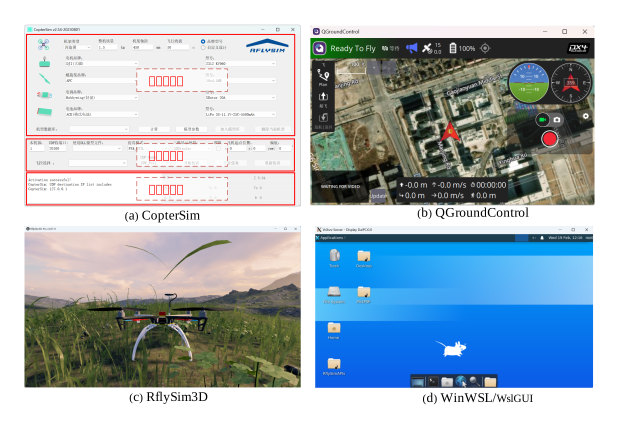
The most common experimental workflow is:
- Launch
SimCreateor BAT - Start
CopterSim + PX4 SITL + RflySim3D + QGC - View telemetry and mode in
QGC - Perform arming, mode switching, mission upload, and other operations
HITL Workflow
In hardware-in-the-loop scenarios, QGC functions more like a ground station in real-world experiments:
- Connect to Pixhawk via serial port or network
- View real flight controller status
- Configure
SYS_ID, sensors, mission modes, etc. - Collaborate with
CopterSimto perform hardware-software integration validation
Core Features
Real-Time Monitoring
QGC can continuously display:
- Position
- Attitude
- Velocity
- Battery
- GPS status
- Flight mode
This step is extremely critical during debugging, as it is often the first observation point for determining whether an issue lies on the flight controller side or the simulation side.
Mission Planning
For PX4-based mission-oriented experiments, one of QGC's core strengths is map-based waypoint planning. It is suitable for:
- Line patrol flights
- Area coverage missions
- Aerial mapping and photogrammetry
- Automated inspection
- Return-to-home and failsafe validation
Parameter Tuning
Pre-tuning parameters during simulation significantly reduces risks in subsequent HITL and real-flight testing.
Flight Mode Management
Common modes include:
ManualAltitudePositionHoldMissionReturnLandOffboard
Among them, Offboard is the most commonly used entry mode when external algorithms take over control.
Mission Planning and Upload
From the RflySim usage perspective, mission planning consists of three main steps:
1. Define the Mission on the Map
This includes:
- Takeoff point
- Waypoint sequence
- Altitude and velocity settings
- Camera or payload trigger actions
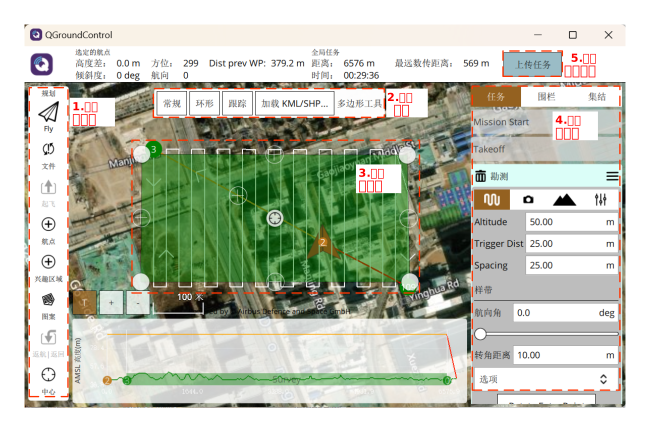
2. Upload to the Flight Controller
This step is performed via MAVLink. Users do not need to memorize all message details, but should understand that mission upload is not "finish drawing and done"—it is a process involving confirmation and validation.
3. Start the Mission and Observe Execution
During mission execution, consider:
- Current mode
- Safety constraints
- Return-to-home and geofence settings
- Real-time telemetry
For course experiments and validation tests, this step effectively verifies whether the mission system operates as expected.
Communication Link
Typical Relationships in RflySim

In the complete toolchain, QGC frequently collaborates with the following components:
PX4 SITLPixhawkCopterSim- Python / ROS external control programs
Communication Methods
Common methods include:
- UDP
- TCP
- Serial port
- MAVLink message flow
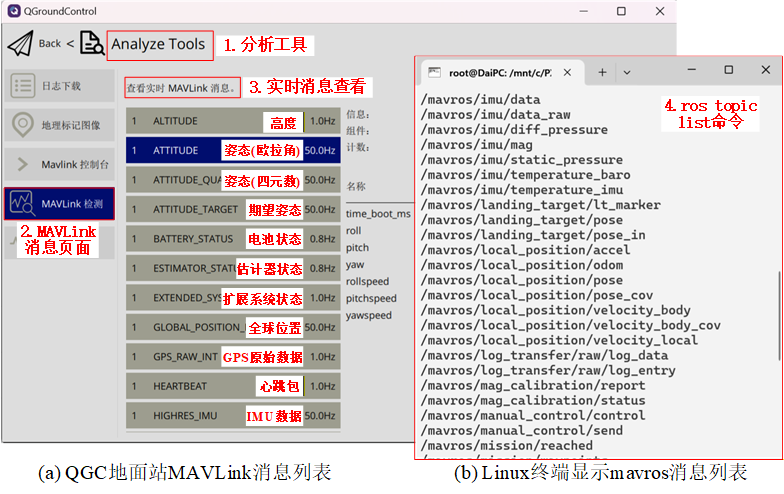
In simulation environments, UDP and MAVLink are more commonly used; in HITL scenarios, serial link connections become more critical.
Key User-Oriented Understanding
To determine whether QGC is functioning properly, you typically only need to check three items:
- Whether it is connected to the correct target
- Whether heartbeat and telemetry data are continuously received
- Whether mode switching and mission uploading are working normally
Multi-Vehicle Configuration
In multi-vehicle simulation, QGC primarily assumes the role of "identifying multiple vehicles and managing them individually."
Most Critical Parameter
SYS_ID must be unique.
If multiple Pixhawk units or multiple flight control links have conflicting IDs, subsequent operations—including:
- Telemetry display
- Mission distribution
- Mode switching
- Parameter modification
—will all become chaotic.
Usage Recommendations
- Plan ID assignment rules in advance before multi-vehicle setup
- First ensure each vehicle can be individually identified
- Then consider batch missions and swarm visualization
Usage Recommendations in RflySim
Clarify Responsibility Boundaries First
Many beginners attribute all issues to QGC. In reality:
- Not seeing the aircraft is usually not a
QGCissue - Missing imagery is also not a
QGCissue - Dynamics instability is typically unrelated to
QGC
QGC is better suited for verifying:
- Whether the flight controller is online
- Whether the current flight mode is correct
- Whether parameters have been configured successfully
- Whether missions have been uploaded and executed successfully
Understanding Offboard Mode
Many external control experiments do not involve direct control via QGC; instead:
- Use
QGCto arm the vehicle and switch to the appropriate mode - Let Python / ROS / Simulink programs take over control
In this case, QGC functions more like a status monitoring and safety entry point, rather than the primary controller.
Customized QGC
The RflySim QGC link also includes several customized capabilities, such as:
- Shared-memory image-related features
- Custom firmware download and flashing procedures
- Tighter integration and coordination with the RflySim toolchain
Therefore, it should not be viewed solely as a "standard QGroundControl tutorial."
Frequently Asked Questions
| Issue | More Likely Cause | Troubleshooting Approach |
|---|---|---|
| QGC cannot connect to simulation | PX4 / MAVLink link not established | First check heartbeat from SITL or flight controller side |
| Only one vehicle recognized in multi-vehicle setup | SYS_ID conflict |
First uniformly plan ID assignments |
| Mission fails to upload | Current flight controller state or mission content abnormal | First perform a simple mission upload test |
| Parameter changes have no effect | Parameters not actually sent or require restart to take effect | Confirm based on flight controller status |
| Image functionality abnormal | Not a standard QGC issue, likely a customized link issue | Troubleshoot back to corresponding example or interface link |
Related Examples
- QGroundControl Software Documentation: [RflySim Installation Path]\RflySimAPIs\2.RflySimUsage\0.ApiExps\e1_RflySimSoftwareReadme\QGroundControl
- Onboard Image Acquisition via QGC: [RflySim Installation Path]\RflySimAPIs\2.RflySimUsage\2.AdvExps\e1_QGCLoadimage
- RflySimSDK Usage Reference: [RflySim Installation Path]\RflySimAPIs\2.RflySimUsage\2.AdvExps\e2_RflySimAPIUsage
- QGC Secondary Development Environment Setup: [RflySim Installation Path]\RflySimAPIs\2.RflySimUsage\2.AdvExps\e3_QGCDevEnvDep