Toolchain Long-Term Support for Flight Controller Introduction 
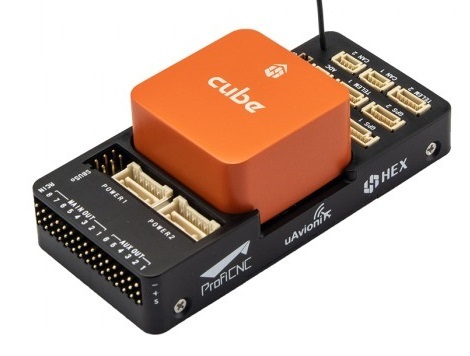
1. CubepPilot Cube Orange
This controller is designed to be used with domain-specific carrier boards to reduce wiring, improve reliability, and simplify assembly. For example, a carrier board for commercial inspection vehicles may include connections for companion computers, while a carrier board for racing vehicles may include ESCs for the vehicle frame. The ADS-B carrier board includes a custom 1090 MHz ADSB-In receiver from uAvionix. This provides attitude and position information for commercial manned aircraft within the Cube range. For more information, see: https://docs.px4.io/main/zh/flight_controller/cubepilot_cube_orange.html.
2. RflySim Configuration
Use the software installation configuration shown in the figure below, and the hardware connection configuration shown in the lower-right figure.
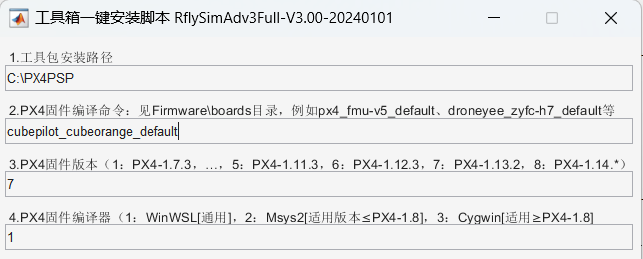
- Use the cubepilot_cubeorange_default compilation command.
- Use "7": PX4 1.13.2 firmware.
- Use "1": WinWSL compiler.
3. Official Firmware and Restoration
Open the QGC ground station and navigate to the following interface.
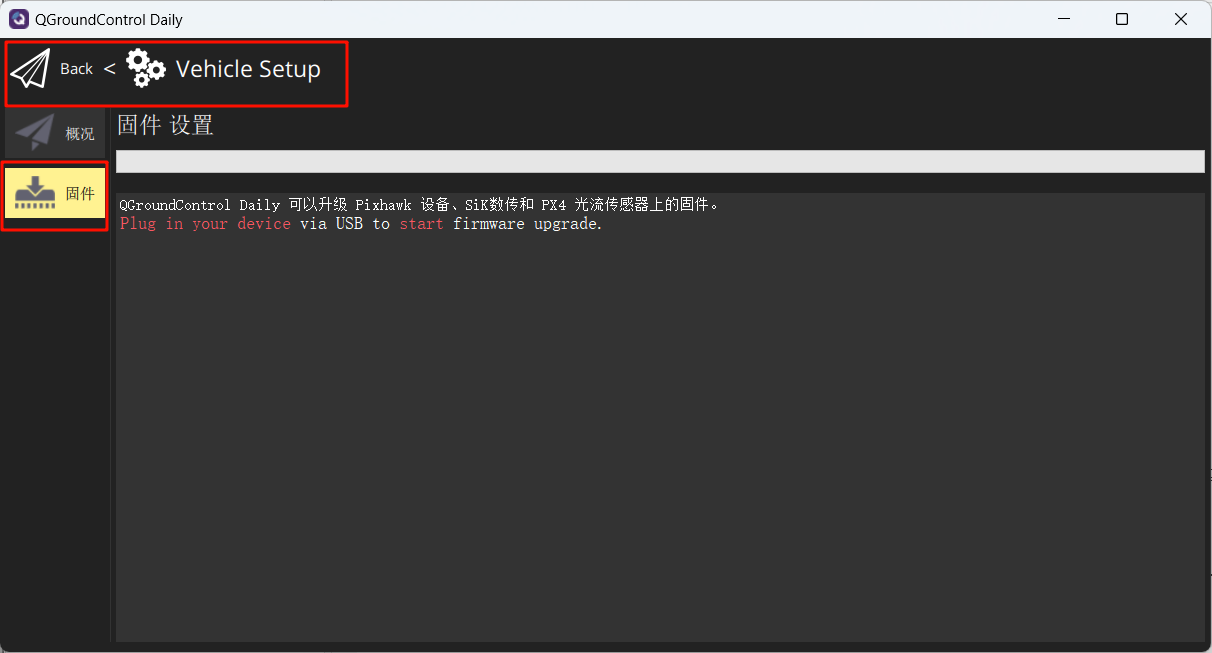
Connect the flight controller to the computer. In the pop-up interface, select the following option to flash the firmware: cubepilot_cubeorange_default.px4
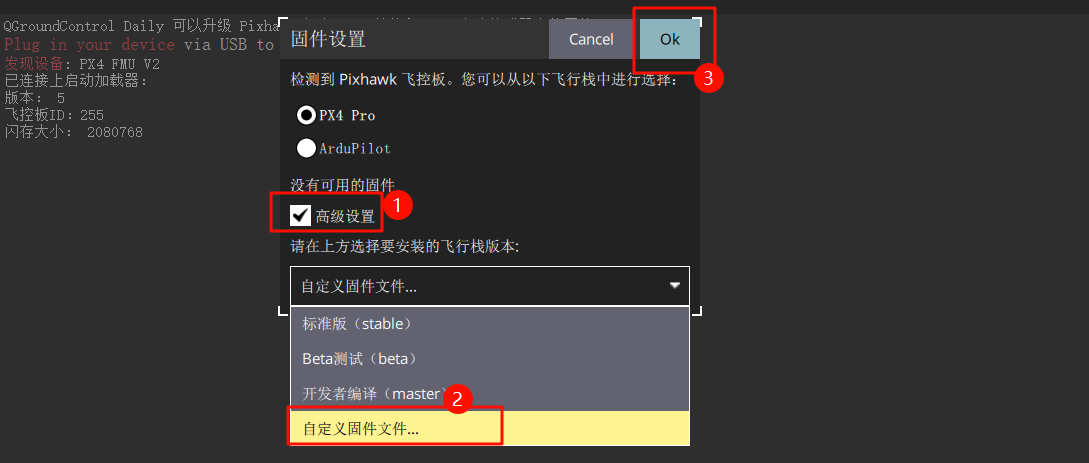
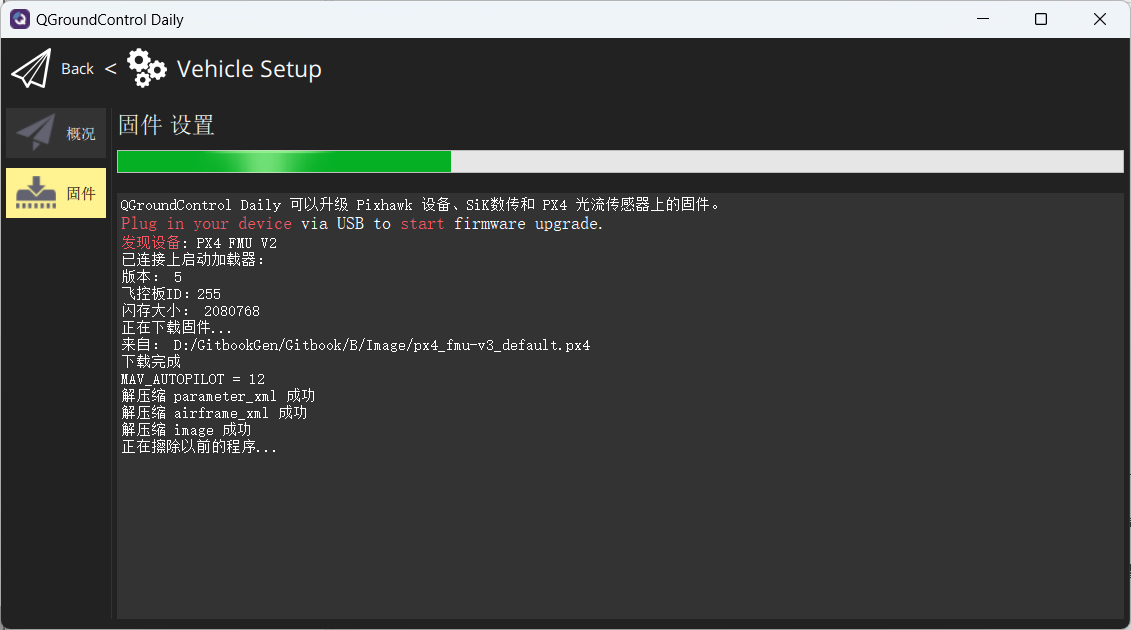
Wait for the flashing process to complete.
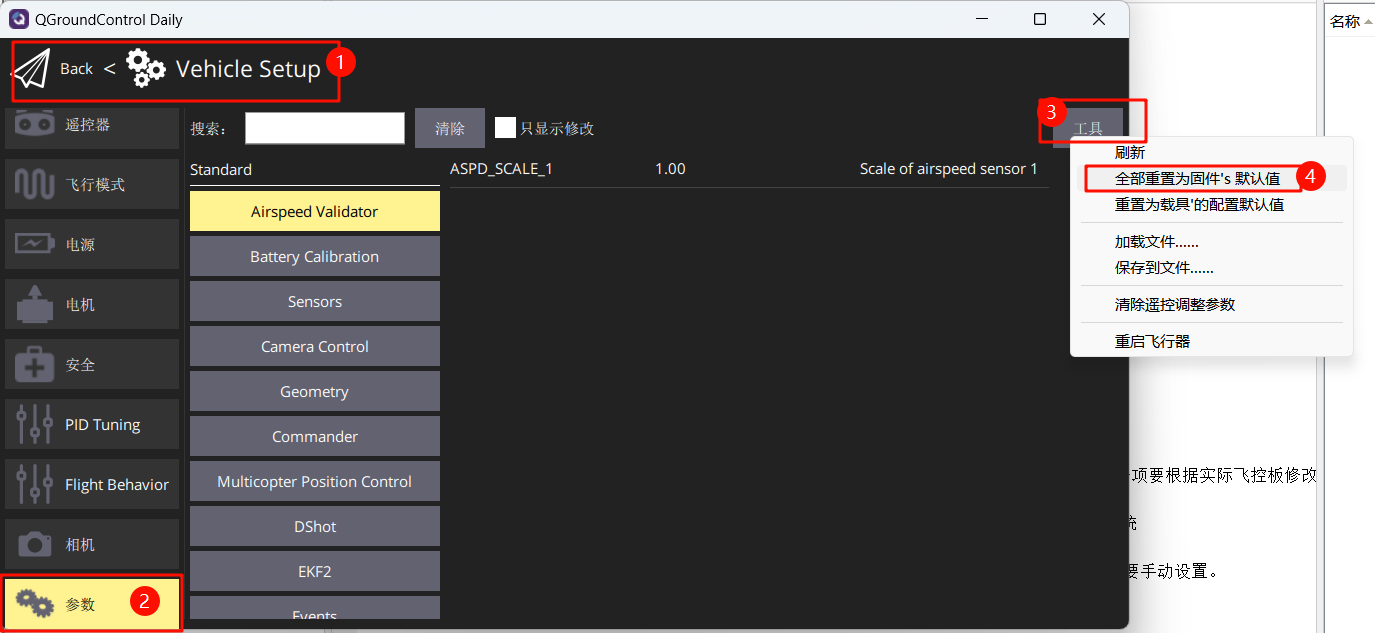
Restore the flight controller parameters to the firmware default values.
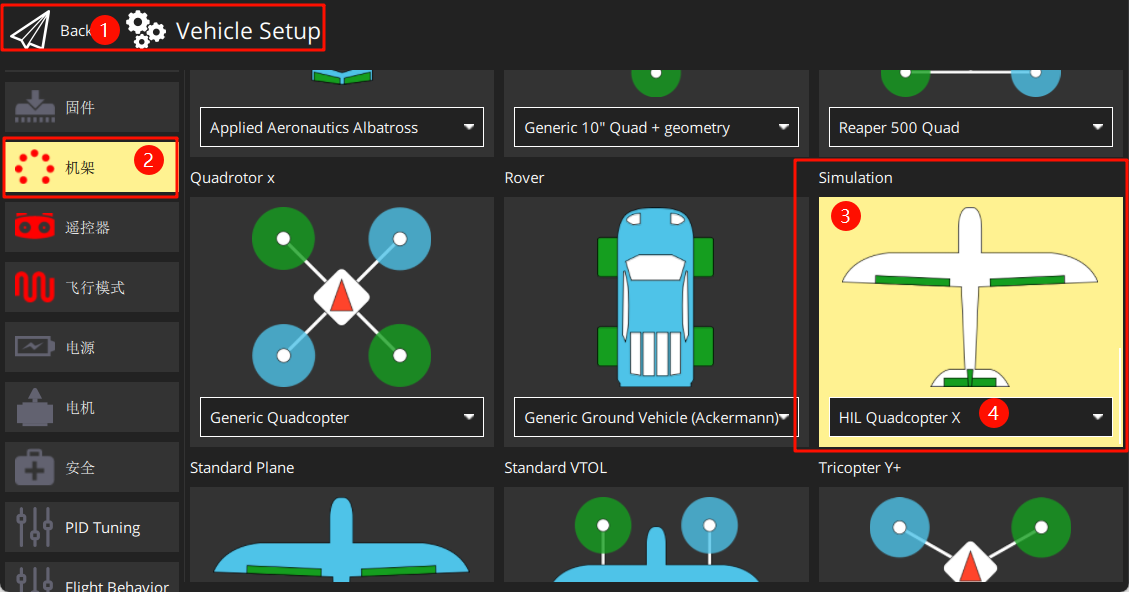
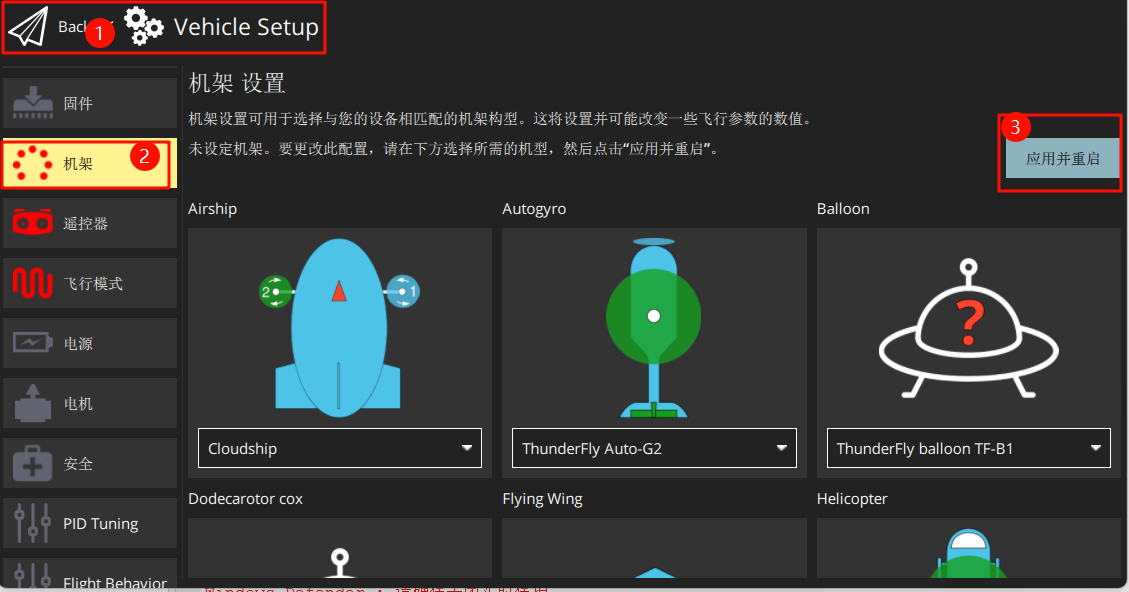
Set the airframe to HIL Quadcopter X, scroll to the very top, and click "Apply and Restart". Wait for the restart to complete.
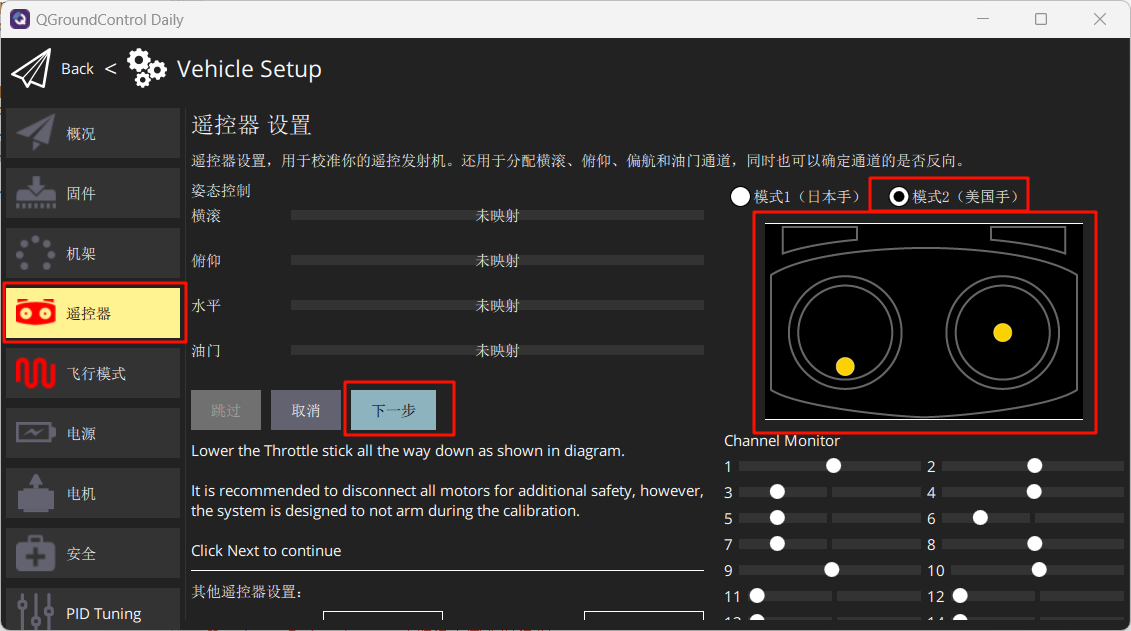
Connect the remote control receiver (pay attention to the wiring sequence) and turn on the remote control. Calibrate the remote control as shown in the figure.
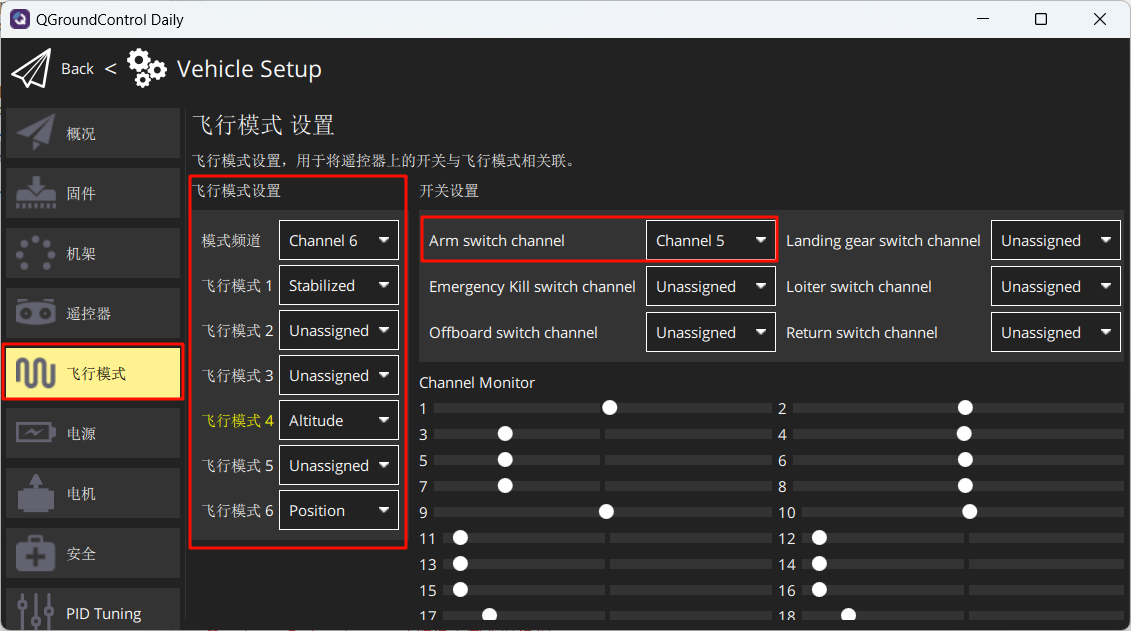
Set the flight modes as shown in the figure below.
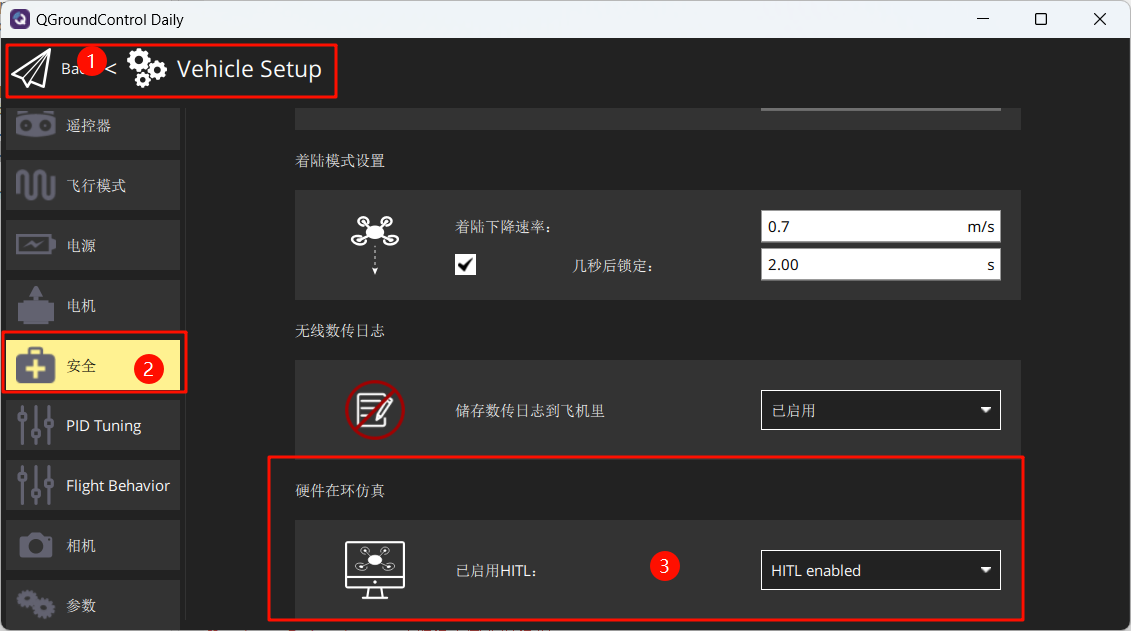
Under Safety, enable only Hardware-in-the-Loop simulation.
4. Launch Hardware-in-the-Loop (HIL) Simulation
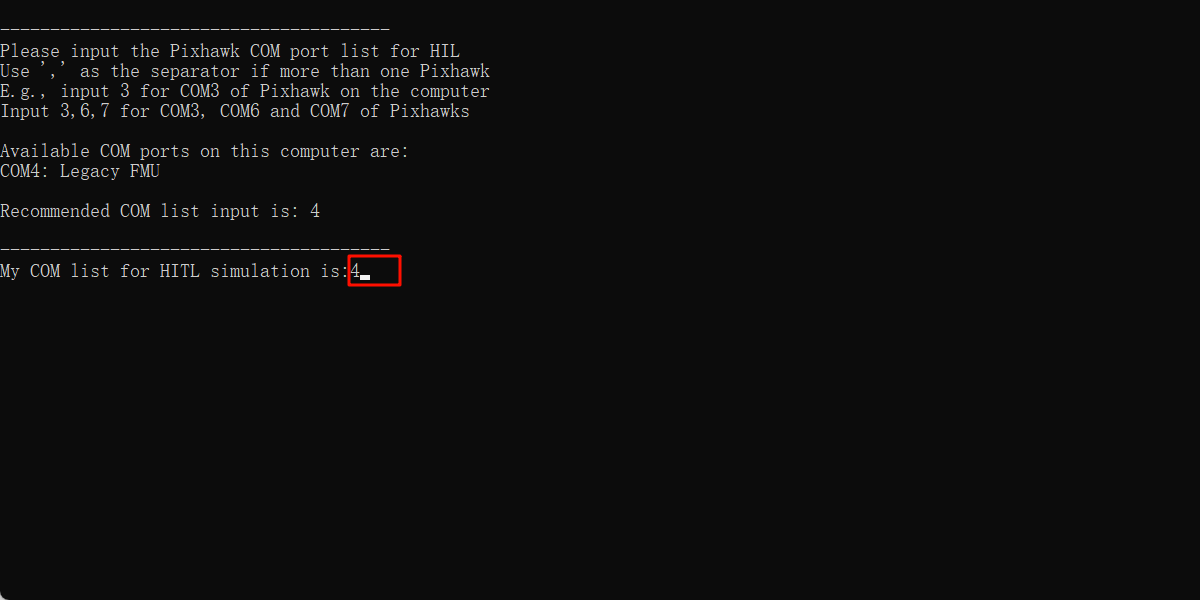
After completing the above setup, close QGC. Run the "[安装目录]\桌面\RflyTools\HITLRun.lnk" script as Administrator. In the pop-up cmd dialog box, enter the flight controller's port number (e.g., 4).
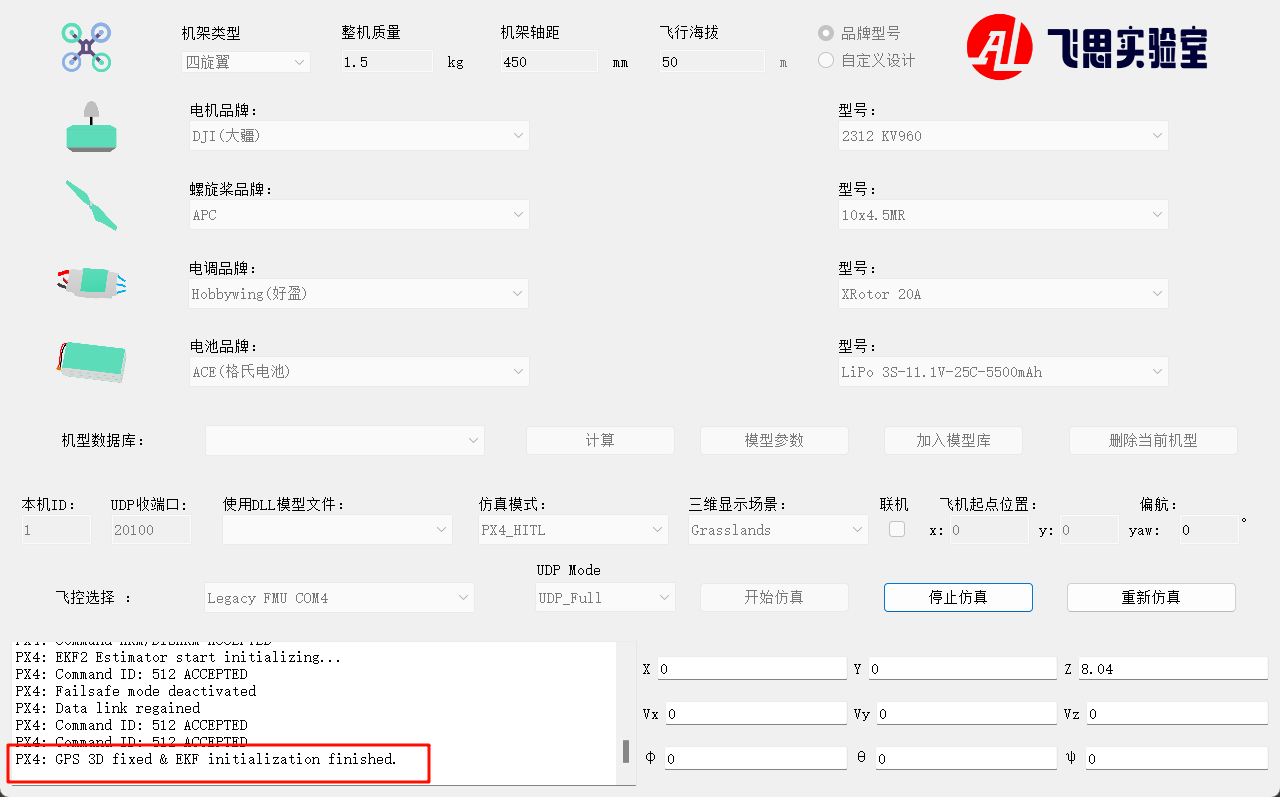
Wait until the bottom-left corner of CopterSim displays: PX4: GPS 3D fixed & EKF initialization finished.
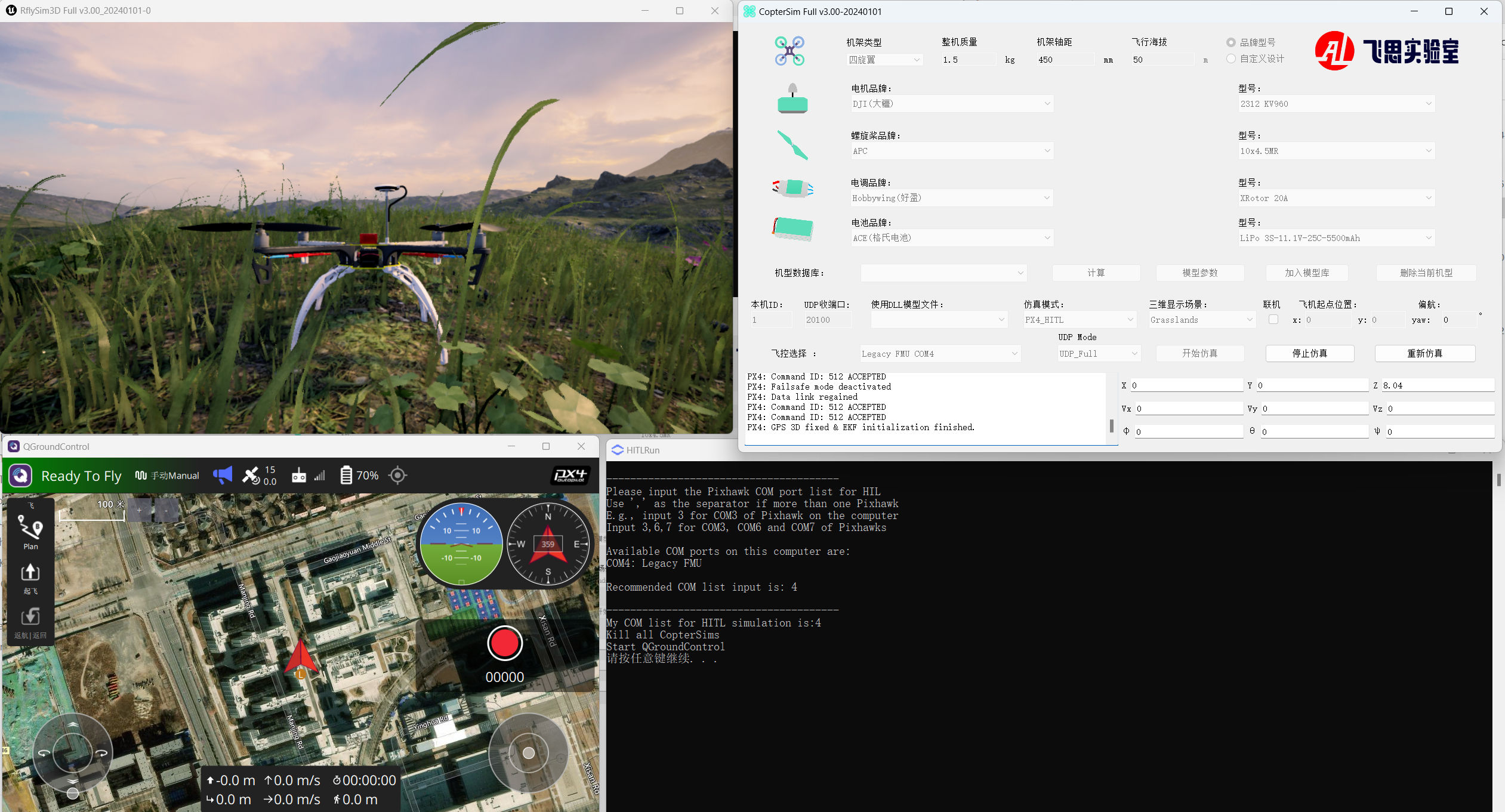
Unlock via channel CH5 on the remote control, then take off and control the aircraft flight.