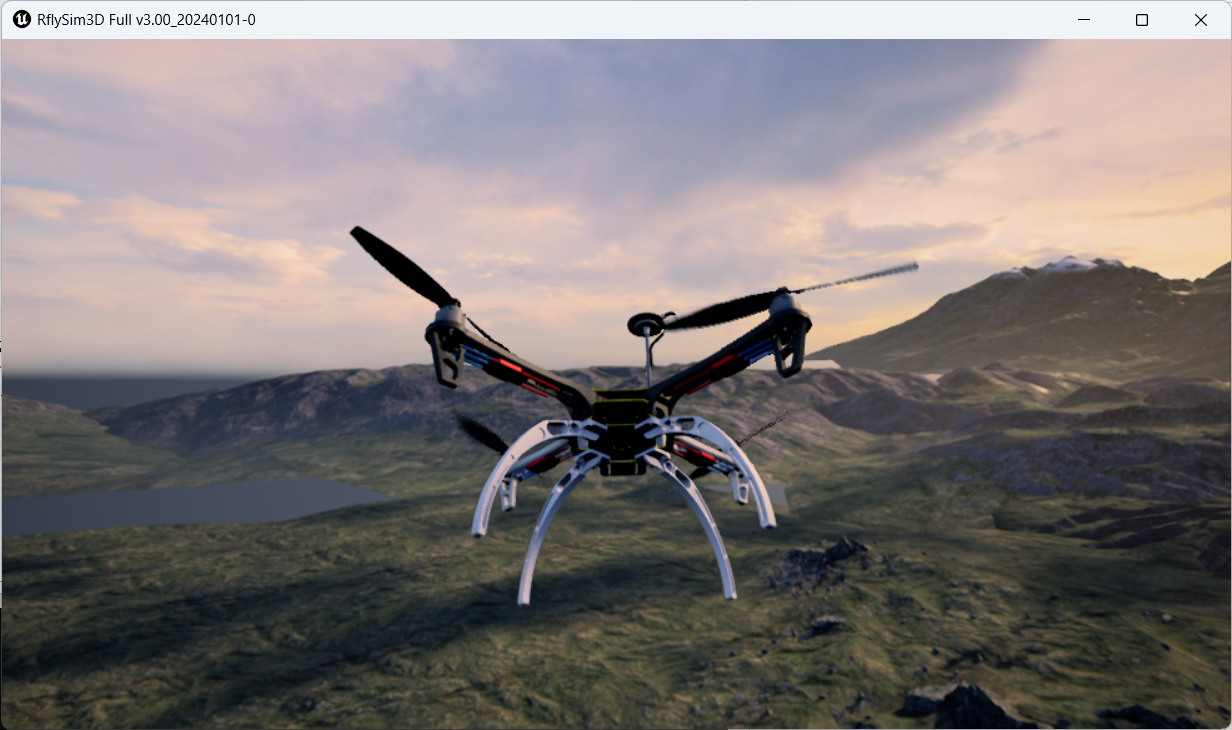
Toolchain Long-Term Support for Flight Controller Introduction 
1. Pixhawk 2.4.8 (also known as Pixhawk 1)
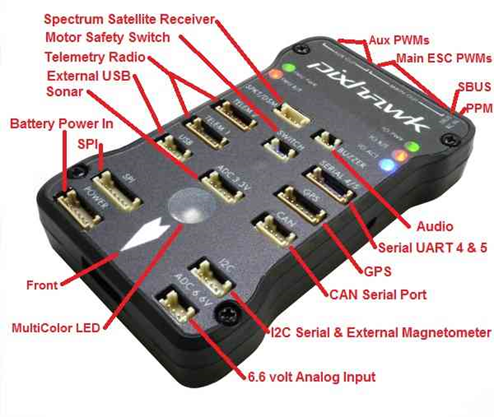
The Pixhawk 2.4.8 is an advanced autopilot designed by the PX4 open-hardware project and manufactured by 3D Robotics. It features advanced processor and sensor technologies from STMicroelectronics, along with the NuttX real-time operating system, enabling remarkable performance, flexibility, and reliability for controlling any autonomous aerial vehicle. Its features include:
-
An advanced 32-bit ARM Cortex-M4 high-performance processor capable of running the NuttX RTOS real-time operating system.
-
14 PWM/servo outputs (8 of which feature safety and manual control, plus 6 auxiliary outputs compatible with high-power devices), and rich peripherals (UART, I2C, SPI, CAN).
-
Redundant design with integrated backup power and a basic safety flight controller, enabling safe switching to backup control in case the main controller fails.
-
Integrated mixing functionality in the backup system, providing both automatic and manual mixing modes.
-
Redundant power inputs with automatic failover, and an external safety button for easy motor arming.
-
Multi-color LEDs and a high-power, multi-tone buzzer.
-
Micro SD for long-duration, high-rate flight data logging.
2. RflySim Configuration
If using the Pixhawk 2.4.8 (2M flash) flight controller hardware (corresponding firmware: px4_fmu-v3_default), the recommended software installation configuration is shown in the figure below, and the hardware connection configuration is shown in the lower right figure.
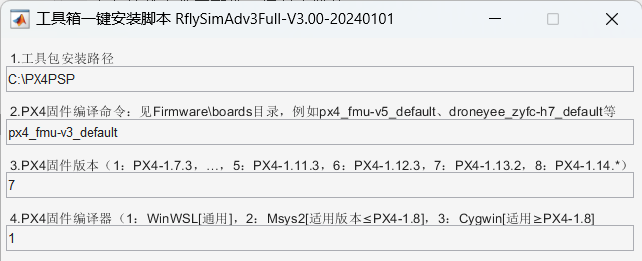
- Use the px4_fmu-v3_default compilation command.
- Use "7": PX4 1.13.2 version firmware.
- Use "1": WinWSL compiler.
- The Pixhawk 1 includes built-in LEDs, so no external module is required. Simply connect the remote controller receiver as shown in the right figure.
Note: Starting from Pixhawk 2/3/4, built-in LED and other modules are no longer included, and an external LED module must be purchased separately.
3. Official Firmware and Restoration
Open the QGC ground control station and navigate to the following interface.
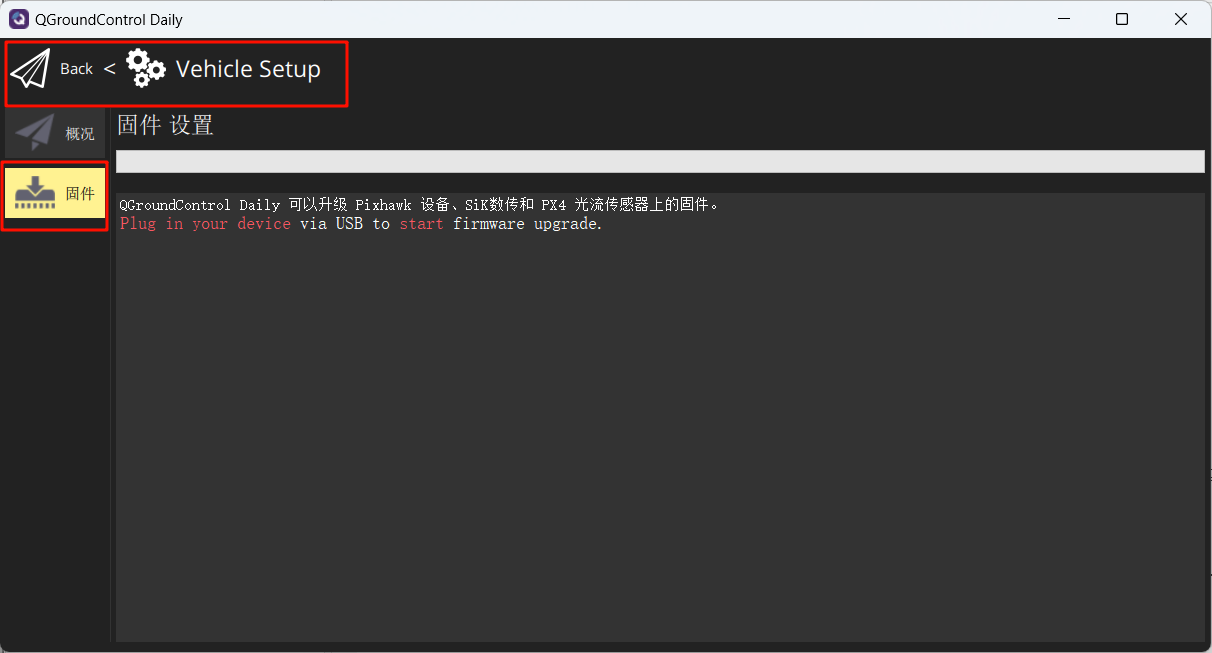
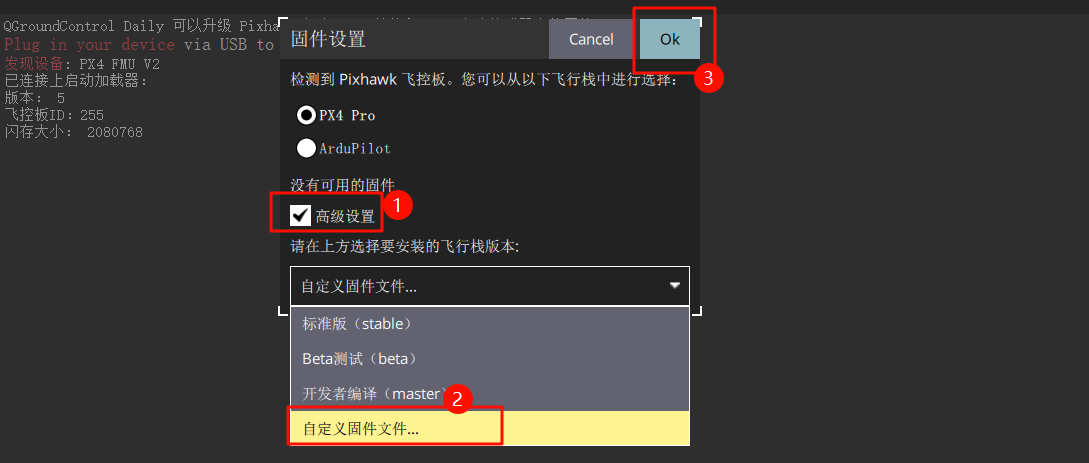
Connect the flight controller to the computer, and in the pop-up interface, make the following selections to flash the firmware: px4_fmu-v3_default.px4
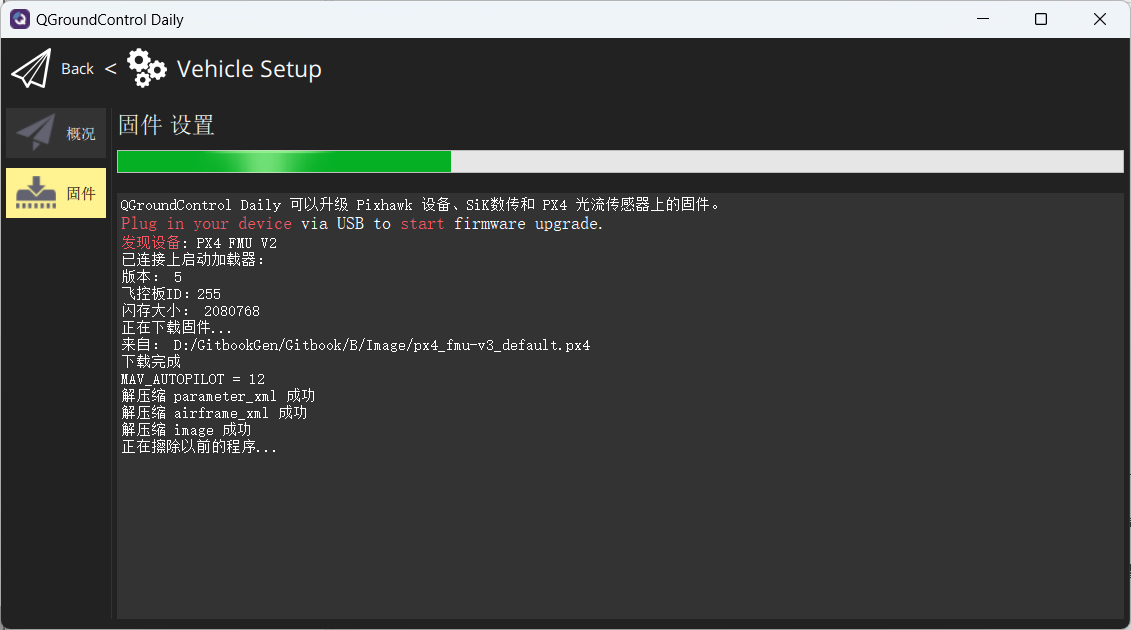
Wait for the flashing process to complete.
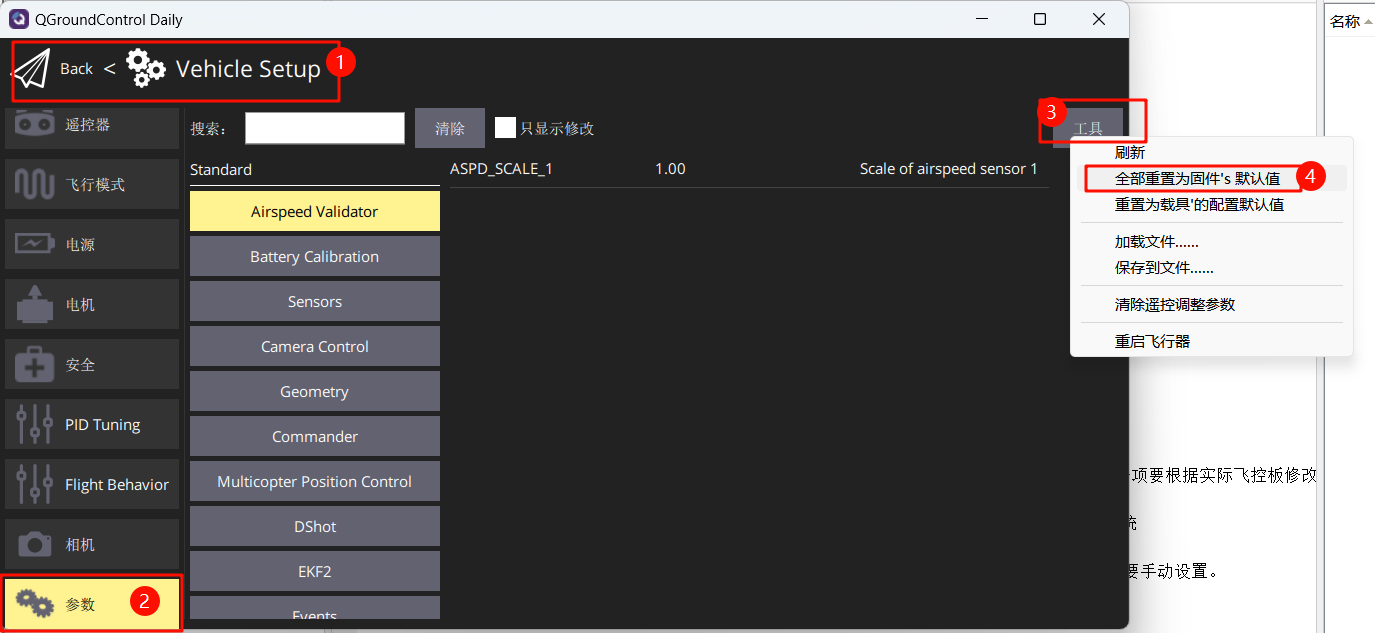
Restore the flight controller parameters to the firmware default values.
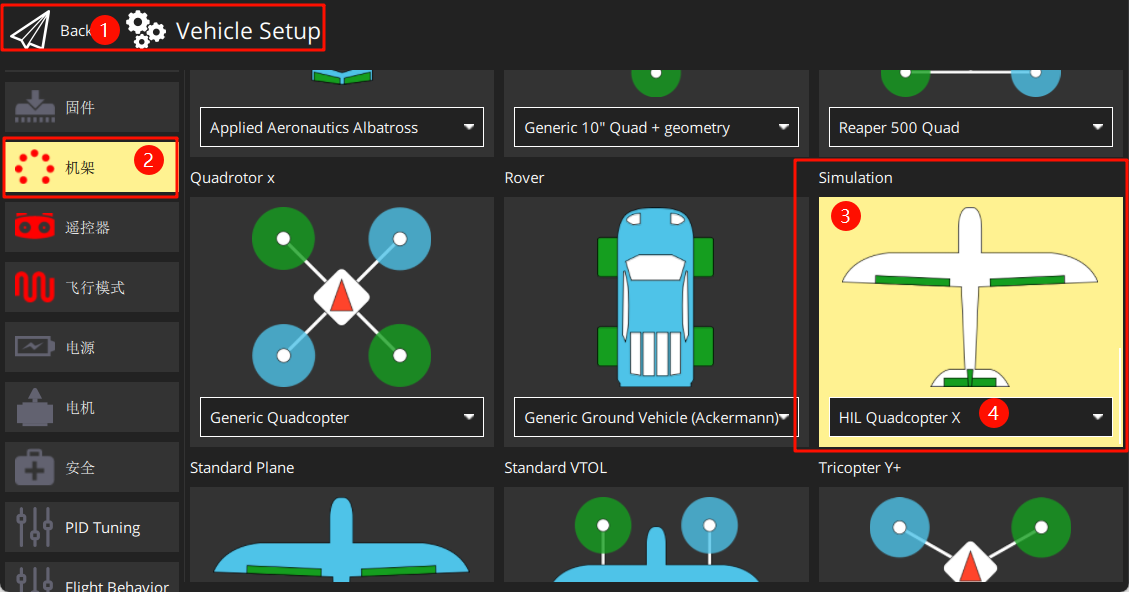
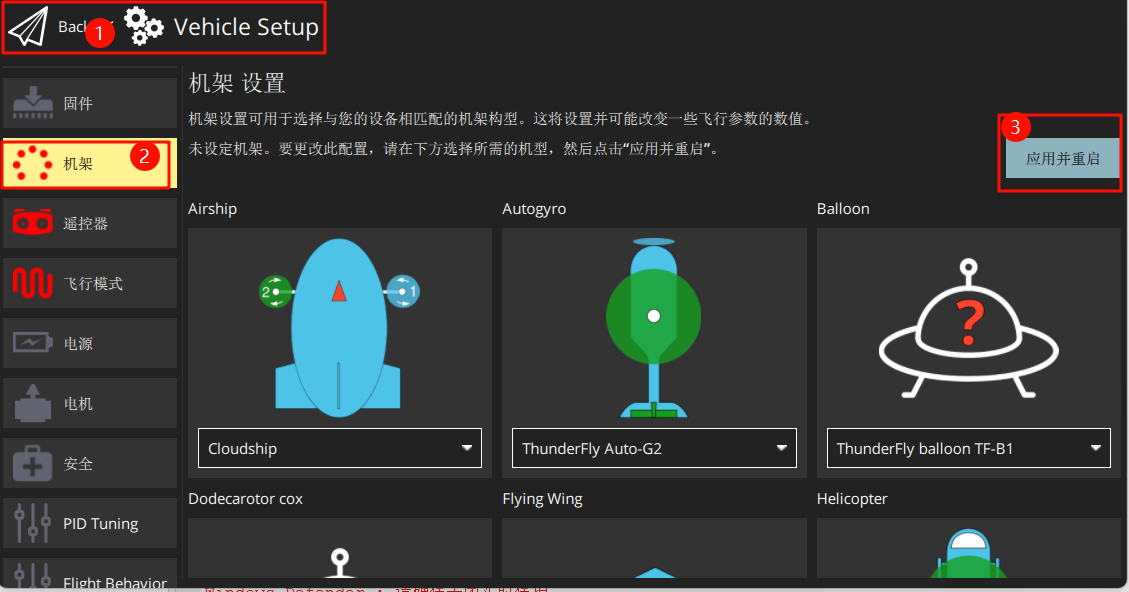
Set the airframe to HIL Quadcopter X, scroll to the top, and click "Apply and Restart". Wait for the restart to complete.
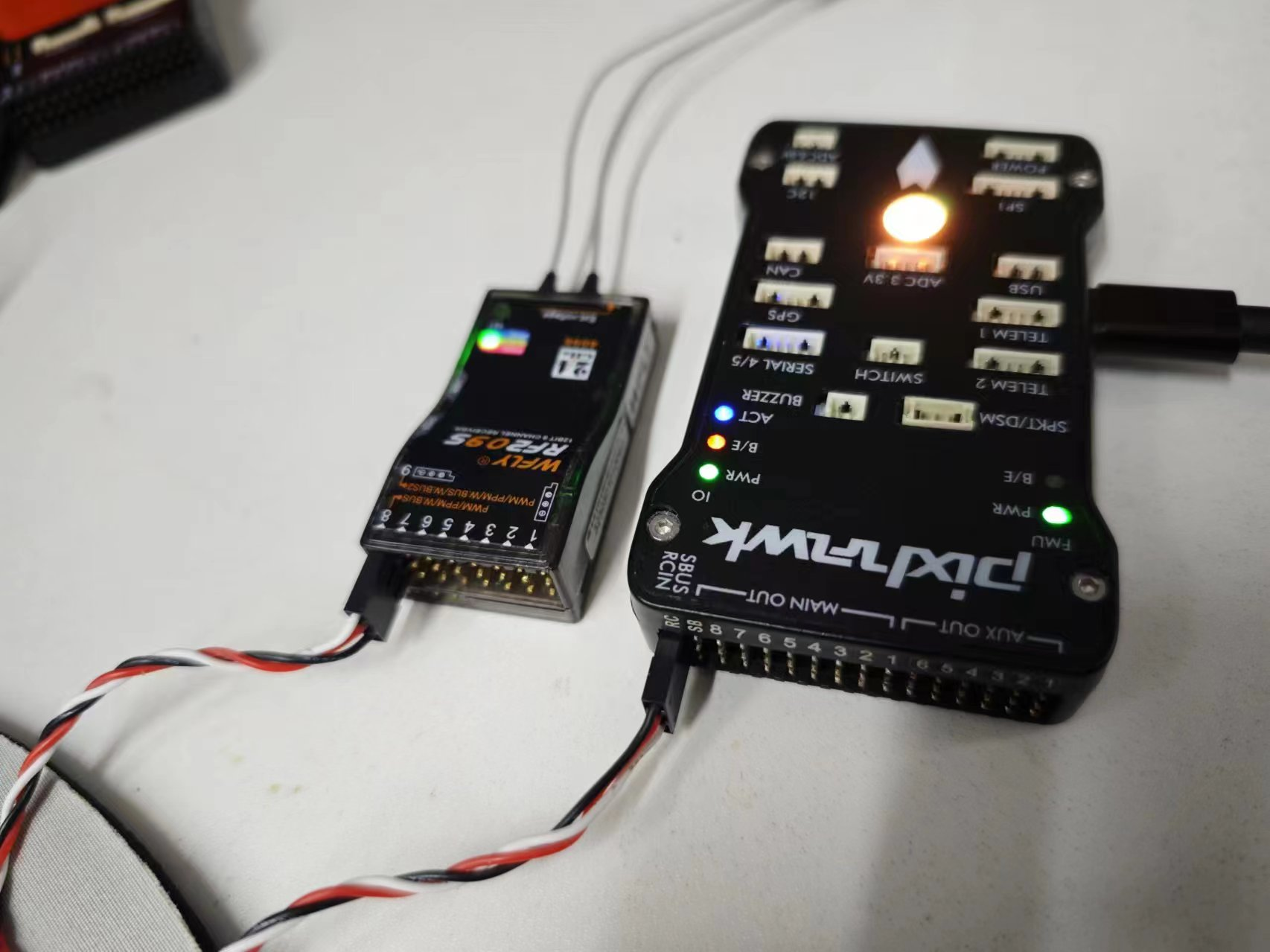
Connect the remote controller receiver (pay attention to pin order) and power on the remote controller.
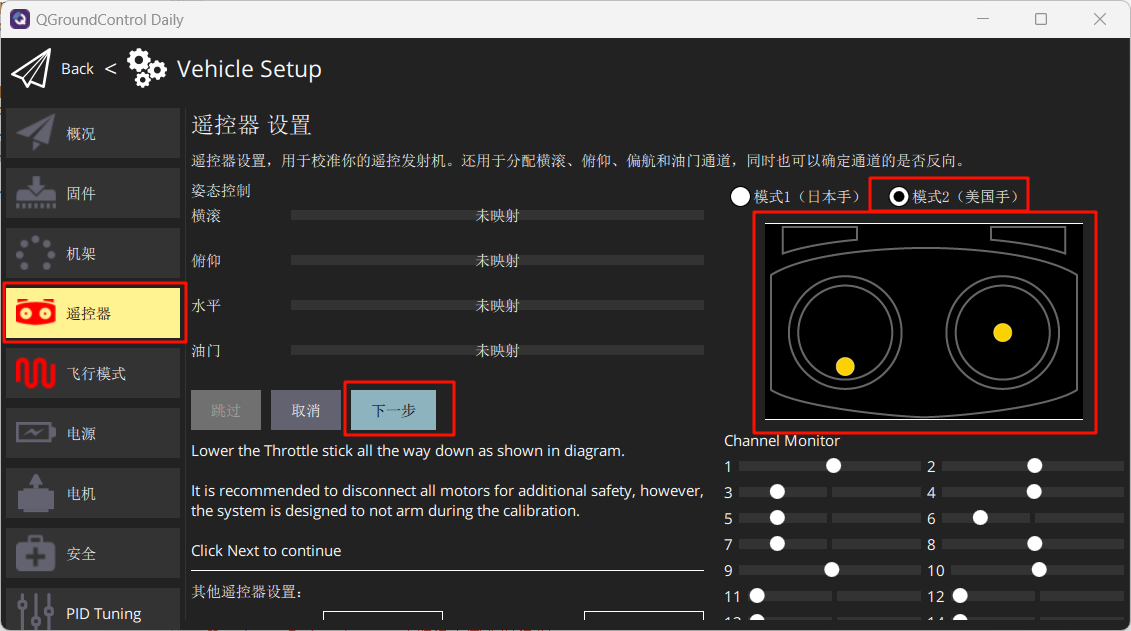
Calibrate the remote controller according to the instructions shown.
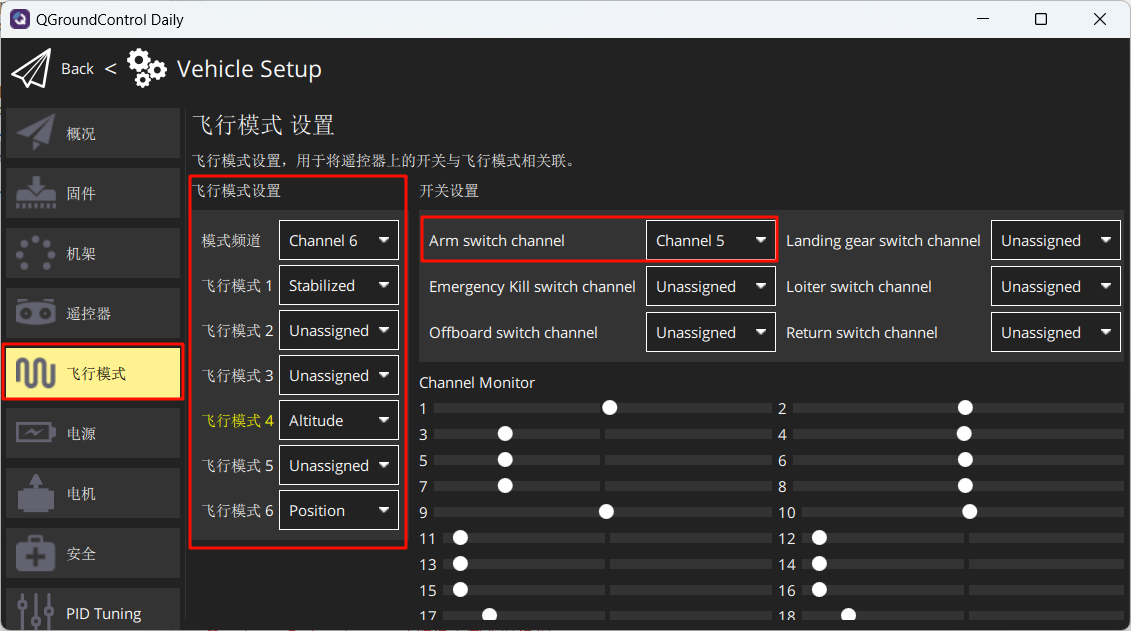
Set the flight modes as shown in the figure below.
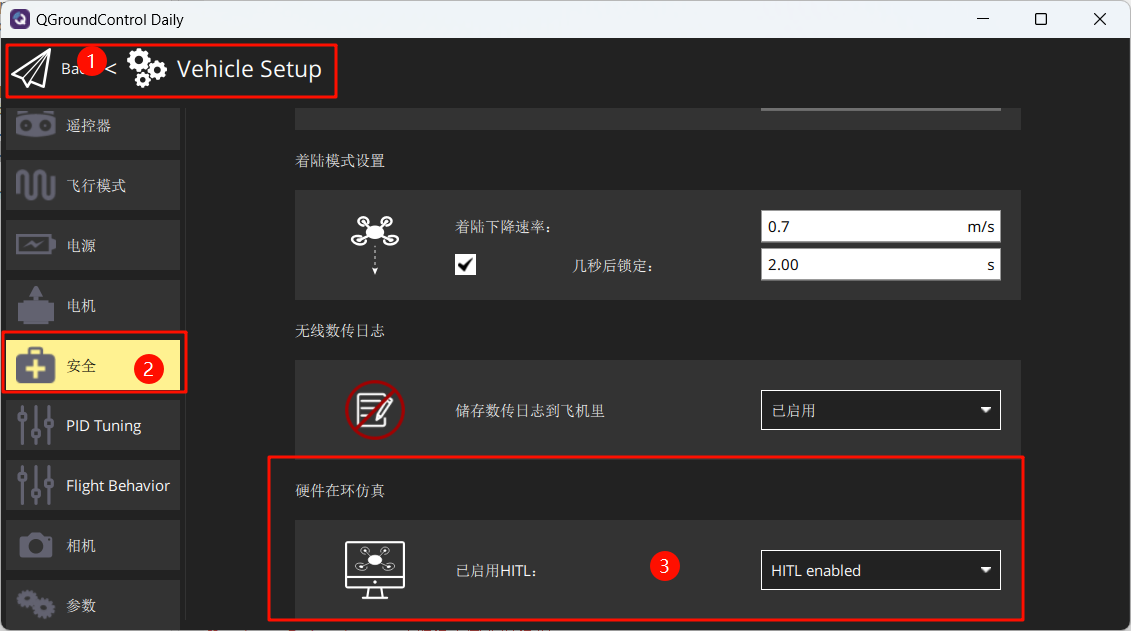
In the Safety section, enable only Hardware-in-the-Loop simulation.
4. Starting Hardware-in-the-Loop (HIL) Simulation
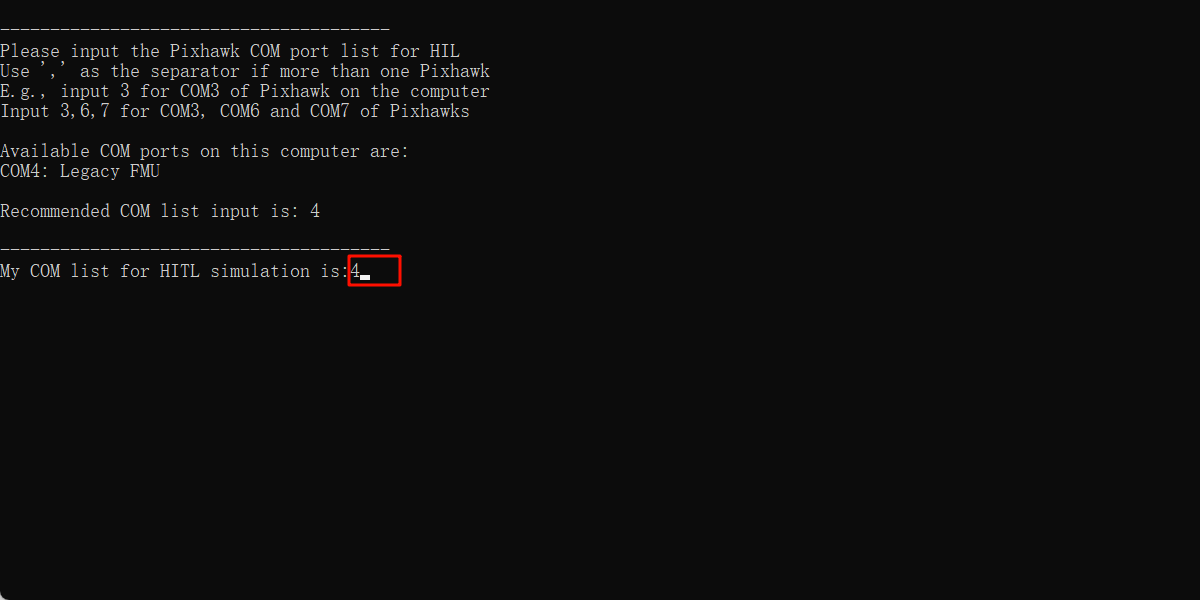
After completing the above setup, close QGC. Run the "[安装目录]\桌面\RflyTools\HITLRun.lnk" script as Administrator. In the pop-up cmd dialog box, enter the flight controller's port number (e.g., 4).
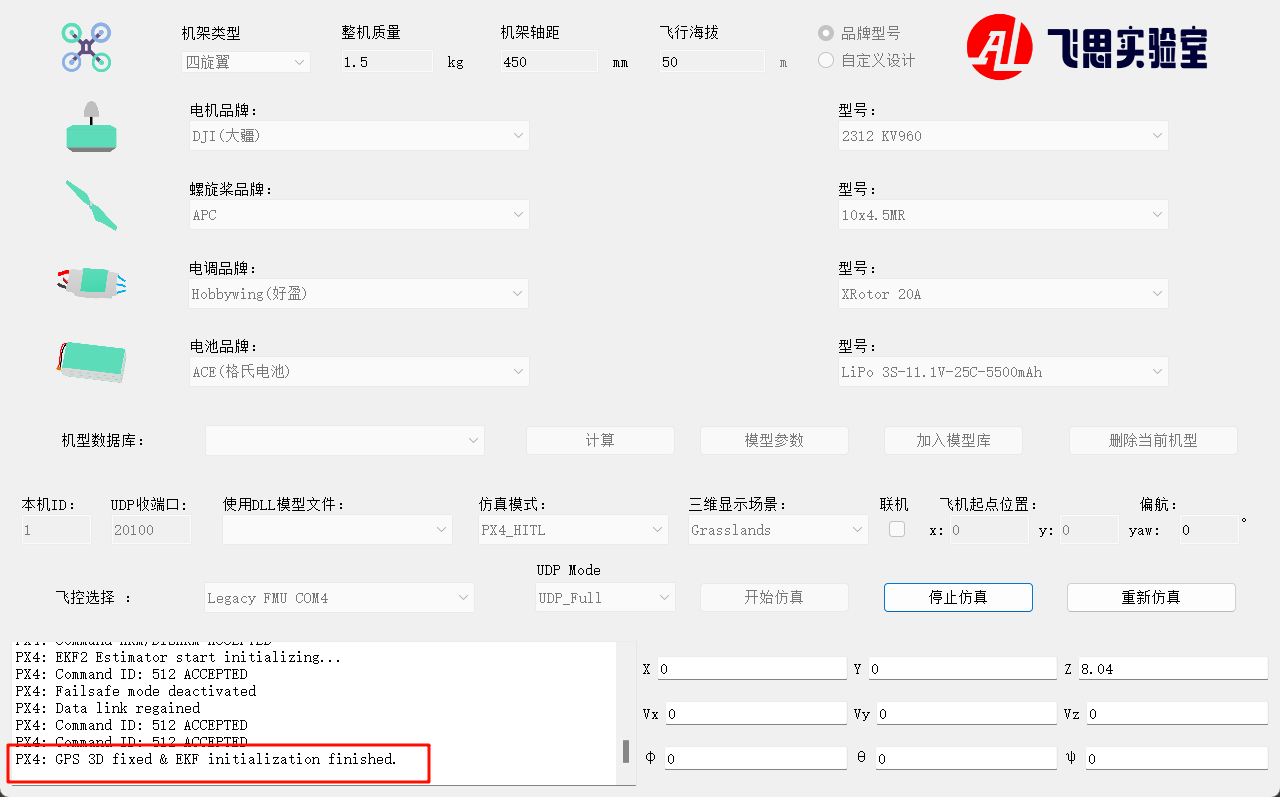
Wait until the bottom-left corner of CopterSim displays: PX4: GPS 3D fixed & EKF initialization finished.
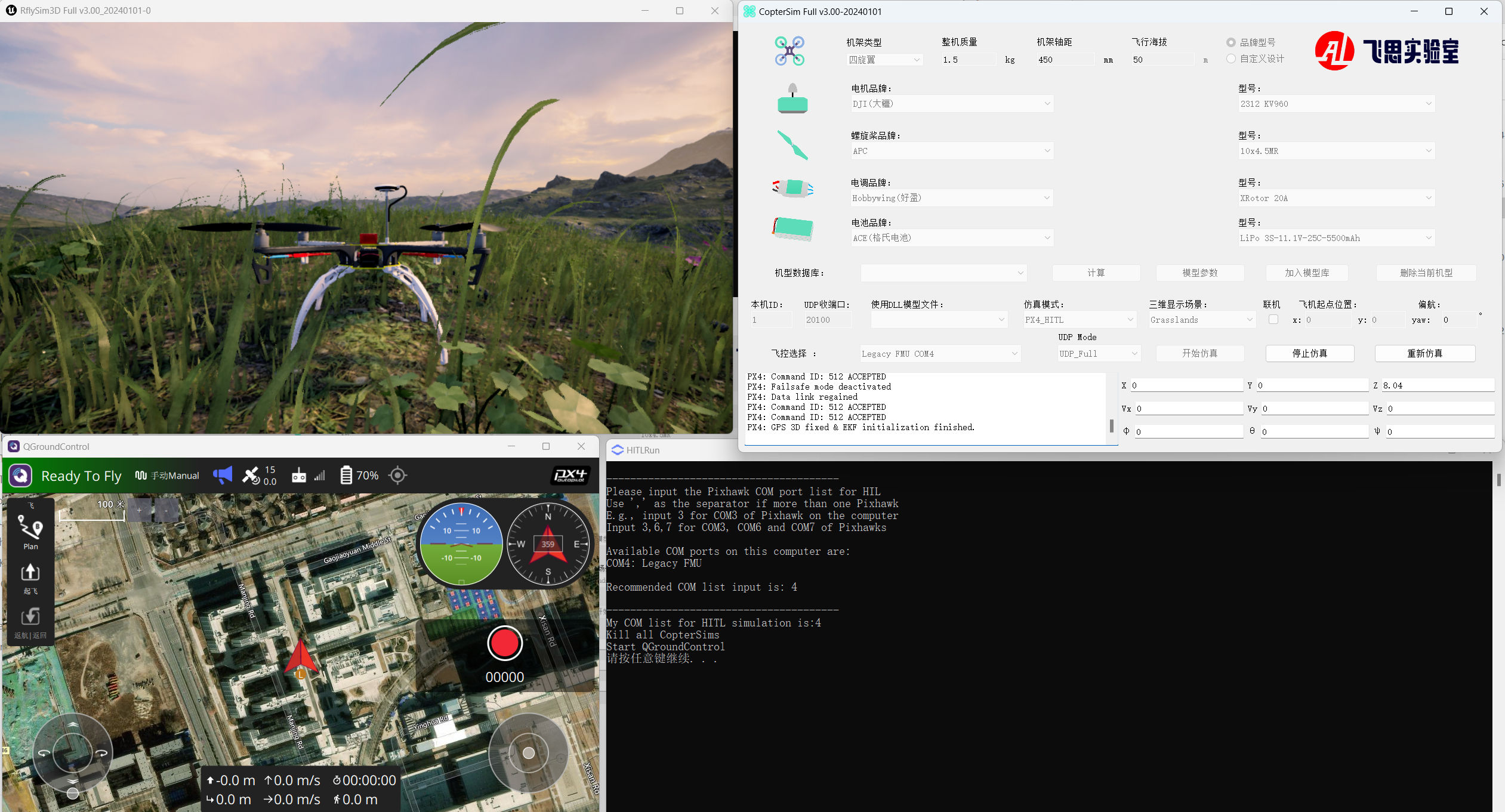
Arm the aircraft via channel CH5 on the remote controller, then take off and control the aircraft flight.