SimCreate
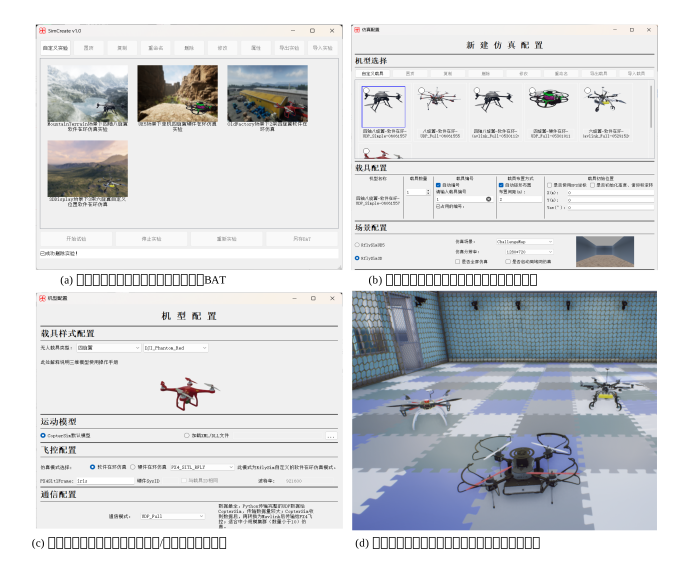
SimCreate is the experiment orchestration and launch tool within the RflySim toolchain. It does not perform dynamics computation, nor does it handle 3D rendering. Instead, it uniformly organizes the key aspects of a simulation experiment—such as "which vehicle models to use, which simulation mode to run, which software components to open, and how to launch them in batch."
Software Positioning
If the entire RflySim simulation suite is viewed as an assembly line:
CopterSimserves as the core for motion and flight controller interfaceRflySim3Dserves as the 3D environment and sensor platformQGroundControlserves as the ground stationDistSimserves as the multi-vehicle deployment and scheduling engineSimCreateserves as the experiment entry point
Its core value lies in two aspects:
- Consolidating scattered software launch operations, mode configurations, and parameter combinations into a single experiment entry
- Converting experiment entries into reproducible BAT scripts
Therefore, SimCreate functions more like an "experiment manager" rather than a standalone simulation program.
Role in the Toolchain
The typical output of SimCreate is neither imagery nor control commands, but rather a complete experiment launch plan:

This means:
- It determines how the experiment is organized
- It does not determine how the UAVs fly
- It does not replace
DistSim's capability for cross-host distribution
How an Experiment is Organized
In SimCreate, an experiment is typically composed of five types of information:
| Dimension | Description |
|---|---|
| Vehicle Configuration | Model type, quantity, ID assignment, layout method |
| Motion Model | Default model, DLL model, or XML model |
| Flight Control Mode | SIL, HIL, and their sub-modes |
| Communication Mode | UDP, MAVLink, Redis, etc. |
| Scene & Display | 3D software, scene selection, resolution, fullscreen, LAN settings |
Therefore, what SimCreate truly manages is not a single "window", but a reproducible set of experimental states.
Quick Start
Most Common Workflow
- Create a new experiment
- Select vehicle model(s) and quantity
- Choose scene and 3D display software
- Select simulation mode and communication mode
- Save the experiment
- Click "Start Experiment"
Ideal Use Cases
- First-time setup of an RflySim experiment chain
- Repeated execution of fixed-type experiments
- Batch configuration of multi-UAV and heterogeneous experiments
- Course instruction and lab standard process reproduction
Cases Not Suitable for Independent Use
- Cross-host distributed script deployment
- Fine-grained configuration of visual sensors
- Ground station mission planning and parameter tuning
These are better handled by DistSim, VisCreate, and QGroundControl, respectively.
Three-Level Interface Structure
The SimCreate interface can be understood as having three layers:
1. Experiment Management Layer
This layer manages experiment entries, with common operations including:
- Create
- Copy
- Rename
- Delete
- Export
- Launch
2. Simulation Configuration Layer
This layer manages the runtime configuration of the current experiment, focusing on:
- Which vehicles to select
- Quantity of each vehicle type
- Initial placement (layout)
- Which scene to use
- Whether LAN and Python scripts are needed
3. Vehicle Model Configuration Layer
This layer manages details of a single vehicle model type, including:
- Flight control mode
- Motion model
- Communication mode
PX4SitlFrameSysID- Baud rate, etc.
Understanding these three layers clarifies why SimCreate is especially suited for multi-UAV and heterogeneous experiments—not merely as a "launcher".
Core Configuration Items
Vehicles and IDs
Common configurations include:
- Number of vehicles
- Automatic or manual ID assignment
- Automatic rectangular layout or manual layout
- Initial position and attitude
For multi-UAV experiments, ID management is more critical than for single-UAV cases, as subsequent MAVLink, logging, scripting, and visualization often depend on CopterID.
Scene and Display
This determines:
- Whether to use
RflySim3DorRflySimUE5 - Which scene to load
- Whether resolution is sufficient
- Whether to enable fullscreen
- Whether LAN broadcasting is required
If the experiment involves vision-in-the-loop, scene and display settings affect not only "visual quality" but also perception data fidelity and overall system load.
Flight Control Mode
SimCreate supports many software-in-the-loop (SITL) and hardware-in-the-loop (HIL) modes. For most users, the following classification suffices:
| Category | Typical Use |
|---|---|
PX4_SITL_RFLY |
Most common PX4 SITL mode |
Simulink&DLL_SIL |
Model-level simulation without flight controller |
PX4_HITL |
Hardware-in-the-loop using Pixhawk |
| Other SIH / APM / External modes | For specific links or extended requirements |
Communication Mode
Common modes can be understood by their intended use:
UDP_Full / UDP_SimpleSuitable for model interfaces, lightweight data links, and batch simulationsMavlink_*Suitable for PX4, QGC, Python external control, and MAVROS linksRedis_*Suitable for customized distributed deployments or shared data channels
Unless special requirements exist, it is recommended to first get the default recommended communication link working before switching modes.
Experiment Execution Mechanism
The key capability of SimCreate lies in its transition from configuration to execution.
What It Actually Does
After clicking "Start Experiment", SimCreate typically:
- Reads experiment parameters from the database
- Replaces placeholders in a BAT template with these parameters
- Generates a temporary or exported launch script
- Launches in sequence: ground station, 3D software,
CopterSim, and PX4 SITL
Why It Matters
Without SimCreate, users must manually manage:
- Vehicle model parameters
CopterID- Scene names
- DLL paths
- Program startup order
- WSL/SITL-related scripts
SimCreate unifies these frequent and error-prone steps.
Relationship with BAT Scripts
For many advanced users, the true value of SimCreate lies not in its GUI, but in the BAT scripts it generates. Once generated, experiments can be executed repeatedly, modified, batch-called, and even integrated with DistSim for distributed deployment—independently of the GUI.
Organizing Multi-UAV and Heterogeneous Experiments
This is one of SimCreate's most significant capabilities.
Homogeneous Multi-UAV
Example: 8 identical quadcopters in formation:
- One vehicle model configuration
- Multiple vehicle IDs
- Automatic layout
- Unified scene
Heterogeneous Multi-UAV
Example: Air-ground or air-sea coordination:
- Multirotors
- Fixed-wing aircraft
- Unmanned ground vehicles (UGVs)
- Unmanned surface vehicles (USVs)
Each vehicle type can have independent models, communication modes, and layout strategies.
Relationship with DistSim
SimCreate describes the experiment clearly; DistSim executes it across multiple hosts. In practice, their relationship is typically:

Usage Recommendations and Common Issues
Recommended Strategies
- First, get a single-machine experiment running smoothly, then scale up to multi-machine.
- By default, start with
PX4_SITL_RFLY. - For multi-machine scenarios, prioritize using
CopterSimNoUI. - Choose a 3D visual scene map that closely matches the mission, then adjust resolution accordingly.
Common Issues
| Issue | Likely Cause | Troubleshooting Approach |
|---|---|---|
| No environment is launched after clicking "Start" | Experiment not saved or not selected | Return to the main interface and verify the current experiment status |
| Multi-machine experiment runs slowly | Too many UI instances or overly heavy scene |
Switch to CopterSimNoUI and reduce scene complexity |
| Vehicle count or positions mismatch | Inconsistent custom array lengths | Simplify to auto-layout for troubleshooting |
| PX4 SITL fails to start | WSL or environment chain issues | First validate the SITL environment independently, then return to SimCreate |
| DLL model not taking effect | Model path or type mismatch | First verify the chain with the default model |
Related Resources
- Software entry point: [RflySim安装路径]\RflySimAPIs\2.RflySimUsage\0.ApiExps\e1_RflySimSoftwareReadme
- RflySim3D software documentation: [RflySim安装路径]\RflySimAPIs\2.RflySimUsage\0.ApiExps\e1_RflySimSoftwareReadme\RflySim3D
- QGroundControl software documentation: [RflySim安装路径]\RflySimAPIs\2.RflySimUsage\0.ApiExps\e1_RflySimSoftwareReadme\QGroundControl
- Multi-vehicle batch launch: [RflySim安装路径]\RflySimAPIs\10.RflySimSwarm\0.ApiExps\e9.MultVehiclesStart
- BAT script template entry point: [RflySim安装路径]\RflySimAPIs\BatScripts