Frequently Asked Questions (FAQ)
Installation, Upgrade, and Environment Configuration
What should I do if the installation prompts that WSL is not enabled?
Please run the installation package 0.UbuntuWSL\EnableWSL.bat, enter Y as prompted, and restart your computer. After restarting, run the script again to confirm WSL is enabled.
If it still fails, go to Control Panel → Programs and Features → Turn Windows features on or off, and manually check "Windows Subsystem for Linux" and "Virtual Machine Platform".
The RflyTools folder does not appear on the desktop after installation?
Please confirm that the installation script has completed execution and was not interrupted early, or that background firewall (antivirus software) or similar programs did not block the process. You may close background firewalls or antivirus software, then re-run the one-click installation script and select "Yes" to reinstall. Alternatively, with the firewall or antivirus software disabled, re-run the [RflySim installation path]\GenerateShortcutCMD.bat script to regenerate shortcuts.
Antivirus software deleted files of RflySim?
RflySim is a portable (green) software that does not modify system files or access external networks. Please completely disable all antivirus software (including Windows Defender real-time protection) before installation, then reinstall.
How much disk space is required for installation?
A full installation requires approximately 80–100GB; it is recommended to install to a solid-state drive.
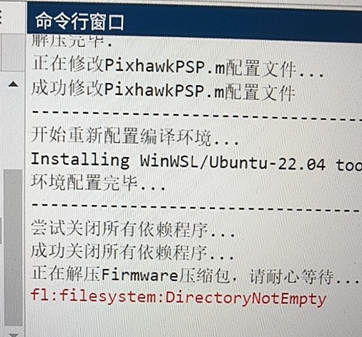
During RflySim installation, a file permission error is displayed. How can I resolve this?
This issue is caused by file permission problems in the current installation package. Close MATLAB, then reopen it as an administrator and retry the installation. Alternatively, directly double-click the OnekeyScript.exe script to perform the installation.
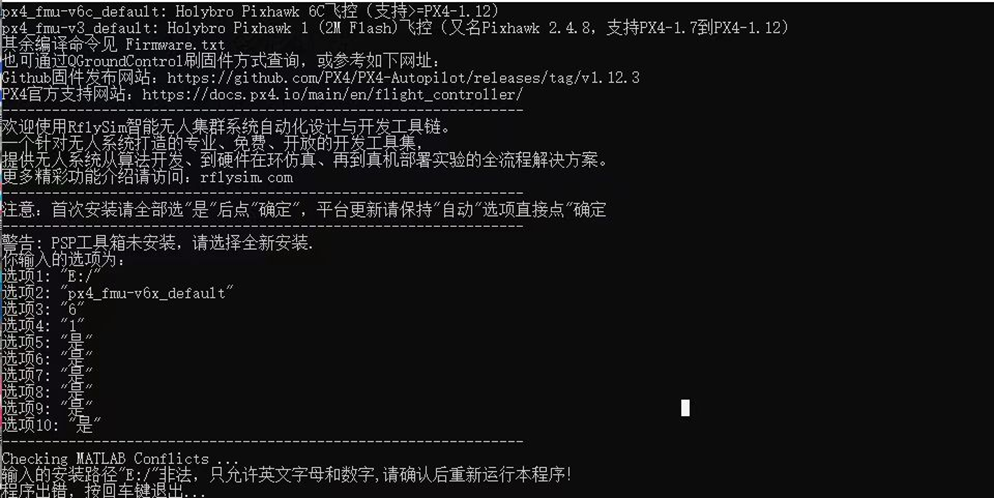
During installation of the latest RflySim version, an installation path error is displayed. How can I resolve this?
The installation path must be set to a specific folder; using only a drive letter (e.g., D:\) as the installation path is not allowed.
Can I directly download and install the new version for an upgrade? Is uninstalling the old version required?
Both approaches are supported. You can directly run OnekeyScript.p or OnekeyScript.exe and select "Full Installation" in the pop-up interface (i.e., set all options to "Yes"); alternatively, you may uninstall the old version first and then install the new one.
Can the RflySim toolchain be installed on external USB drives or other portable storage devices connected to a Windows computer for use across multiple machines?
No. As a toolchain, RflySim includes multiple software components and modules. Installing it on portable storage devices may cause internal link errors among components, potentially leading to abnormal behavior—even when used on a single machine—resulting in failure to run properly.
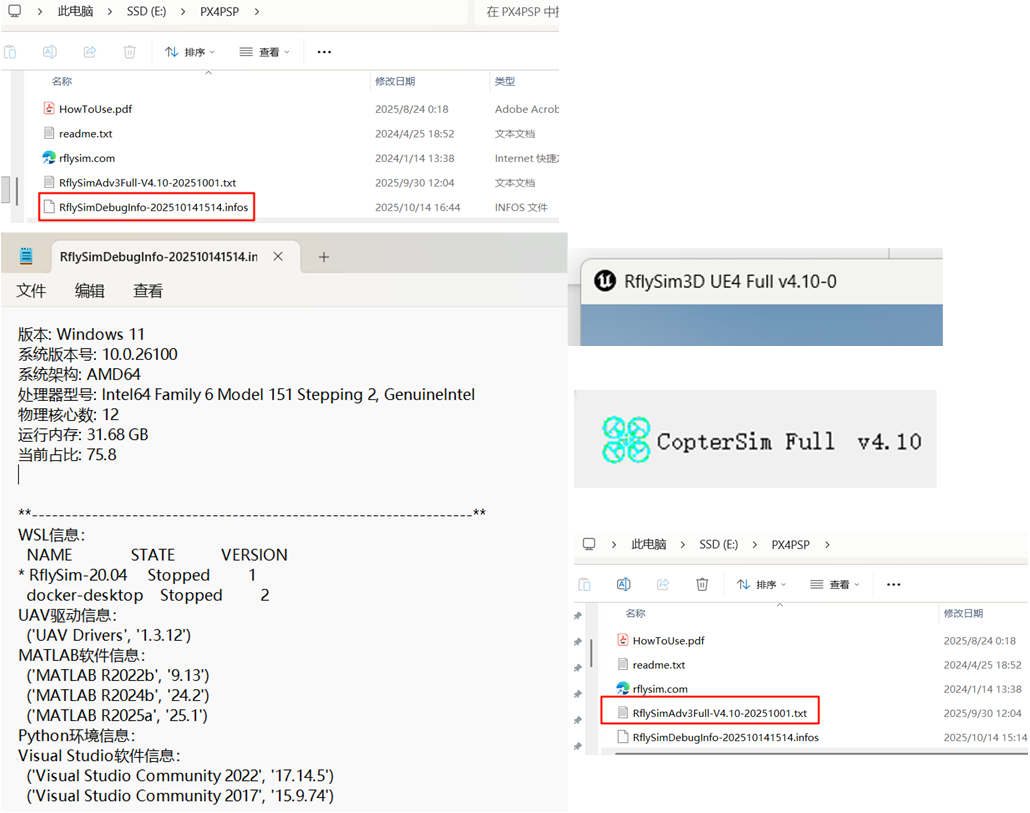
How can I view the current configuration parameters of the RflySim toolchain?
After installation, you can check the version by opening CopterSim, RflySim3D, or the *.txt files located in the installation directory.
RflySim memory usage keeps increasing over time. How can I resolve this?
The RflySim toolchain does generate some cache files during use. Solutions include:
- Delete cache files: Delete the
*\RflySimAPIs_Backup_****folder, which is a backup of theRflySimAPIsfolder created during RflySim updates. If no important files exist, it can be safely deleted. Additionally, clear the PX4 system cache: multiple runs of SITL/HITL simulations generate many log and other files. To clear them, runmake distcleandirectly in*\Desktop\RflyTools\WinWSL.lnk. - Move RflySim to another drive with more space: Run
uninstall.mto completely uninstall the current RflySim toolchain, then reinstall it on another drive. It is recommended that the target drive have at least 300GB of free space. - Expand the current drive's capacity: Use tools such as DiskGenius to expand the current drive's capacity. It is recommended to expand to at least 300GB.

After installation is complete, how do I run the first simulation example?
After RflySim installation is complete, you can directly open the *\desktop\RflyTools\SITLRun.lnk or *\desktop\RflyTools\SITLRunLowGPU.lnk shortcut. In the pop-up CMD window, enter a specific number, such as 1, to start the simulation, then arm and take off in QGC.
Simulation Execution, Display, and Ground Station
RflySim3D does not display the drone after SITL starts?
- Check whether CopterSim started normally and whether data is updating in the status bar.
- Check whether there is a
*** EKFstatus prompt in the upper-left corner of RflySim3D. - Confirm that antivirus software is disabled and the firewall does not block UDP communication.
- Try running in low-precision mode with
SITLRunLowGPU.
The aircraft keeps shaking during simulation?
This is usually caused by insufficient GPU performance leading to low rendering frame rate. Solutions:
- Use the low GPU configuration mode
SITLRunLowGPU. - Reduce the resolution and rendering quality of RflySim3D. Settings can be adjusted in the
[RflySim installation path]\RflySim3D\RflySim3D.txtfile. - Close other programs that occupy GPU resources.
HITL simulation cannot connect to Pixhawk?
- Confirm that the USB cable is connected firmly, and the COM port can be seen in Device Manager.
- Confirm that you entered the correct COM port number and baud rate.
- Close QGroundControl or other programs that may occupy the serial port.
- Try replacing the USB port or data cable.
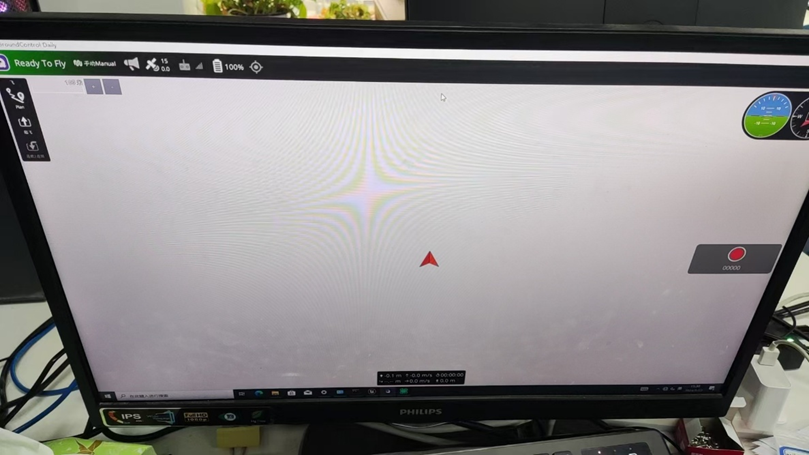
QGC ground station cannot be opened, but its icon appears in the system tray. How can I resolve this?
This is a common issue with the QGC software itself. Double-click the window preview in the lower-right corner of the taskbar to restore display. Another similar issue is that QGC's map fails to display even though the computer is connected to the internet. In this case, close any related VPNs and antivirus software, restart the computer, and check whether normal operation resumes.
FlightGear 2016.1.2 software issues?
FlightGear 2016.1.2 offers inferior rendering quality compared to the currently built-in RflySim3D software. We recommend using the already packaged RflySim3D communication module instead. If FlightGear must be used, download it from https://pan.baidu.com/s/1voBFTUMzohBVFj5__amdZg?pwd=2g1x, then copy 4.HILApps/FlightGear 2016.1.2.zip into the existing installation package and reinstall. After installation is complete, run FlightGear-F450.bat to start it. For a detailed introduction to the FlightGear software, please refer to: [RflySim installation path]\RflySimAPIs\2.RflySimUsage\0.ApiExps\e1_RflySimSoftwareReadme\FlightGear%202016.1.2.
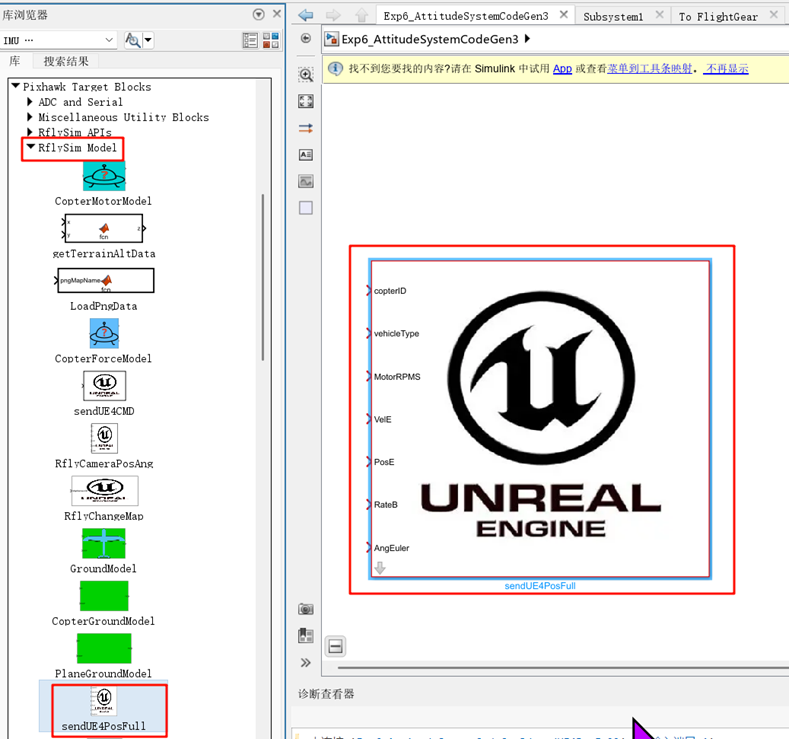
Does the visual image transmission example support transmitting images from Windows to the rk3588 onboard computer (Ubuntu 20.04) over a local area network?
The RflySim toolchain includes a built-in WSL subsystem, which can be used directly as a Linux virtual machine. During pure software-in-the-loop (SITL) simulation, the image transmission method can be changed to UDP, enabling image transmission from Windows to the virtual machine (WSL) environment. During hardware-in-the-loop (HITL) simulation with an onboard computer, the same method can be used to transmit images directly over the local area network to the onboard board. Additionally, if two devices can be pinged successfully but image data is not received, please check whether the Windows background firewall is blocking the traffic.
Development Environment, SDK, and ROS
What is RflySimSDK?
RflySimSDK is a comprehensive software development kit provided by RflySim for secondary development of unmanned systems, with Python interfaces at its core. It is not an independent flight control program or simulation engine, but rather a unified control and data interaction layer located between user algorithms and the PX4/APM flight controllers, CopterSim dynamics simulation, RflySim3D/RflySimUE 3D environments, QGroundControl ground station, and real drone hardware. RflySimSDK encapsulates underlying communication mechanisms such as MAVLink, UDP, serial ports, and Redis, as well as configurations for vehicle IDs, IP addresses, and communication ports, enabling developers to use a relatively unified Python interface to accomplish flight controller state retrieval, arming, takeoff, landing, waypoint flight, position/velocity/attitude control, and Offboard control, and to further conduct software-in-the-loop, hardware-in-the-loop, real-flight control, and distributed simulation. Its core functions are divided into six modules by purpose: the ctrl module handles PX4/APM flight controller communication, CopterSim/DLL model interaction, coordinate transformation, and ROS integration; the comm module handles UDP simulation communication, unmanned vehicle networking, and Redis distributed data sharing; the vision module handles the acquisition and processing of visual and sensor data such as virtual cameras, RGB images, depth maps, point clouds, LiDAR, IMU, and optical flow; the ue module handles control of maps, scene objects, vehicle models, camera perspectives, and environmental states in RflySim3D/RflySimUE; the swarm module targets multi-drone and heterogeneous robot swarms, providing vehicle abstraction, formation control, distributed node management, Crazyflie adaptation, MAVLink Shell, ADB, and RJ45 flight controller communication capabilities; and the phm module is used for automated flight testing, control sequence execution, flight data recording, QGC integration, fault diagnosis, safety assessment, and health management. The installation directory also includes a Simulink module library, MEX communication components, ROS2 examples, environment registration scripts, Shell/ADB tools, and offline API documentation. Therefore, from an overall perspective, RflySimSDK can be understood as the "programmatic operation entry point" for the various subsystems of RflySim: it connects flight control, simulation management, 3D scenes, visual perception, network communication, swarm coordination, and health assessment into a complete development pipeline, enabling researchers to use the same set of interfaces for progressive development and testing—from single-vehicle algorithm validation to large-scale swarm simulation, and then to real-flight deployment.
Python environment cannot import RflySimSDK?
- Confirm that you are using the Python environment bundled with RflySim (
Python38\python.exe). - If using a custom environment, first run
RflySimSDK\ReLabPath.pyto register the path. - Check for missing dependency packages and execute
pip installas prompted.
For more detailed environment configuration instructions, please refer to: [RflySim installation path]\RflySimAPIs\1.RflySimIntro\2.AdvExps\e3.PythonConfig.
Simulink code generation failed?
- Confirm that your MATLAB version ≥
R2022b. - Confirm that
Simulink CoderandEmbedded Coderare installed. - Check whether the model uses modules that do not support code generation.
How to choose and configure ROS 1 / ROS 2?
The RflySim toolchain provides relatively complete support for both ROS 1 and ROS 2. In general:
- If you are primarily using MAVROS, older workflows, or have existing ROS 1 projects, ROS 1 is recommended.
- If you need more modern communication mechanisms, shared memory, or future system expansion, ROS 2 is recommended.
Relevant introductory and configuration examples can be found at:
- ROS 1 installation: [RflySim installation path]\RflySimAPIs\2.RflySimUsage\0.ApiExps\e8_RosInstall
- ROS 2 installation: [RflySim installation path]\RflySimAPIs\2.RflySimUsage\0.ApiExps\e9_Ros2Install
- ROS tutorials main entry: [RflySim installation path]\RflySimAPIs\1.RflySimIntro\0.ApiExps\8.ROS_Tutorials
- ROS 2 shared memory example: [RflySim installation path]\RflySimAPIs\1.RflySimIntro\2.AdvExps\e12.ROS2SharedMem
- PX4 ROS 2 interface example: [RflySim installation path]\RflySimAPIs\2.RflySimUsage\0.ApiExps\e12_PX4ROS2
ROS nodes cannot connect to PX4 SITL?
- Confirm that the
fcu_urlparameter of MAVROS is correct. - Check the network mode of WSL:
WSL1shares the network stack, whileWSL2generally requires additional consideration of port mapping. - Confirm that PX4 SITL has started normally.
If you need to troubleshoot against existing examples, refer to: [RflySim installation path]\RflySimAPIs\2.RflySimUsage\0.ApiExps\e10_Mavros and [RflySim installation path]\RflySimAPIs\5.RflySimFlyCtrl\0.ApiExps\18.MavrosCommAPI.
Flight Controller Interface, Communication, and Hardware-in-the-Loop
DShot Protocol: How to read motor RPM using DShot in PX4?
DShot (Digital Shot) is a digital communication protocol used between the flight controller and electronic speed controllers (ESCs). Before implementation, ensure that both software and hardware meet the requirements for bidirectional DShot:
Flight Controller: Must support DShot output. For Pixhawk-series flight controllers, only the FMU port (Aux port or Main port on integrated boards) typically supports DShot, while ports output via the IO co-processor generally do not.
Electronic Speed Controllers (ESCs):
- 32-bit ESCs (
BLHeli_32): Natively support bidirectional DShot. - 8-bit ESCs (
BLHeli_S): Do not support bidirectional DShot in factory firmware; third-party firmware (e.g.,BluejayorAM32) must be flashed to enable bidirectional DShot.
Hardware Connection: No additional telemetry line (UART) is required—only the standard signal line (Signal) and ground (GND) are needed.
Specific Steps:
- ESC Firmware Preparation:
- For
BLHeli_32ESCs, bidirectional DShot is usually enabled by default. Connect usingBLHeliSuite32and confirm that theBidirectionaloption is enabled. - For
BLHeli_SESCs, useESC-Configuratorto flashBluejayfirmware; it is recommended to select a PWM frequency of48kHzor96kHz. After flashing, enableBidirectional DShotin the settings page. - PX4 Parameter Configuration: Enable DShot output, set the motor pole count, and enable DShot telemetry.
- After configuration, power cycle both the flight controller and ESCs before verification.
Firmware Integration: How to use MAVLink and MAVSDK?
The RflySim toolchain integrates multiple PX4 firmware interfaces and advanced control channels. Selection typically follows these guidelines:
- For position, velocity, or attitude control using
MAVLink/Offboard, refer to: [RflySim installation path]\RflySimAPIs\5.RflySimFlyCtrl\0.ApiExps\17.OffboardCtrlsAPI - For MAVROS/ROS communication links, refer to: [RflySim installation path]\RflySimAPIs\5.RflySimFlyCtrl\0.ApiExps\18.MavrosCommAPI and [RflySim installation path]\RflySimAPIs\6.RflySimExtCtrl\0.ApiExps\e18_MavrosExps
- For model-level control or DLL interfaces, refer to: [RflySim installation path]\RflySimAPIs\4.RflySimModel\0.ApiExps\12.DllModelImport
From a modular perspective, the toolchain primarily encompasses the following areas: low-level control, model control, vision-based control, attitude and navigation control, and swarm control.
Model Control: How to use HIL16CtrlsNorm / HIL16CtrlsPWM?
These two model control interfaces are designed for different scenarios:
HIL16CtrlsNorm: A standardized model control interface suitable for most control scenarios. By default, it uses Offboard mode to provide stable position, velocity, and attitude control. For detailed documentation, refer to: hil16-ctrls-norm.
HIL16CtrlsPWM: A PWM direct control interface suitable for high-performance or direct motor control scenarios. It outputs PWM signals and offers faster response. For detailed documentation, refer to: hil16-ctrls-pwm.
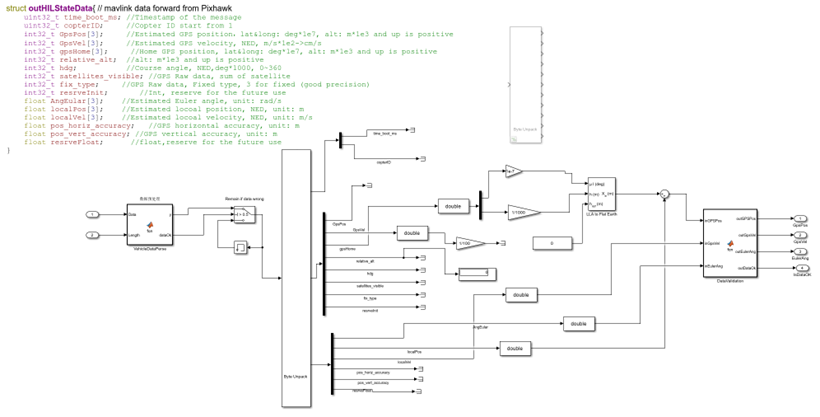
What is the data structure of UDP_FULL mode?
The communication mode used in this example is UDP_FULL mode, whose data structure is shown in the lower-right figure. Therefore, before starting HITL simulation, ensure that the UDPSIMMODE variable in the .bat script is set to UDP_FULL mode, i.e., UDPSIMMODE=0.
After auto-generated code is flashed to the flight controller, HIL or real-flight simulation fails to arm. How to resolve this?
This issue is relatively complex, as it involves HIL or real-flight simulation and is highly dependent on software and hardware configurations. It is recommended to troubleshoot in the following order:
- First, refer to the low-level control development workflow documentation: [RflySim installation path]\RflySimAPIs\5.RflySimFlyCtrl\2.AdvExps\e0_DevWorkflow\1.Low-level_Controller_Dev to verify whether the current development and deployment workflow itself is correct.
- Check whether the hardware can first complete basic HIL simulation or real-flight validation under the official firmware. For HIL basic validation, refer to: [RflySim installation path]\RflySimAPIs\1.RflySimIntro\2.AdvExps\e2.FCUIntro.
- Finally, confirm that all hardware connections and statuses are normal—for example, whether the USB cable is the official standard model, whether the remote controller channel settings are correct, and whether the flight controller and ESC connection ports on the actual aircraft are correctly configured.
Can some hardware-in-the-loop (HIL) examples in the book Design and Practice of Micro-UAV Flight Control be used for real-flight missions?
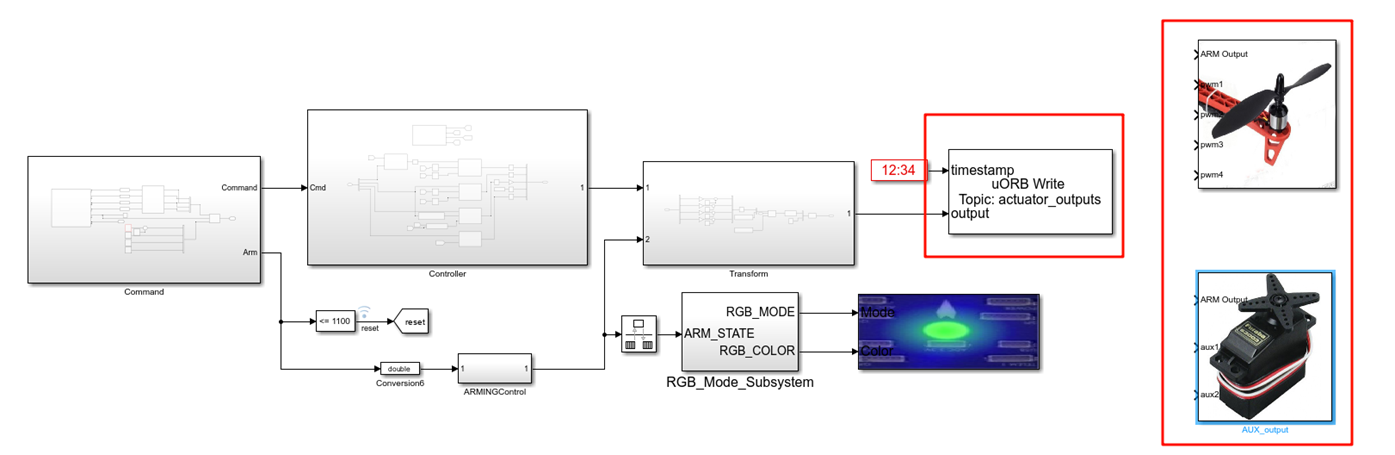
Some experiments can indeed be applied to real-flight missions; however, note that the actuator output section must be modified according to the actuator channels of your specific drone. You may use modules such as AUX_output or PWM_output for replacement. Additionally, fixed-wing flight experiments are generally more challenging than multi-rotor ones; it is recommended to conduct test flights only with professional personnel involved.
Control, Modeling, and Intelligent Algorithms
Can RflySim implement attitude control based on reinforcement learning?
Yes. RflySim already provides reinforcement learning–based flight control design experiments—not only is it feasible, but the toolchain also includes ready-to-use examples for direct reference.
The most straightforward experiment example is: [RflySim installation path]\RflySimAPIs\5.RflySimFlyCtrl\3.CustExps\e2_RL-CtrlExp, titled "Reinforcement Learning–Based Optimal Control Flight Control Design Experiment." This directory includes both SITL\RL_SITL.slx and HITL_FLY\RL_HITL_FLY.slx, enabling software-in-the-loop and hardware-in-the-loop validation, respectively.
If you wish to train using an external simulation platform and then validate in RflySim, you may refer to: [RflySim installation path]\RflySimAPIs\6.RflySimExtCtrl\2.AdvExps\e6.IsaacSimExps. This experiment directory includes files such as RL_attctrl\rl.py and circle_follow.py, which can be used to reference the reinforcement learning attitude control workflow.
Furthermore, if you wish to bypass 3D rendering and directly train using high-fidelity dynamic models, you may combine the DLL comprehensive model interface for reinforcement learning training, referring to: [RflySim installation path]\RflySimAPIs\4.RflySimModel\0.ApiExps\12.DllModelImport.
In some of the Simulink models provided in RflySim, most examples are trajectory-based control. Is there a method that uses velocity control in the X and Y directions and altitude control in the Z direction?
Yes. It is recommended to directly use the Offboard mixed position, velocity, and acceleration control interface. The most suitable reference is: [RflySim installation path]\RflySimAPIs\5.RflySimFlyCtrl\0.ApiExps\17.OffboardCtrlsAPI, corresponding to OffboardPvaCtrlAPI.
This interface supports simultaneous input of 11 control values, including position, velocity, acceleration, yaw angle, and yaw rate, and it also supports enabling each channel independently. Therefore, you can:
- Set the
XandYdirections to velocity control. - Set the
Zdirection to position control, i.e. altitude control. - Set other unused channels to
NaN, and disable the corresponding enable bits inEnList.
For example, in the NED coordinate system, you can use a mixed mode where x/y use Vx/Vy and z uses position. Since altitude is positive downward in the NED coordinate system, z is usually negative when the drone is above the ground during actual flight. Pay special attention to this point.
If using the Python interface, you can also refer to the SendOffAll() / PosTypeMask combination in PX4MavCtrlV4 to implement the same mixed-dimension control. If you prefer to start from a ready-made example, first refer to the velocity control experiment: [RflySim installation path]\RflySimAPIs\6.RflySimExtCtrl\1.BasicExps\e2_VelCtrl, then extend it with the mixed control interface in OffboardCtrlsAPI.
Why is there no GPS signal in the SLAM positioning experiment?
SLAM (Simultaneous Localization and Mapping) positioning experiments usually do not use GPS signals, mainly because GPS signals are easily blocked and insufficiently accurate in indoor environments. SLAM focuses more on autonomous localization and mapping based on sensors such as LiDAR, cameras, and IMUs. In the experiment, SLAM relies on these sensors to obtain environmental information, enabling high-precision localization and map construction without depending on external GPS.
In outdoor scenarios, GPS can be fused with SLAM, or RTK-GPS can be used as a supplement. However, the core advantage of SLAM remains its robustness and accuracy in GPS-denied environments.
Other Information and Support
How can I get technical support?
- Email: service@rflysim.com
- QQ technical exchange group:

- WeChat technical exchange group:

Is RflySim open source?
The Python SDK and some example code of the RflySim toolchain are open source. The core simulation software (CopterSim and RflySim3D) is closed-source but free to use.