VisCreate
VisCreate is the visual sensor configuration frontend of the RflySim toolchain, used to generate and manage Config.json for RflySim3D / RflySimUE5. It does not handle dynamics simulation or 3D rendering itself; instead, it transforms "sensor scheme design" from manual JSON coding into a visual, previewable, and reusable workflow.
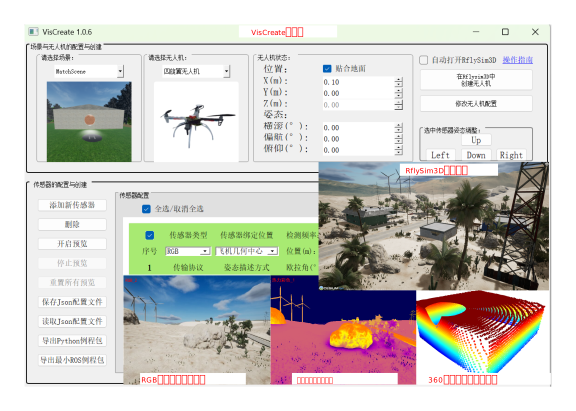
Software Positioning
If RflySim3D is regarded as the platform hosting the virtual world and virtual sensors, then VisCreate serves as the "sensor deployment tool" for this platform.
It primarily addresses three categories of issues:
- Where to mount the sensors
- Where the sensors are pointing
- In what format and at what frequency the sensors transmit data to upper-layer programs
Therefore, the core value of VisCreate lies not in standalone execution, but in supporting the visual perception pipeline of RflySim3D.
Role in the Toolchain
The typical collaborative workflow is as follows:

In real-world projects, VisCreate transforms visual experimentation from "modifying parameter files" into a closed-loop process of "configure–preview–export–run".
Typical Workflow
1. Select Vehicle and Scene
In the interface, choose the vehicle to mount sensors and the corresponding 3D scene for the current experiment. This selection is not cosmetic—it determines the reference frame for sensor pose preview and the visible content in the scene.
2. Add Sensors
Add one or more sensors according to task requirements, for example:
- Forward-facing RGB
- Downward-facing depth
- LiDAR
- Segmentation camera
- Infrared sensor
3. Adjust Installation Parameters
Key parameters typically include:
- Resolution
- Frame rate
- Field of view (FOV)
- Installation position
- Installation angle
- Transmission mode
4. Preview Results
The preview stage confirms "what the algorithm will actually receive in practice." This step is often more critical than merely reviewing a configuration table—especially for multi-sensor setups, gimbals, downward-facing cameras, and SLAM camera layouts.
5. Export Configuration
Finally, generate Config.json for use by RflySim3D and VisionCaptureApi.
Supported Sensor Types
VisCreate targets not just individual cameras, but an entire class of virtual sensor solutions. Common types include:
| Type | Typical Use Cases |
|---|---|
| RGB | Object detection, visual tracking, navigation identification |
| Depth map | Distance estimation, obstacle avoidance, 3D reconstruction |
| Grayscale image | Optical flow, lightweight vision tasks |
| Segmentation map | Semantic perception, annotation data generation |
| LiDAR point cloud | SLAM, mapping, environment modeling |
| Infrared image | Nighttime or special-scenario perception |
| Gimbal / Special-view camera | Payload missions, inspection, and reconnaissance |
For RflySim, the value of VisCreate lies not merely in "supporting many sensors," but in enabling these sensors to be uniformly orchestrated within a single experimental setup.
Key Configuration Items in Config.json
The ultimate output of VisCreate is Config.json. What truly matters is not the JSON syntax itself, but the meaning of each field within the simulation pipeline.
Core Fields
| Field | Purpose |
|---|---|
SeqID |
Sensor instance ID |
TypeID |
Sensor type ID |
TargetCopter |
Target vehicle to which the sensor is attached |
TargetMountType |
Mounting mode, determining whether the sensor follows the vehicle body or remains fixed in the world coordinate system |
DataWidth / DataHeight |
Output resolution |
DataCheckFreq |
Output frame rate |
CameraFOV |
Field of view |
SensorPosXYZ |
Installation position |
SensorAngEular / SensorAngQuat |
Installation orientation (Euler or quaternion) |
SendProtocol |
Data transmission protocol |
Three Critical Considerations
- Where the sensor is mounted
i.e.,
TargetCopter + TargetMountType - How the sensor is oriented i.e., its installation pose
- How the sensor data is transmitted i.e., shared memory, UDP, or video stream
If these three aspects are configured correctly, most vision experiments will run successfully.
Collaboration with RflySim3D
It Does Not Replace the Engine
VisCreate is not a visual simulator. Image, depth, and point cloud generation is handled by RflySim3D / RflySimUE5.
It Serves the Engine
VisCreate translates user-defined sensor requirements into standardized configurations, which the engine then loads and uses to generate sensor data.
It Lowers the Barrier to Visual Experiments
For users without long-term experience maintaining Config.json, many issues are not algorithmic but configuration-related, such as:
- Camera mounted upside-down
- Incorrect downward angle
- Excessive frame rate causing link overload
- Incorrect shared memory or UDP settings
VisCreate helps resolve such issues before algorithm development begins.
Python and ROS Usage Paths
Python
The most common workflow is:
VisCreategeneratesConfig.json- Python side loads the configuration via
VisionCaptureApi - Requests and receives image or point cloud data
- Processes data using OpenCV, Open3D, PyTorch, etc.
ROS
In ROS scenarios, a typical workflow is:
RflySim3Doutputs multi-modal perception data- A Python or C++ bridge converts the data into ROS messages
- Publishes to topics such as
sensor_msgs/Image,sensor_msgs/PointCloud2, etc. - Upper-layer nodes perform localization, mapping, recognition, and control
For ROS users, the value of VisCreate lies in rapidly orchestrating multi-sensor experiments—rather than manually maintaining a constantly evolving configuration file.
Typical Application Scenarios
Visual Recognition
A forward-facing RGB camera is the most common starting point, ideal for object detection, tracking, and recognition experiments.
Depth and Obstacle Avoidance
Depth cameras and LiDAR are commonly used for distance sensing, obstacle detection, and path planning.
SLAM and Localization
Combinations of stereo, depth, LiDAR, or RGB-D sensors enable indoor/outdoor localization and mapping.
Multi-Modal Perception
When combining RGB, depth, segmentation, and infrared sensors, the configuration advantages of VisCreate become especially evident—since multi-sensor setups are more error-prone when configured manually.
Usage Recommendations and Common Pitfalls
Recommended Practices
- Start with a single sensor, then scale to multi-sensor setups
- Validate in local shared memory mode first, then expand to UDP-based distributed setups
- Confirm correct viewing angle and data rate before integrating algorithms
Common Errors
| Issue | Likely Cause | Resolution Strategy |
|---|---|---|
| Configuration exists but no data visible | Config.json not loaded correctly |
Verify generation and runtime paths |
| Image orientation incorrect | Incorrect installation angle settings | Return to preview interface and re-adjust |
| Multi-sensor data mismatched | Ambiguous SeqID or target binding |
Standardize ID numbering and mounting relationships |
| High algorithm latency | Resolution or frame rate too high | Reduce parameters first, then locate bottlenecks |
| Cross-machine data unavailable | Mismatched transmission protocols | Verify shared memory and UDP configurations |
Related Examples
- Software Documentation Entry: [RflySim安装路径]\RflySimAPIs\2.RflySimUsage\0.ApiExps\e1_RflySimSoftwareReadme\viscreate
- Basic Usage of VisCreate: [RflySim安装路径]\RflySimAPIs\2.RflySimUsage\1.BasicExps\e19.VisCreateUsage
- RflySim3D Software Documentation: [RflySim安装路径]\RflySimAPIs\2.RflySimUsage\0.ApiExps\e1_RflySimSoftwareReadme\RflySim3D
- 3D Control Interface: [RflySim安装路径]\RflySimAPIs\3.RflySim3DUE\0.ApiExps\e6_RflySim3DCtrlAPI
- Command Interface: [RflySim安装路径]\RflySimAPIs\3.RflySim3DUE\0.ApiExps\e2_CommandAPI