RflySim3D Model Import XML Configuration Rules
Overview
XML (eXtensible Markup Language) is a markup language used to describe data. Similar to HTML, its tags are user-defined. Due to this flexibility and extensibility, XML is frequently used as program configuration files. The XML file format, like HTML, consists of various tags enclosed by angle brackets <***></***>, where strings, numbers, or nested tags are stored inside.
All 3D models supported by RflySim3D are packaged and exported from Unreal Engine. Each model comprises three types of assets: mesh, material, and physics asset. The indexing and binding relationships among these assets must be pre-configured in the UE editor (e.g., specifying materials and physics assets within blueprints or static/skeletal mesh assets).
The model's hierarchical motion structure must also conform to specific layering rules. For instance, in multi-rotor vehicles, the structure typically includes a body and several actuators, with the rotors attached as child components to the main body node, forming a basic motion hierarchy. A well-structured asset hierarchy facilitates accurate mapping of actuator positions and rotation axes in RflySim3D.
To ensure RflySim3D can correctly recognize and load 3D models exported from UE, a corresponding XML configuration file must be written for each model, describing critical information such as structural hierarchy, component mapping, and functional parameters.
Required Parameters (Minimal Configuration)
A typical XML configuration file begins with the following declaration:
The most critical elements in the XML include: style index ordering (comprising ClassID and DisplayOrder) and the definition of the vehicle body under the body root tag. ClassID identifies the model's major category (e.g., multi-rotor, fixed-wing, ground vehicle, etc.), while DisplayOrder determines its display and priority within that category—lower values indicate higher priority.
Within the body section, three essential tags are: ModelType (mesh type), MeshPath (3D model path), and ActuatorList (actuator component list).
- For static mesh assembly (
ModelType=0), the motion hierarchy is typically not pre-defined in UE, so each rotor or control surface'sMeshPath,RelativePosToBodyCm, andRelativeAngEulerToBodyDegmust be listed in the XML'sActuatorListto drive actuator motion at runtime using this information. - For blueprint models (
ModelType=2), component hierarchy and motion logic are usually already defined within the blueprint itself. In this case, the XML only needs to pointMeshPathto the corresponding blueprint asset path and setModelTypeto2; a fullActuatorListdoes not need to be manually written in the XML (as the blueprint encapsulates actuator positions and control logic).
When the model hierarchy is complex (e.g., tilt-rotor, VTOL hybrid aircraft), manually maintaining the XML ActuatorList becomes lengthy and error-prone. Therefore, it is recommended to prioritize using blueprints to encapsulate complex hierarchies and motion logic, reducing XML configuration workload and improving maintainability.
Below are the minimal required XML tags needed for RflySim3D to correctly recognize and display a model. Filling only these fields usually allows model import and display in the scene; advanced features (actuators, cameras, blueprint interfaces, etc.) require additional fields.
- Root tag:
<vehicle>...</vehicle>— Must exist, enclosing the entire configuration. ClassID(required) — Major category ID of the model, determining its visual category and overall style (e.g.,3= quadcopter).DisplayOrder(required) — Display/load order within the same category; lower values are displayed first.-
Note:
ClassIDandDisplayOrdertogether form the model's unique style indexUnique3DClassID.Formula:
Unique3DClassID = DisplayOrder * 100000 + ClassID.
Example: IfClassID=3andDisplayOrder=1015, thenUnique3DClassID = 1015 * 100000 + 3 = 101500003. -
Name(recommended) — Name displayed in the UE editor, aiding asset management and search. body(required) must contain at least:ModelType(required) — Specifies model type:0/1/2/3/4/5, determining asset loading and control method (static mesh, skeletal mesh, blueprint, etc.).-
MeshPath(required) — Points to the UE content path (e.g.,/Game/...or/Rfly3DSimPlugin/...) to locate the asset to be loaded.MeshPathfollows Unreal Engine's asset path convention (no file extension). RflySim3D supports two lookup rules:-
Plugin content indexing (priority): paths starting with
/Rfly3DSimPlugin/are resolved to resources underC:\PX4PSP\RflySim3D\RflySim3D\Plugins\Rfly3DSimPlugin\Content\.... -
Project content indexing: assets specified with
/Game/or other relative Content paths are resolved to resources underC:\PX4PSP\RflySim3D\RflySim3D\Content\....
Examples:
/Game/smith/NewBlueprint→C:\PX4PSP\RflySim3D\RflySim3D\Content\smith\NewBlueprint/Rfly3DSimPlugin/copter/F450Body→C:\PX4PSP\RflySim3D\RflySim3D\Plugins\Rfly3DSimPlugin\Content\copter\F450Body
Note: Paths must not include file extensions and should match the directory structure of assets already baked/copied into the above Content directories.
-
Example: Minimal working XML configuration snippet
<?xml version="1.0"?>
<vehicle>
    <ClassID>3</ClassID>
    <DisplayOrder>1000</DisplayOrder>
    <Name>MyMinimalModel</Name>
    <body>
        <ModelType>0</ModelType>
        <MeshPath>/Rfly3DSimPlugin/copter/MyBody</MeshPath>
    </body>
</vehicle>
Extended Explanation:
-
If importing the model using the static mesh approach (
ModelType= 0) and the model contains controllable actuators (e.g., propellers, control surfaces), you must add an<ActuatorList>section. Each<Actuator>entry must minimally includeMeshPathandRelativePosToBodyCm(used for positioning). If the model contains multiple actuators (e.g., multi-rotor vehicles), multiple<Actuator>tags must be added. -
If importing the model using the Blueprint approach (
ModelType= 2/3/4/5), the Blueprint pointed to byMeshPathmust implement and bind theActuatorInputs/ActuatorInputsExtinterfaces to control the actuators.
Model Loading Methods and Unique3DClassID
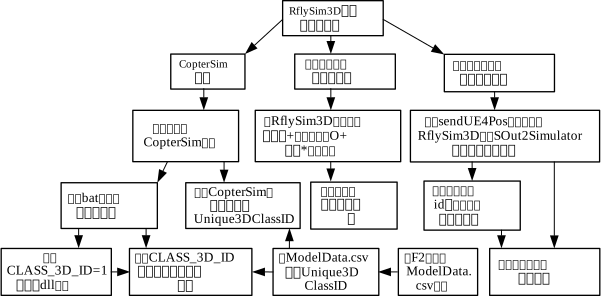
In the RflySim3D scene, all 3D model appearances are controlled by a unique index Unique3DClassID, computed from the XML file. To create or load a 3D vehicle model, three common methods are available:
- Loading via CopterSim (model appearance controlled by CopterSim);
- Loading via keyboard/mouse shortcuts (interactive generation within the scene);
- Loading via external programs using structured data interface calls (e.g., Python/Simulink sending structured data).
Once configured, a 3D model in RflySim3D has a unique appearance index Unique3DClassID, which can be obtained from the generated model appearance index table ModelData.csv by pressing the F2 key. When RflySim3D is used in conjunction with the CopterSim simulator, vehicle appearance loading is controlled by CopterSim; users may either automatically load via BAT scripts or manually specify vehicle appearance in CopterSim's GUI.
When specifying vehicle appearance via BAT scripts, RflySim3D supports setting the parameter CLASS_3D_ID to specify the model type. By default, CLASS_3D_ID = -1, indicating that the vehicle's appearance is controlled by the DLL model (for details, refer to Chapter 4 of this book). If CLASS_3D_ID is changed to 2, RflySim3D will load the model style corresponding to Unique3DClassID = 2.
When loading objects via shortcut keys, users can press the O + digit* key combination (e.g., O + 2) to generate an object with Unique3DClassID = * at the position where the mouse double-clicked. The latest version of RflySim3D also supports direct model loading from the RflySim3D scene elements UI.
When loading models via external programs using structured data (e.g., calling Python interfaces such as sendUE4PosNew, sendUE4Pos2Ground, etc., to send the SOut2Simulator or SOut2SimulatorSimple structure to RflySim3D), RflySim3D determines behavior based on the scene object ID in the structure:
- If the ID does not yet correspond to any model, a new object is automatically created in the scene (with appearance set according to the style in the structure or the default style);
- If the ID already corresponds to an existing object, its state (position, orientation, scale, etc.) is updated.
These three methods cover common requirements ranging from offline batch loading, interactive creation, to programmatic control, allowing users to select the most suitable loading method based on their workflow.
Model Import Methods
1. Static Mesh Assembly Model (ModelType = 0)
Applicable scenarios: Models that do not require complex animations, only simple rotation/deflection of actuators.
Steps:
- Import the actuators requiring control and the fuselage into UE for assembly and material replacement.
- During import, enable the "Combine Mesh" option.
- After baking, copy the content and corresponding XML file to the RflySim3D directory.
Notes:
- Models imported into UE should be in general 3D formats such as FBX or OBJ.
- Before importing, actuators requiring control should be separated in the 3D modeling software.
2. Built-in Animated Model (ModelType = 1)
Applicable scenarios: Models with skeletal animations (e.g., character models).
Steps:
- Import the skeletal mesh and animation sequences into UE.
- After baking, copy the content and corresponding XML file to the RflySim3D directory.
Notes:
- These models are primarily used as moving obstacles.
- Models can be directly searched for and downloaded from the Unreal Engine Marketplace.
3. Blueprint Import (ModelType = 2, 3, 4) ⭐⭐⭐
This feature is available only for the Personal Advanced Edition and above.
3.1 General Blueprint (ModelType = 2)
Steps:
- Import the skeletal mesh and animation sequences.
- Create an animation blueprint to define animation playback effects for each actuator.
- Create a blueprint class, and control actuator trigger conditions and data interfaces in the Event Graph.
- After baking, copy to the RflySim3D directory.
Blueprint Interfaces:
ActuatorInputs– Basic 8-dimensional actuator input (pwm1~pwm8);ActuatorInputsExt– Extended 16-dimensional actuator input (pwm9~pwm24).
Notes:
- Collision response must be enabled for the model's blueprint class.
- Collision preset for the skeletal mesh component should be set to BlockAll.
3.2 Vehicle Blueprint (ModelType = 3)
Steps:
- Use the vehicle template when creating the UE project.
- Remaining steps are identical to those for the general blueprint.
Notes:
- If using the model provided by the vehicle template, automatic AI control must be enabled in the vehicle blueprint class.
- Includes UE4's WheeledVehicle class and UE5's Chaos vehicle system.
3.3 Blueprint Aircraft (ModelType = 4)
Note: Requires RflySim's built-in CopterNav plugin; custom implementation is not supported at this time.
3.4 Quadruped Robot (ModelType = 5)
RflySim3D includes built-in blueprint templates for quadruped robots (four-legged robots), used for demonstrations and testing of quadruped locomotion, posture transitions, and various animation states (e.g., standing, walking, running, sitting, etc.). Such models are classified as ModelType = 5, and their behavior is primarily driven by internal animation blueprints and state machines.
Blueprint Control Rules
ActuatorInputs Interface
3D scene drone objects can be controlled via blueprint function interfaces. RflySim3D provides two main interfaces:
1. ActuatorInputs (Basic Interface)
Function: Transmits 8-dimensional data (pwm1~pwm8).
Invocation Methods:
- Python command:
sendUE4Posseries; - Console command:
RflySetActuatorPWMs; - Simulink module:
UE4DataEncoder.
2. ActuatorInputsExt (Extended Interface)
Function: Transmits 16-dimensional data (pwm9~pwm24).
Invocation Methods:
- Python command:
sendUE4ExtAct; - Console command:
RflySetActuatorPWMsExt; - Simulink module:
Ue4ExtMsgEncoder.
Reference Resources
XML Template Location:
Related Example Locations: Static Mesh Assembly Import for Vehicle Model
Static Mesh Import for Obstacle Model
Blueprint Model Import
XML Tag Details
The following is a complete F450_Default.xml configuration example using the static mesh assembly import method:
<?xml version="1.0"?>
<vehicle>
    <ClassID>3</ClassID>
    <DisplayOrder>1000</DisplayOrder>
    <Name>F450_Default</Name>
    <MeshClass>Quadcopter</MeshClass>
    <MeshId>100042</MeshId>
    <Scale>
        <x>1</x>
        <y>1</y>
        <z>1</z>
    </Scale>

    <AngEulerDeg>
        <roll>0</roll>
        <pitch>0</pitch>
        <yaw>0</yaw>
    </AngEulerDeg>

    <body>
        <ModelType>0</ModelType>
        <MeshPath>/Rfly3DSimPlugin/copter/F450Body</MeshPath>
        <MaterialPath></MaterialPath>
        <AnimationPath></AnimationPath>
        <CenterHeightAboveGroundCm>16.3</CenterHeightAboveGroundCm>
        <NumberHeigthAboveCenterCm>20</NumberHeigthAboveCenterCm>
    </body>

    <ActuatorList>
        <Actuator>
            <MeshPath>/Rfly3DSimPlugin/copter/PropellersCCW</MeshPath>
            <MaterialPath></MaterialPath>
            <RelativePosToBodyCm>
                <x>15.798</x>
                <y>16.167</y>
                <z>4.5</z>
            </RelativePosToBodyCm>
            <RelativeAngEulerToBodyDeg>
                <roll>0</roll>
                <pitch>0</pitch>
                <yaw>0</yaw>
            </RelativeAngEulerToBodyDeg>
            <RotationAxisVectorToBody>
                <x>0</x>
                <y>0</y>
                <z>1</z>
            </RotationAxisVectorToBody>
            <RotationModeSpinOrDefect>0</RotationModeSpinOrDefect>
        </Actuator>
        <!-- More actuator configurations... -->
    </ActuatorList>

    <OnboardCameras>
        <camera>
            <name>Chase_Camera</name>
            <RelativePosToBodyCm>
                <x>-70</x>
                <y>0</y>
                <z>5</z>
            </RelativePosToBodyCm>
            <RelativeAngEulerToBodyDeg>
                <roll>0</roll>
                <pitch>0</pitch>
                <yaw>0</yaw>
            </RelativeAngEulerToBodyDeg>
        </camera>
        <!-- More camera configurations... -->
    </OnboardCameras>
</vehicle>
1. Vehicle Basic Attributes
1.1 ClassID (Model Category ID) ⭐
Function: Represents the aircraft configuration (major style).
Built-in model category IDs include:
3- Quadcopter30- Human figure40- Calibration board100- Fixed-wing aircraft5,6- Hexacopter60- Light-emitting object151- Square ring150- Circular ring152- Spherical object50- Vehicle (car)962,963- Scene elements
You can press F2 in RflySim3D to view the complete model style index table.
Example:
1.2 DisplayOrder (Display Priority Among Same-Type Models) ⭐
Function: Specifies the display priority of models within the same configuration (e.g., among different quadcopter variants).
Rules:
- Smaller numerical values appear earlier in the list.
- Built-in models are numbered starting from 1000.
- Values below 1000 override built-in models and prioritize newly imported models for display.
Example:
Important Note: The aircraft's display style is jointly determined by the major style and minor style. In the ue.sendUE4Pos command, directly send vehicleType to specify the style (you may directly use Unique3DClassID):
1.3 Name (Model Display Name)
Function: The name of the aircraft displayed in UE.
Example:
1.4 MeshClass and MeshId (Resource Classification and Index)
MeshClass (Optional): Used to classify models in the RflySim3D model resource library or scene elements UI (e.g., "Quadcopter", "Building", "Obstacle", etc.). This field facilitates filtering and displaying resources by category in the editor/runtime resource list.
MeshId (Optional, currently not supporting customization): Used to define the model's name within the resource library.
Example:
Note: MeshClass and MeshId are not mandatory fields; however, they are highly useful when using the scene elements UI, browsing the resource library, or creating style index tables (e.g., ModelData.csv). If you need to load models by category/ID in external scripts or BAT automation workflows, it is recommended to fill in these two fields.
2. Model Display Parameters
2.1 Scale (Model Display 3D Dimensions)
Function: Overall 3D scaling dimensions of the aircraft.
Example:
2.2 AngEulerDeg (Initial Display Orientation of the Model)
Function: Initial angular offset of the aircraft display (unit: degrees).
Example:
<AngEulerDeg>
    <roll>0</roll>
    <pitch>0</pitch>
    <yaw>180</yaw>  <!-- Initially rotate the aircraft 180° around yaw, so the nose faces backward -->
</AngEulerDeg>
3. Body (Model Body Composition) ⭐⭐⭐
The main tag for the aircraft body, defining its fundamental composition.
3.1 ModelType (Model Type) ⭐⭐⭐
Function: Defines the model type and functionality.
Optional Values:
| Value | Type | Supports ActuatorInputs | Description |
|---|---|---|---|
0 |
StaticMesh | ❌ | Pure static mesh, no Blueprint interface support |
1 |
SkeletalMesh | ✅ | Supports Blueprint interface |
2 |
General Blueprint | ✅ | Supports Blueprint interface, requires additional driving logic |
3 |
Chaos Wheel Blueprint | ✅ | Includes wheel physics, uses ChaosWheel-related interfaces |
4 |
CopterNav Plugin Blueprint | ✅ | Includes autonomous navigation functionality, uses CopterNavFunc |
Example:
3.2 MeshPath (3D Model File Path) ⭐
Function: Directory path to the aircraft body's 3D model file.
Rules:
/Game/indicates the RflySim3D content directory.- Path format:
/Game/FolderName/ModelName
Example:
Detailed Explanation and Notes:
-
Two asset root path styles are supported (resolved in priority order):
/Rfly3DSimPlugin/...: Resolves to the plugin content directory, mapping to resources under something likeC:\PX4PSP\RflySim3D\RflySim3D\Plugins\Rfly3DSimPlugin\Content\..../Game/...: Resolves to the project Content directory, mapping to resources under something likeC:\PX4PSP\RflySim3D\RflySim3D\Content\....
-
Paths must follow Unreal Engine's asset path conventions: start with a forward slash
/, use/as directory separators, and omit file extensions (e.g.,.uasset,.fbx, etc.). -
Common errors to avoid:
- Appending file extensions at the end (e.g.,
/Game/mesh/MyMesh.uasset) — do not include extensions. - Trailing slashes (e.g.,
/Game/mesh/MyMesh/) — do not end with a slash. - Case inconsistency in paths (UE asset references are case-sensitive; ensure consistency with the Content directory).
- Target assets not copied/baked into RflySim3D's Content or Plugin Content directories.
- Appending file extensions at the end (e.g.,
Example Mapping (for reference):
<!-- UE Asset Path (as written in XML) -->
<MeshPath>/Rfly3DSimPlugin/copter/F450Body</MeshPath>

<!-- Corresponding Physical Path (example, for debugging reference) -->
<!-- C:\PX4PSP\RflySim3D\RflySim3D\Plugins\Rfly3DSimPlugin\Content\copter\F450Body.uasset -->

<!-- Example UE Project Content Path -->
<MeshPath>/Game/smith/NewBlueprint</MeshPath>
<!-- Corresponding Physical Path (example) -->
<!-- C:\PX4PSP\RflySim3D\RflySim3D\Content\smith\NewBlueprint.uasset -->
3.3 MaterialPath (Material Path)
Function: Path to the material.
Note: If the material has already been set in UE, this field can be left blank; UE will automatically use the model's built-in material.
Example:
3.4 AnimationPath (Animation Path)
Function: Specifies the animation sequence path for the model, similar to the material path.
Example:
3.5 CenterHeightAboveGroundCm (Model Center of Gravity Height Above Ground)
Function: Height of the center of gravity above the ground (unit: centimeters).
Example:
3.6 isMoveBodyCenterAxisCm (Model Axis Center Position)
Function: Adjusts the 3D axis center position vector of the model.
Format: Comma-separated 3D vector.
Example:
3.7 NumberHeigthAboveCenterCm (Height of Model Display Label Above Ground)
Function: Specifies the height (in centimeters) at which the numeric label (CopterID) on the vehicle model is displayed.
Example:
4. ActuatorList (Actuator Display Parameter List) ⭐⭐⭐
Lists external moving components such as propellers, servos, wheels, rigid hoses, and turntables.
4.1 Actuator (A Specific Actuator)
Each <Actuator> tag defines the parameters for a specific actuator.
4.1.1 MeshPath (Mesh File Path)
Path to the 3D model file; same as defined in the <body> tag.
Example:
4.1.2 MaterialPath (Material Path)
Path to the material file; same as defined in the <body> tag.
Example:
4.1.3 RelativePosToBodyCm (Relative Position to Body Center) ⭐
Function: Specifies the position of this actuator relative to the body center (unit: centimeters).
Example:
4.1.4 RelativeAngEulerToBodyDeg (Installation Angle)
Function: Specifies the installation angle of the actuator (unit: degrees).
Note: Typically set to 0, indicating the same orientation as when imported into UE, with no additional rotation required.
Example:
<RelativeAngEulerToBodyDeg>
    <roll>0</roll>
    <pitch>0</pitch>
    <yaw>0</yaw>
</RelativeAngEulerToBodyDeg>
4.1.5 RotationModeSpinOrDefect (Motion Mode) ⭐⭐
Function: Defines the motion mode of the actuator.
Available Values:
0— Rotation (input is rotational speed, unit: RPM)1— Deflection (input is rotation angle, unit: degrees)2— Static object3— Translation (unit: centimeters)
Example:
4.1.6 RotationAxisVectorToBody (Rotation Axis) ⭐
Function: Defines the direction of the rotation axis.
Common Configurations:
- Multi-rotor propellers: rotate about the Z-axis
(0, 0, 1) - Vehicle wheels: rotate about the Y-axis
(0, 1, 0) - Fixed-wing propellers: rotate about the X-axis
(1, 0, 0)
Example:
<RotationAxisVectorToBody>
    <x>0</x>
    <y>0</y>
    <z>1</z>  <!-- Rotation about Z-axis -->
</RotationAxisVectorToBody>
4.1.7 AttatchToOtherActuator (Actuator Attachment Function)
Function: Attaches the current actuator to another actuator.
Note: After attachment, the actuator moves and rotates with its parent actuator, but can also rotate independently.
Example:
<AttatchToOtherActuator>2</AttatchToOtherActuator> <!-- Attached to the 2nd actuator in ActuatorList -->
5. OnboardCameras (Onboard Camera Views; Overridden by RflySim3D by Default, Customization Not Supported Yet)
Defines the position and orientation configuration of onboard cameras.
Notes:
- The 1st camera is the chase (following) view: it does not follow pitch/roll of the aircraft but does follow yaw.
- Starting from the 2nd camera onward, all cameras are rigidly mounted to the body; only their installation angles and positions need to be specified.
5.1 camera (A Specific Camera)
Each <camera> tag defines a camera.
5.1.1 name (Camera Name)
Example:
Common Camera Names:
Chase_Camera— Chase cameraFront_Camera— Front-facing cameraBack_Camera— Rear-facing cameraLeft_Camera— Left-side cameraRight_Camera— Right-side cameraDown_Camera— Downward-facing cameraUp_Camera— Upward-facing camera
5.1.2 RelativePosToBodyCm (Relative Position to Body)
Function: Specifies the camera's position relative to the body (unit: centimeters).
Example:
5.1.3 RelativeAngEulerToBodyDeg (Relative Orientation to Body)
Function: Specifies the camera's orientation relative to the body (unit: degrees).
Example:
<RelativeAngEulerToBodyDeg>
    <roll>0</roll>
    <pitch>-90</pitch>  <!-- Downward view: pitch = -90 -->
    <yaw>0</yaw>
</RelativeAngEulerToBodyDeg>
Common Angle Configurations:
- Front view:
pitch=0, yaw=0 - Rear view:
pitch=0, yaw=180 - Left view:
pitch=0, yaw=-90 - Right view:
pitch=0, yaw=90 - Downward view:
pitch=-90, yaw=0 - Upward view:
pitch=90, yaw=0