RflySim3D and RflySimUE5
RflySim3D and RflySimUE5 are the 3D visualization and sensor simulation engines within the RflySim toolchain. Their core value lies not in solving vehicle dynamics, but in hosting scenes, rendering vehicles, and generating perception data—including visual imagery and point clouds—thereby extending simulation from a "flight control closed-loop" to a full "perception-decision-control" closed-loop.
Software Positioning
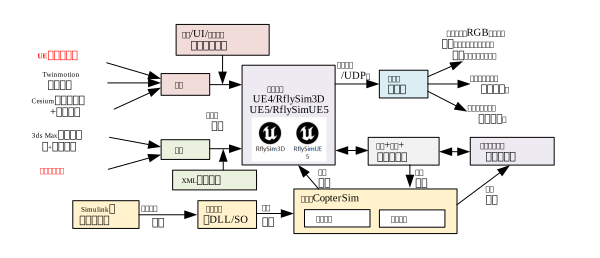
Within the RflySim toolchain, these two software components serve as the "3D world" and "perception world":
CopterSimhandles dynamics, flight control interfaces, and motion state computationRflySim3D / RflySimUE5handle 3D scene rendering, vehicle model presentation, collision detection, and multi-modal sensor data generationQGroundControlhandles ground station monitoring, mission planning, and parameter configuration- VisCreate handles visual sensor configuration and automatically generates
Config.json Python / ROS / Simulinkhandle external control, perception algorithms, and system integrationDistSimhandles multi-vehicle node discovery and distributed deployment
Therefore, the most critical point in understanding these two engines is:
Role Boundary
RflySim3D / RflySimUE5 are not motion simulators; rather, they function as 3D engines and perception data sources that collaborate with CopterSim.
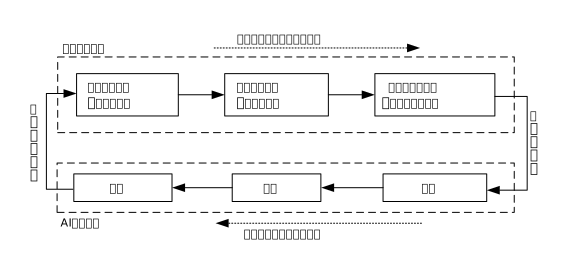
Role in the Toolchain
A typical workflow is as follows:

If only flight control validation (e.g., attitude, position, waypoints) is required, RflySim3D primarily serves as a visualization display tool.
If tasks involve visual closed-loop control, SLAM, object recognition, obstacle avoidance, or reinforcement learning, RflySim3D becomes the core perception environment within the entire system.
Typical Usage Paths
1. Basic Display Chain
This is the most common entry-level workflow:
- Launch
CopterSim - Launch
RflySim3DorRflySimUE5 - The engine receives vehicle pose data and displays it in real time
- Users switch views and scenes via keyboard, mouse, or console
2. Visual Sensor Chain
This is a common workflow used in conjunction with VisCreate:
- Configure sensor scheme in VisCreate
- Generate
Config.json - Launch
RflySim3D - Python receives images, depth maps, and point clouds via
VisionCaptureApior ROS - Upper-layer algorithms complete perception and control closed-loop
3. Multi-UAV and Distributed Chain
When the number of vehicles is large, or a single machine's computational power cannot simultaneously handle dynamics, rendering, and perception algorithms:
- Multiple
CopterSiminstances are deployed across different hosts - One or more
RflySim3Dinstances handle unified rendering DistSimmanages node coordination and script distribution- Upper-layer control programs interact with multiple vehicles simultaneously via UDP / MAVLink / ROS
Version System and Selection Guidance
Differences Between UE4 and UE5
| Dimension | RflySim3D | RflySimUE5 |
|---|---|---|
| Engine Base | UE4.27 | UE5.2 |
| Current Positioning | Main toolchain version | High-fidelity extension version |
| Runtime Requirements | Lower | Higher |
| Visual Quality | Stable and mature | Enhanced lighting and large-scene capabilities |
| Point Cloud Processing | Conventional approach | Supports stronger GPU acceleration |
| Applicable Scenarios | Conventional flight control, vision, teaching, batch simulation | High-fidelity vision, pixel streaming, complex scenes |
Selection Recommendations
- For stability, compatibility, and routine experiments, prioritize
RflySim3D - For high-fidelity vision, ultra-large scenes, and enhanced rendering capabilities, consider
RflySimUE5 - For multi-UAV batch experiments, prioritize overall chain load rather than solely pursuing visual fidelity
Licensing Differences
Different license tiers affect capabilities such as sensor count, LAN reception, Cesium, and Redis. In practical projects, version differences in RflySim3D often directly determine whether multi-UAV visual closed-loop and cross-machine distributed display are feasible.
Launch and Basic Configuration
Installation Locations
| Software | Default Path |
|---|---|
RflySim3D |
%PSP_PATH%\\RflySim3D |
RflySimUE5 |
%PSP_PATH%\\RflySimUE5 |
Key Configuration Files
| File | Purpose |
|---|---|
RflySim3D.txt |
Console commands executed automatically at launch |
LowGPU.txt |
Low-performance mode configuration |
RedisConfig.ini |
Custom Redis communication configuration |
Config.json |
Visual sensor configuration |
Common Launch Methods
- Direct execution of the executable file
- Launching the entire simulation suite via BAT scripts
- Automatic orchestration and launch by
SimCreate - Remote script distribution and launch by
DistSimin multi-machine environments
Common Launch Parameter Strategies
RflySim3D.txt is better suited for global configurations such as map switching, resolution, and frame rate, whereas LowGPU.txt is more appropriate for load-reduction and quality-reduction settings. In large-scale multi-UAV simulations, performance optimization should prioritize reducing resolution, shadows, vegetation, and post-processing effects.
Common Interaction Methods
There are four primary interaction methods in RflySim3D:
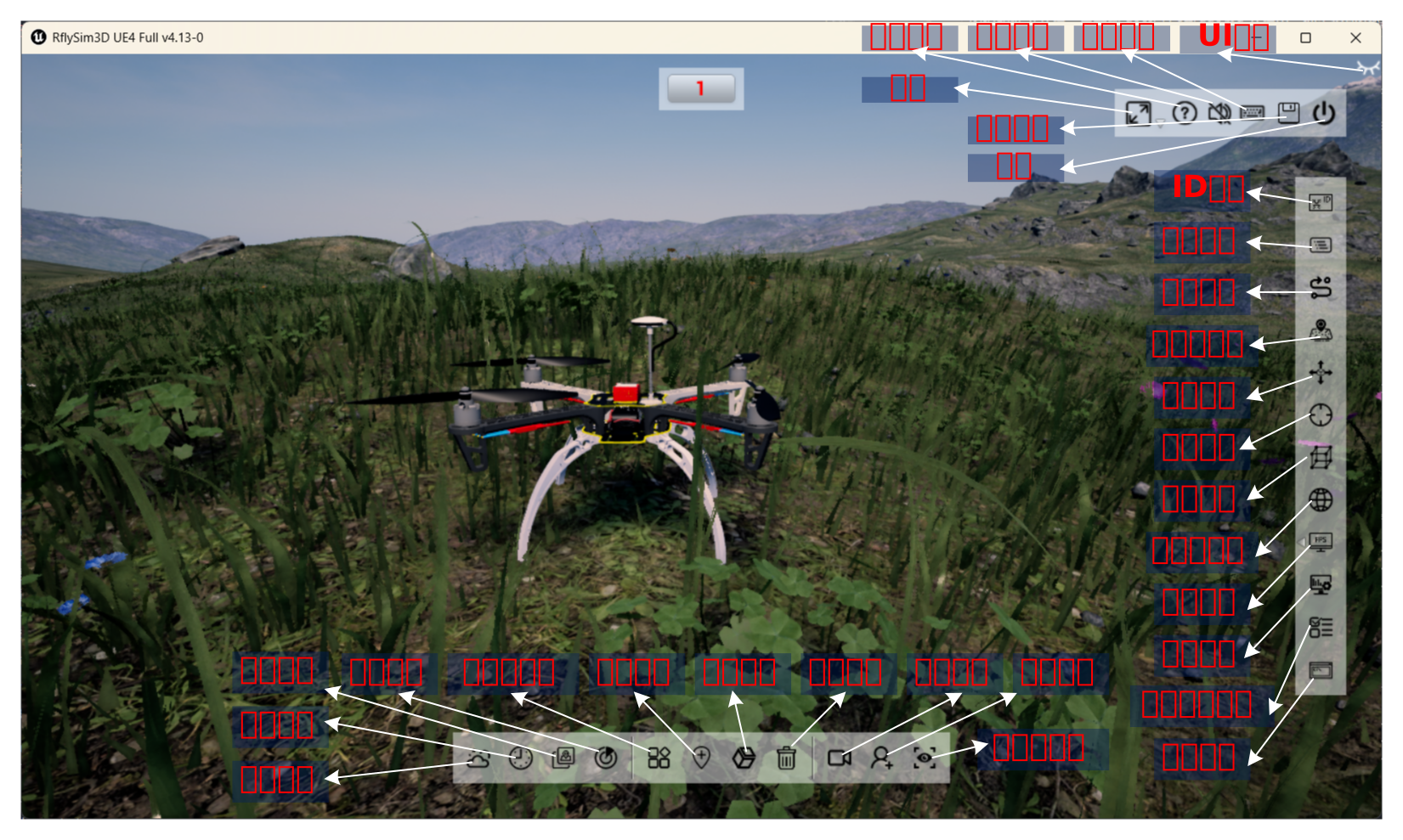
1. Keyboard and Mouse
Common functions include:
- View switching
- Vehicle switching
- Aircraft ID display
- Trajectory display
- Collision detection toggle
- Minimap and sensor range display
2. Console Commands
After opening the console with the backtick key (`), you can:
- Switch maps
- Adjust camera pose and field of view
- Switch and scale models
- Display message tags
- Perform terrain scanning
- Set segmentation values
3. Launch Scripts
Predefined commands in RflySim3D.txt are ideal for fixed experimental workflows, classroom demonstrations, and batch experiment replication.
4. External Program Interface
Upper-layer programs can issue commands to the engine via UDP, Python UE4CtrlAPI, or Simulink interfaces, enabling automated control, batch scene processing, and real-time interaction.
Sensors and Vision Chain
This is one of the most critical components of RflySim3D.
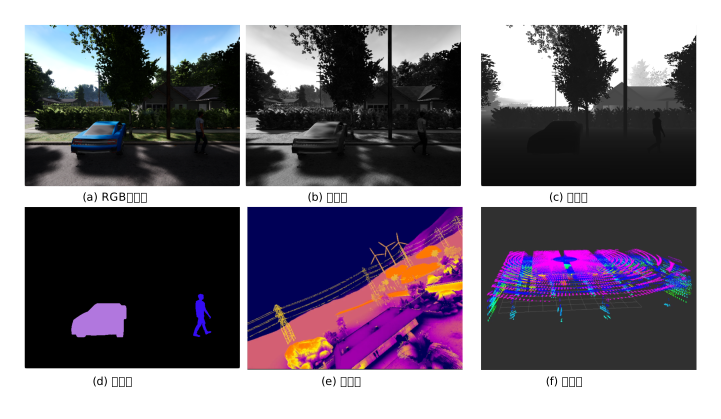
What It Provides
RflySim3D does more than just provide realistic visuals—it generates perception data directly consumable by algorithms, such as:
- RGB images
- Depth maps
- Grayscale images
- Segmentation maps
- Infrared images
- LiDAR point clouds
- Simplified detection sensor outputs
Its Role in the Chain
In visual algorithm experiments, RflySim3D acts as the platform hosting "virtual cameras" and "virtual radars." Algorithms do not interact directly with the 3D interface; instead, they retrieve sensor data via Config.json + VisionCaptureApi.
Three Key Sensor Configuration Elements
TypeIDDetermines the sensor type (e.g., RGB, depth, LiDAR, gimbal, infrared).TargetMountTypeDetermines whether the sensor moves with the vehicle, remains fixed in world coordinates, or attaches to another sensor.SendProtocolDetermines how data is output (e.g., shared memory, UDP raw data, or video stream).
Usage Recommendations
- For local algorithm development, prefer shared memory for lower latency
- For cross-machine deployment or distributed chains, consider UDP
- For multi-sensor configurations, use VisCreate for visual configuration before exporting to the runtime environment
Scenes, Maps, and Models
Scenes and Maps
RflySim3D supports both general teaching/testing scenarios and more complex GIS and urban modeling scenarios. For RflySim, the significance of a scene goes beyond merely "changing the background"—it directly determines:
- What the perception algorithm "sees"
- The results of terrain scanning and map queries
- Whether obstacle avoidance and path planning are representative
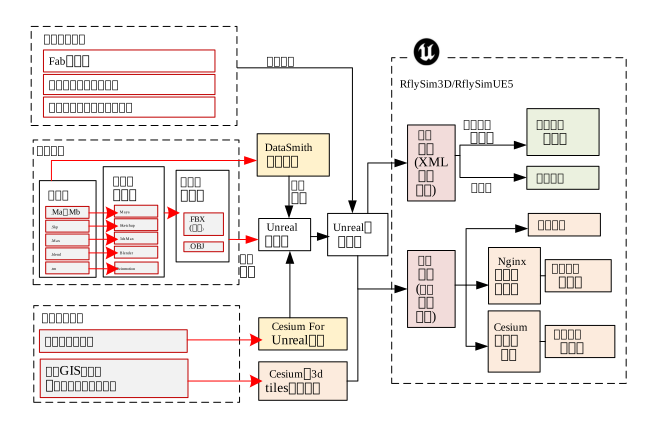
Cesium and Offline Maps
For large-scale or real-geographic-area validation, the Cesium-related pipeline can be used. If online maps are restricted, the offline 3D Tiles solution can be adopted instead. This capability is crucial for "aerial surveying, inspection, low-altitude logistics, and complex urban scenario validation."
3D Models
Vehicle and scene models typically enter the engine via the following methods:
- Using built-in resources and Starter Content
- Importing external models
- Defining vehicle bodies, actuators, and onboard cameras via XML
- Building more complex dynamic vehicles and visual effects via Blueprints
Understanding the Significance of XML
For RflySim, XML is not merely a model description file—it serves as the bridge between "flight controller outputs" and "3D visual representation." The vehicleType output by CopterSim must be mapped to specific 3D models, actuators, and onboard camera configurations, and this mapping is accomplished through XML.
Multi-Vehicle and Advanced Features
Multi-Vehicle Display
RflySim3D supports displaying multiple vehicles within a single scene, enabling both formation flight observation and serving as a unified display terminal for distributed rendering nodes. For large-scale simulations, its value lies in providing a "unified view" and "unified environmental perception."
Collision Detection and Playback
Advanced experimental capabilities commonly include:
- Collision detection
- Flight trajectory recording and playback
- Label and message display
- Terrain scanning
- Multi-vehicle attachment relationships
These features are essential for fault reproduction, swarm observation, and course demonstrations.
UE5 Enhanced Capabilities
RflySimUE5 further enhances:
- Large-scene and high-fidelity rendering
- Point cloud GPU processing
- Pixel streaming
- Stronger visual presentation and remote browsing capabilities
However, in batch simulation and teaching environments, GPU cost considerations must also be taken into account simultaneously.
Usage Recommendations and Common Issues
Recommended Reading Order
- First, understand its role within the toolchain
- Then master basic display, view switching, and command control
- Next, proceed to sensor configuration and
VisionCaptureApi - Finally, explore GIS, Cesium, Blueprints, and multi-vehicle advanced features
Common Issues
| Issue | Likely Cause | Troubleshooting Approach |
|---|---|---|
| Aircraft not visible | CopterSim not transmitting data properly |
First verify whether the dynamics simulation side is running normally |
| Display present but no sensor data | Incorrect Config.json configuration |
First regenerate the solution in VisCreate |
| Incomplete multi-vehicle display | Vehicle ID, broadcasting, or network link issues | First verify single-vehicle operation, then scale to LAN |
| Very low frame rate | Excessive GPU load | Reduce resolution, disable post-processing, or decrease sensor count |
| Image visible but algorithm cannot receive it | Data channel mismatch | Verify shared memory / UDP configuration and receiver-side implementation |
Related Examples
Software Entry Point and Basic Usage
- Software overview entry point: [RflySim installation path]\RflySimAPIs\2.RflySimUsage\0.ApiExps\e1_RflySimSoftwareReadme\RflySim3D
- UE5 version software overview: [RflySim installation path]\RflySimAPIs\2.RflySimUsage\0.ApiExps\e1_RflySimSoftwareReadme\RflySimUE5
- Shortcut keys and basic operations: [RflySim installation path]\RflySimAPIs\2.RflySimUsage\1.BasicExps\e3_RflySim3D-Shortcut-Instruct
Console, Interfaces, and Coordinated Control
- Keyboard interface: [RflySim installation path]\RflySimAPIs\3.RflySim3DUE\0.ApiExps\e1_KeyboardAPI
- Command interface: [RflySim installation path]\RflySimAPIs\3.RflySim3DUE\0.ApiExps\e2_CommandAPI
- 3D control interface: [RflySim installation path]\RflySimAPIs\3.RflySim3DUE\0.ApiExps\e6_RflySim3DCtrlAPI
Scenes, Models, and GIS
- Scene and Map Control: [RflySim Installation Path]\RflySimAPIs\3.RflySim3DUE\0.ApiExps\e5_UEMapCtrl
- GIS and Map Applications: [RflySim Installation Path]\RflySimAPIs\3.RflySim3DUE\0.ApiExps\e7_RflySim3DGIS
- Offline Cesium Scenes: [RflySim Installation Path]\RflySimAPIs\3.RflySim3DUE\3.CustExps\e3_CusGIS\e5_CesiumOffline
- Custom Scene Construction: [RflySim Installation Path]\RflySimAPIs\3.RflySim3DUE\0.ApiExps\e10_BuildCusScene
- Blueprint Model Development: [RflySim Installation Path]\RflySimAPIs\3.RflySim3DUE\2.AdvExps\e2_BlueprintModel
Sensors and Advanced Features
- LiDAR and Point Cloud: [RflySim Installation Path]\RflySimAPIs\3.RflySim3DUE\2.AdvExps\e4_LidarPointClound
- Collision Detection: [RflySim Installation Path]\RflySimAPIs\3.RflySim3DUE\0.ApiExps\e9_RflySim3DCollision
- Sensor Configuration Tool: [RflySim Installation Path]\RflySimAPIs\2.RflySimUsage\0.ApiExps\e1_RflySimSoftwareReadme\viscreate