RflyVision Block Documentation
Toolbox: RflySim Vision
Overview
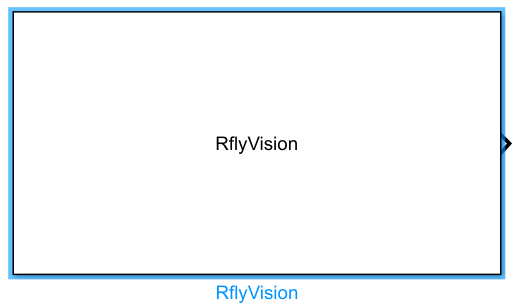
Summary: This block sends a vision-sensor request to RflySim3D/UE and outputs RGB image data with the configured resolution in Simulink.
RflyVision is an S-Function block for Simulink vision simulation. At simulation start, it constructs a vision-sensor request from the Mask parameters, including sensor sequence ID, type ID, target vehicle, mount type, image resolution, field of view, mounting position, mounting attitude, target IP address, and window ID, and sends the request to RflySim3D/UE. During simulation, the block continuously updates and outputs the image data array.
This block is suitable for virtual camera perception, visual localization, object recognition, object tracking, visual servoing control, and multi-vehicle vision task validation.
Ports
Inputs
This block has no input ports.
Outputs
| Port | Data type | Dimension | Description |
|---|---|---|---|
data_total |
uint8 |
DataHeight x DataWidth x 3 |
RGB image array, with three channels corresponding to red, green, and blue color channels |
Parameters
The following parameters can be configured in the Mask dialog opened by double-clicking the block:
| Parameter | Default value | Description |
|---|---|---|
SeqID |
0 |
Vision sensor request sequence ID |
TypeID |
1 |
Vision sensor type ID |
TargetCopter |
1 |
Target vehicle ID |
TargetMountType |
0 |
Target mount type |
DataWidth |
640 |
Image width in pixels |
DataHeight |
480 |
Image height in pixels |
DataCheckFreq |
60 |
Image data check frequency |
SendProtocol |
[0,127,0,0,1,9999,0,0] |
Send protocol configuration array, including protocol type, address, and port fields |
CameraFOV |
90 |
Camera field of view |
SensorPosXYZ |
[0.3,-0.15,0] |
Sensor mounting position relative to the target vehicle |
EularOrQuat |
1 |
Attitude input mode selection, use the value definition in the block Mask |
SensorAngEular |
[0,0,0] |
Sensor mounting Euler angles |
SensorAngQuat |
[1,0,0,0] |
Sensor mounting quaternion |
otherParams |
[0,0,0,0,0,0,0,0,0,0,0,0,0,0,0,0] |
Additional vision sensor extension parameters |
UEipAdress |
127.0.0.1 |
IP address of the RflySim3D/UE host |
windID |
0 |
RflySim3D/UE window or scene instance ID |
The spellings
EularandAdressare kept consistent with the Simulink Mask. Use the original parameter names as shown in the block dialog.
Block Characteristics
| Item | Value |
|---|---|
| Block type | Level-2 C/C++ S-Function |
| S-Function name | RflyVision |
| Number of input ports | 0 |
| Number of output ports | 1 |
| Output data type | uint8 |
| Sample time | Inherited |
| Code generation support | No |
Usage
- Start RflySim3D/UE and ensure the target window or scene instance is running.
- In the RflyVision Mask, set the target vehicle ID, mount type, resolution, target IP address, and window ID.
- Set
SensorPosXYZand either Euler-angle or quaternion attitude parameters according to the camera mounting relationship. - Connect the
data_totaloutput to image processing, vision algorithm, or display modules.
Notes and Common Issues
- Resolution and performance: Larger
DataWidthandDataHeightvalues increase the output array size and simulation and image processing overhead. - Network configuration:
UEipAdressshould point to the host running RflySim3D/UE; local simulation typically uses127.0.0.1. - Coordinate frame consistency: The sensor mounting position and attitude must be consistent with the target vehicle coordinate frame; otherwise, the image viewpoint will not match expectations.
- Startup order: It is recommended to start RflySim3D/UE before starting the Simulink simulation to ensure the vision-sensor request is processed correctly.
Changelog
v4.10(2026-05-07): Added the RflyVision block help documentation and connected it to the Simulink Help button index.